6.6.5.1 Removing a JNior Device
• To remove the JNior device, click on it in the Device Manager GUI.
• Click the Delete button (Figure 85).
6.6.6 Adding a Raw Device
A “Raw” device allows for communication with an external device across an Ethernet connection
using "Raw" data formatted as text or binary strings.
• To add a Raw device, click the Add button.
• The "Add Device" window will appear. Select the item called “Raw” and click the Add
button.
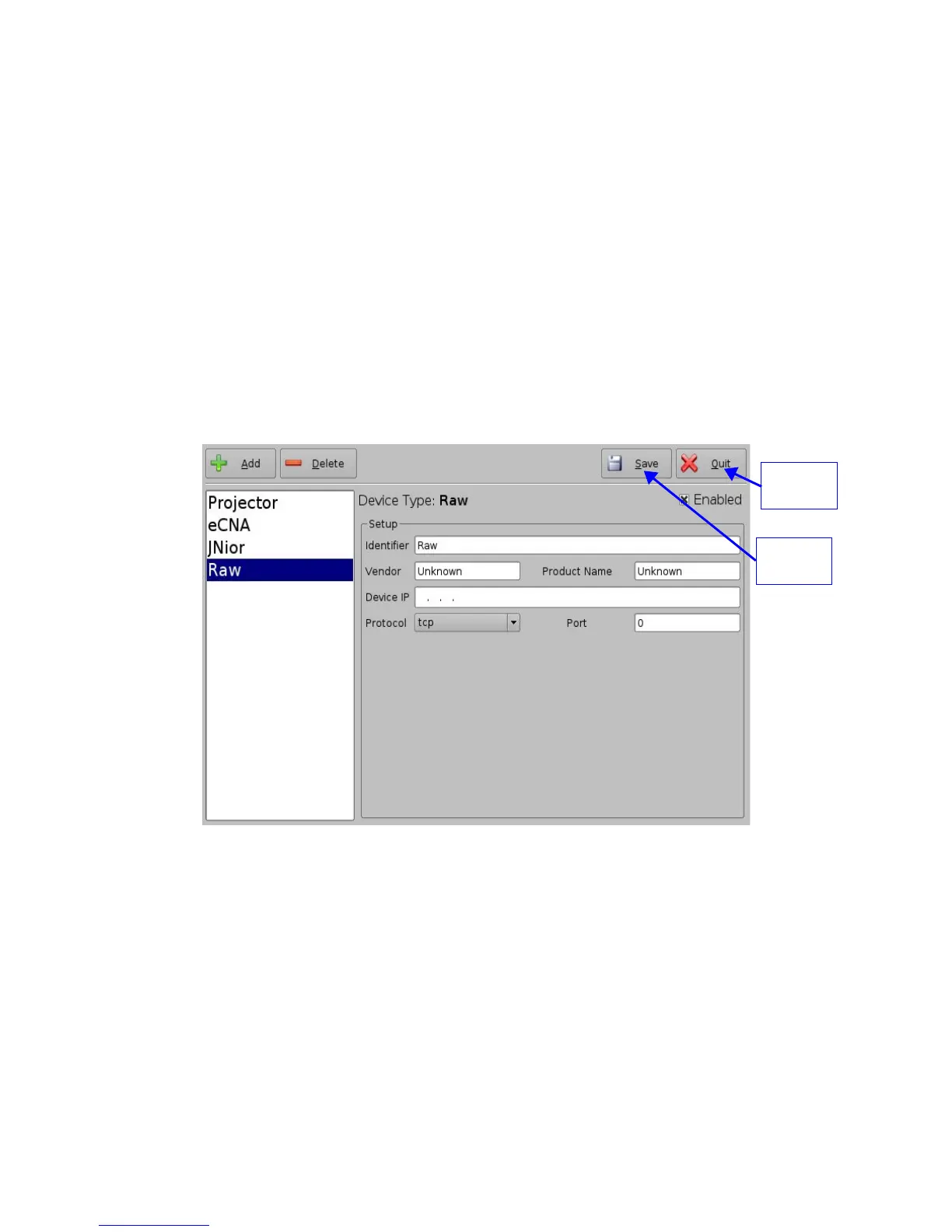
• The Device Manager GUI will be updated to reflect the addition of the Raw device (Figure
86).
• Input the name of the Raw device in the Identifier field.
Figure 86: Device Manager GUI – Raw Device Configuration
• Specify a vendor name in the Vendor field.
• Specify a product name in the Product Name field.
• Enter the IP address of the Raw device in the Device IP field (Figure 86).
• Choose the protocol to be used (TCP or UDP) and the proper Port number.
• Click the Save button to record the settings (Figure 86). A window will appear asking for a
password. Enter the password to proceed.
• If finished with the configuration, click the Quit button.
______________________________________________________________________________________
D2K.OM.001822.DRM Page 74 of 177 Version 1.5
Doremi Labs
Quit
Button
Save
Button



 To Next Page