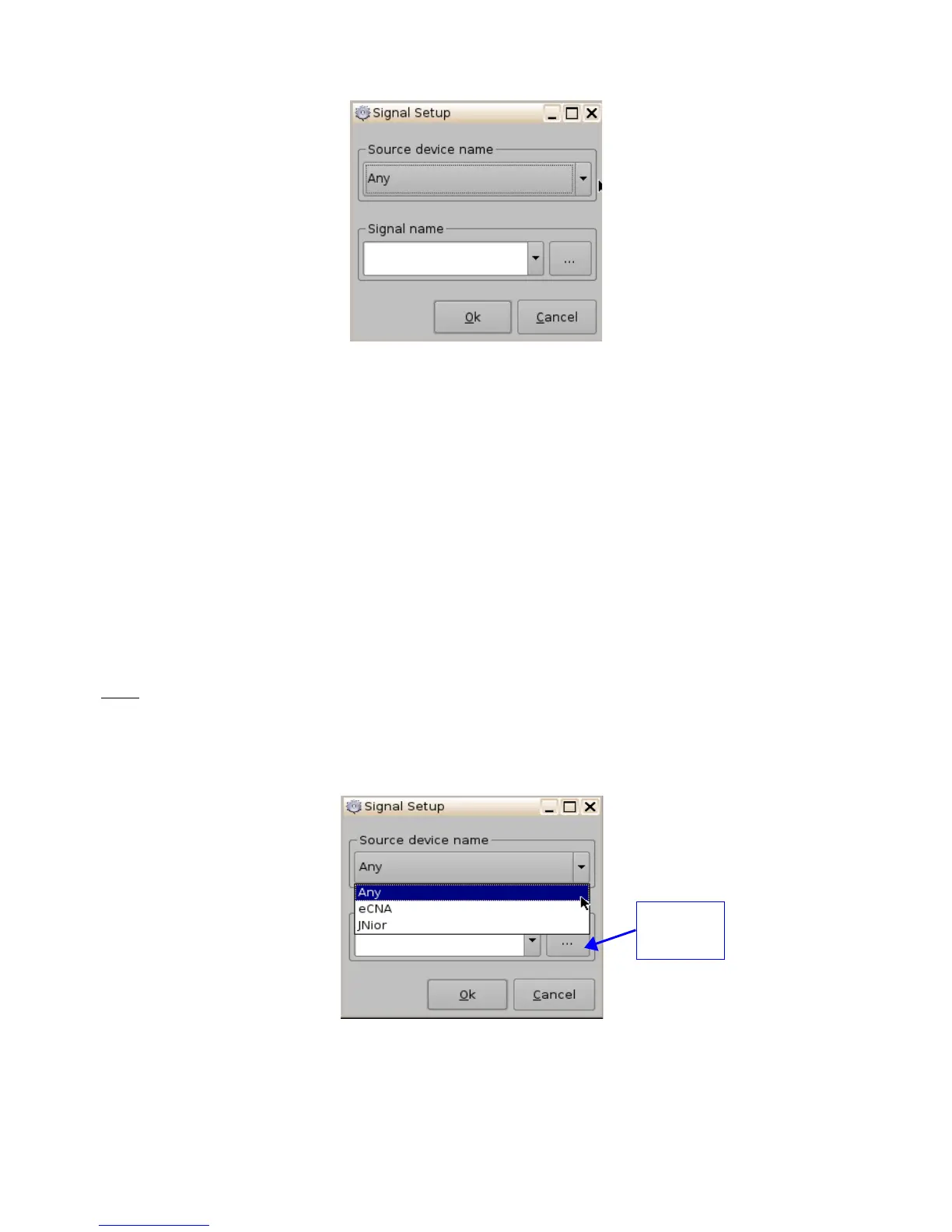
Figure 186: “Signal Setup” Window
• Click the Ok button when the appropriate signal name is defined.
14.2.2 Connection to a Signal Event
• Click the “Connect to an event” button from Macro Editor's Trigger Cue tab. The “Events”
window will appear ( Figure 184).
• Click the “Signal” button. The “Signal Setup” window will appear.
• Choose the device from the drop-down menu ( Figure 187).
• Choose the signal from the drop-down menu (Figure 188).
• Click Ok when finished and the connected "Signal" event will appear in the right part of
the Editor tab.
Note: The “...” button will prompt the “Signal Library” window to appear ( Figure 189). The “Signal
Library” has a list of additional signals that are not listed in the signal drop-down menu. For
example, the JNior device has a subsidiary device called the “JNior Expansion Module”; however,
the “JNior Expansion Module” does not appear in the source device drop-down menu. Use the
“Signal Library” button to access all possible signals.
Figure 187: “Device Name” Window
______________________________________________________________________________________
D2K.OM.001822.DRM Page 146 of 177 Version 1.5
Doremi Labs
“Signal



 To Next Page