20 Time Adjustment
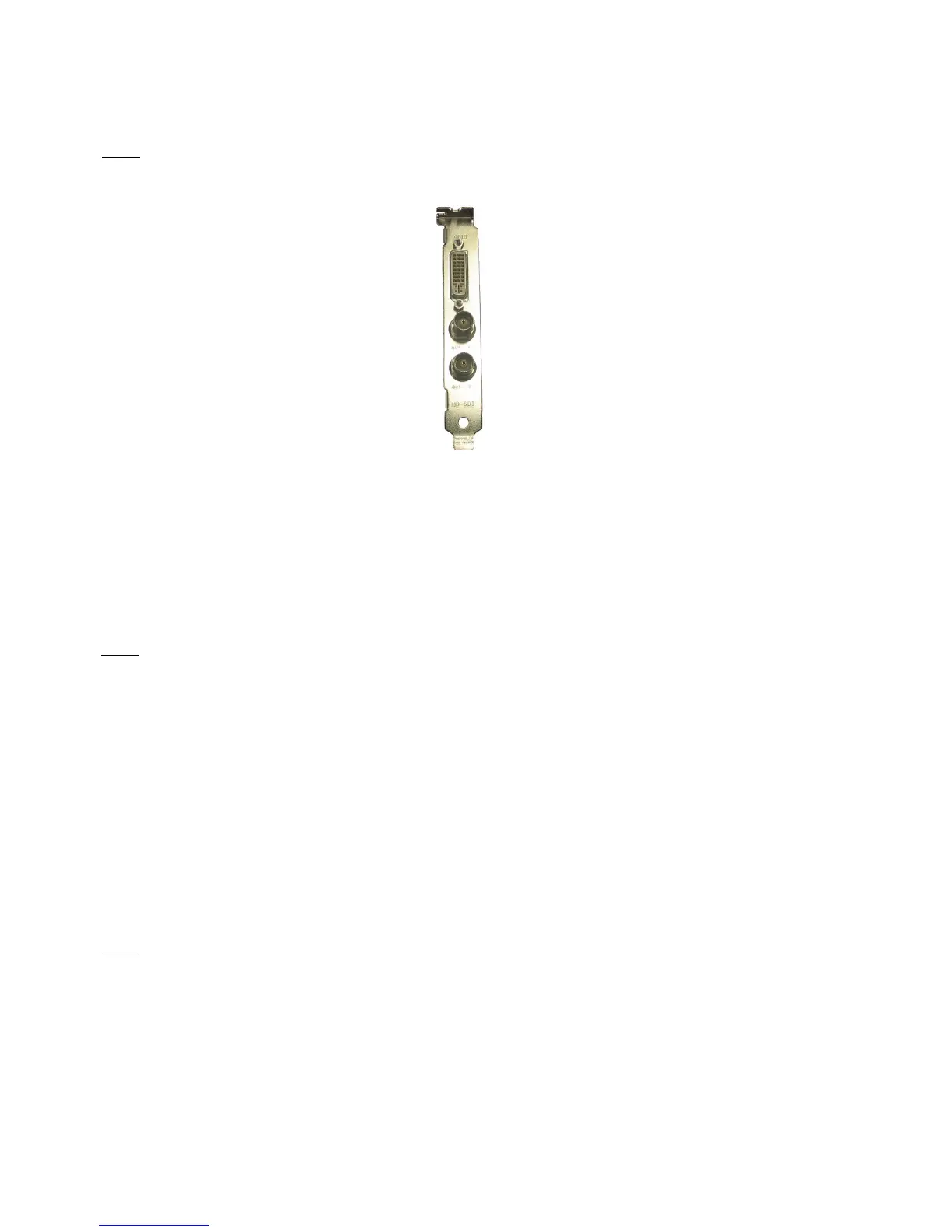
Note: The following hardware time adjustment feature is only available for Dolphin DCI-based
units. You can identify such units by checking that the SDI card's bracket looks like what is on the
rear panel.
Figure 220: Dolphin DCI Card Bracket
• When the DCP- 2000 is booted, the time reflected on the server is the time it reads from
the Dolphin DCI Card's bracket. In other words, the Dolphin Clock reflects the RTC (Real
Time Clock).
• In case of a discrepancy between the time displayed on the server (system time) and the
RTC, which should usually be only a discrepancy of a few minutes, the user can adjust the
time using the CineLister application.
Note: Older software versions required the user to ingest a package to adjust any time
discrepancies, this is no longer the case. New software versions allows the user to make time
adjustments from the server itself.
20.1 How to Adjust the System Time
• From Menu click on Control Panel.
• The Control Panel window will appear (Figure 221).
• Double-click on the Time Setting icon (Figure 221). A password authentication window will
appear; Input the correct username and password, then press Ok.
• The Time Setting window will appear (Figure 222).
• Use the up and down arrows to change the time.
Note: You cannot adjust the time to more than 30 minutes.
• Click Apply when finished.
• Reboot the server.
______________________________________________________________________________________
D2K.OM.001822.DRM Page 174 of 177 Version 1.5
Doremi Labs



 To Next Page