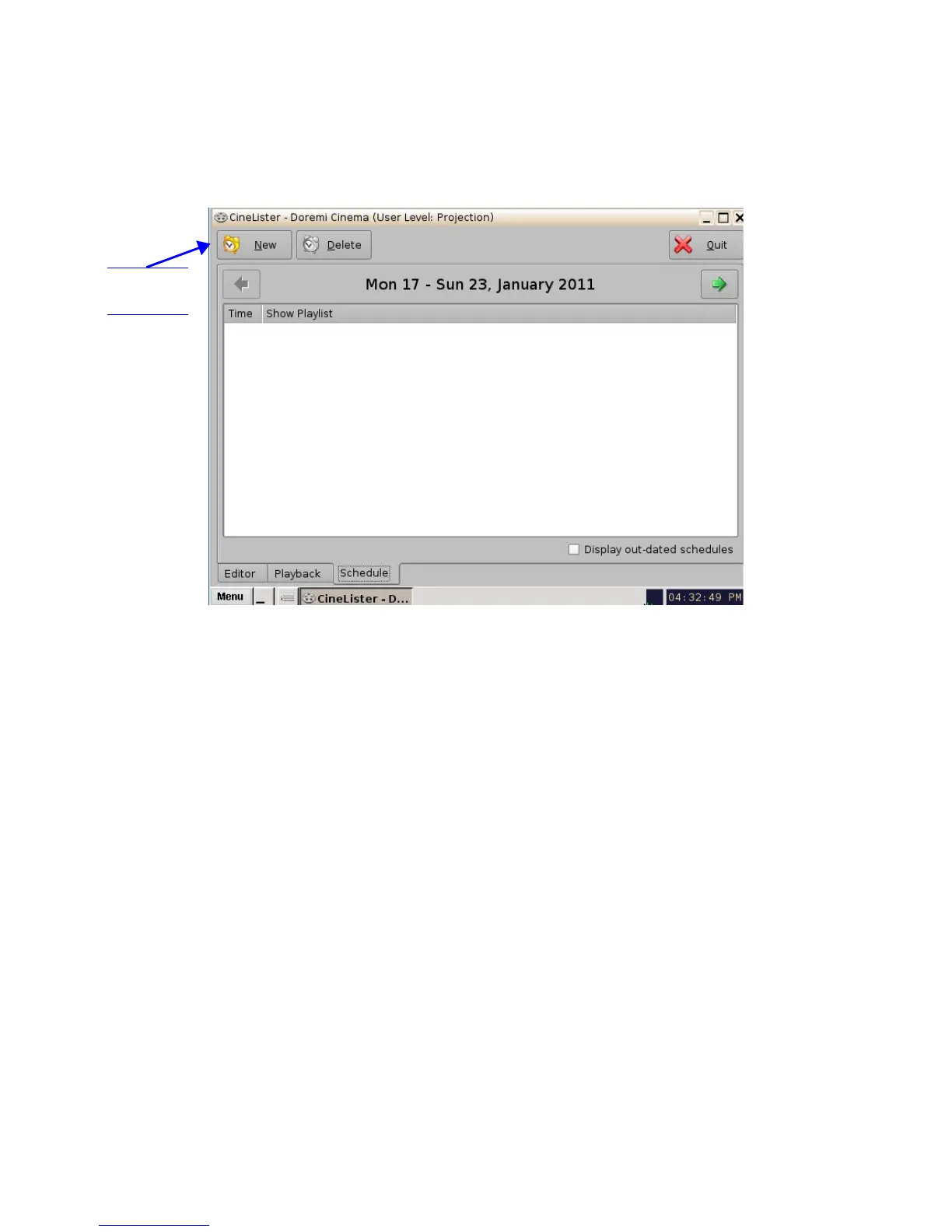
17 CineLister Schedule Tab
The Schedule tab allows the user to schedule the playback of Show Playlist's on a certain day and
time. The server will automatically begin the playback of the SPL's once they have been
scheduled.
Figure 207: CineLister - Schedule Tab
17.1.1 How to Schedule Playback
• Go to the Schedule tab from the CineLister GUI.
• The Schedule tab automatically displays the current week.
• Click the New button.
• Enter the appropriate password for the authentication window that appears.
• The Edit Schedule window will appear (Figure 208).
• Select the SPL to schedule for playback from the drop-down menu.
• Use the left and right arrows to adjust the week to schedule the playback.
• Select the day(s) to schedule the playback by checking the corresponding boxes (Figure
208).
• Select the start time for the scheduled playback by using the up and down arrows.
• Click Save when finished.
• The Schedule tab will be updated to reflect the recently added schedule (Figure 209).
______________________________________________________________________________________
D2K.OM.001822.DRM Page 162 of 177 Version 1.5
Doremi Labs
New
Button



 To Next Page