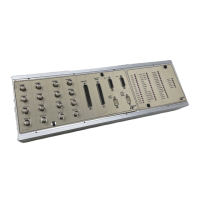
How to Connect the Expansion Box to the Network and
Test the Connection
The supplied crossed‑over patch cable cannot be used to
connect the expansion box to an existing network. Use a
normal (non crossed‑over) cable.
Cabling
To connect the expansion box to the network and test the
connection
1 Turn off the host PC and the expansion box.
2 Connect the expansion box and the host PC to the network.
3 Turn on the expansion box.
To avoid unpredictable errors, you should always turn
on the expansion box before the host PC.
4 Turn on the host PC.
The connection between the host PC and the expansion box can
now be tested.
5 Open a Command Prompt window (DOS window): For example,
from the Start menu, choose Run ..., enter cmd and click OK.
6 Enter the command:
ping<IP address of the expansion box>.
If the following message appears, the network connection is ready for
use (the values vary on different computers and networks). The IP
address 10.1.202.178 serves as an example.
Pinging 10.1.202.178 with 32 bytes of data:
Reply from 10.1.202.178: bytes=32 time<10ms TTL=32
Reply from 10.1.202.178: bytes=32 time<10ms TTL=32
Reply from 10.1.202.178: bytes=32 time<10ms TTL=32
Reply from 10.1.202.178: bytes=32 time<10ms TTL=32
The network setup is now complete.
If you want to use the board with dSPACE Releases, continue with
the First Work Steps with a dSPACE System document.
Result
Method
s
Setting Up an Ethernet Connection Between PC and Expansion Box
t
90
s
DS1103 Hardware Installation and Configuration November 2014



 To Next Page