FORE Systems ES-2810 Ethernet Switch User’s Manual
2 - 13
FORE Stack View
FORE Stack View
2.9 Installing and Managing Switches
2.9.1 Following Installation of FORE Stack View
After installing FORE Stack View, you can add new switches, establish or expand stacks of
switches, and manage existing switches and stacks.
2.9.2 Adding New Switches
To add new switches (that have not been assigned an IP address) to FORE Stack View, select
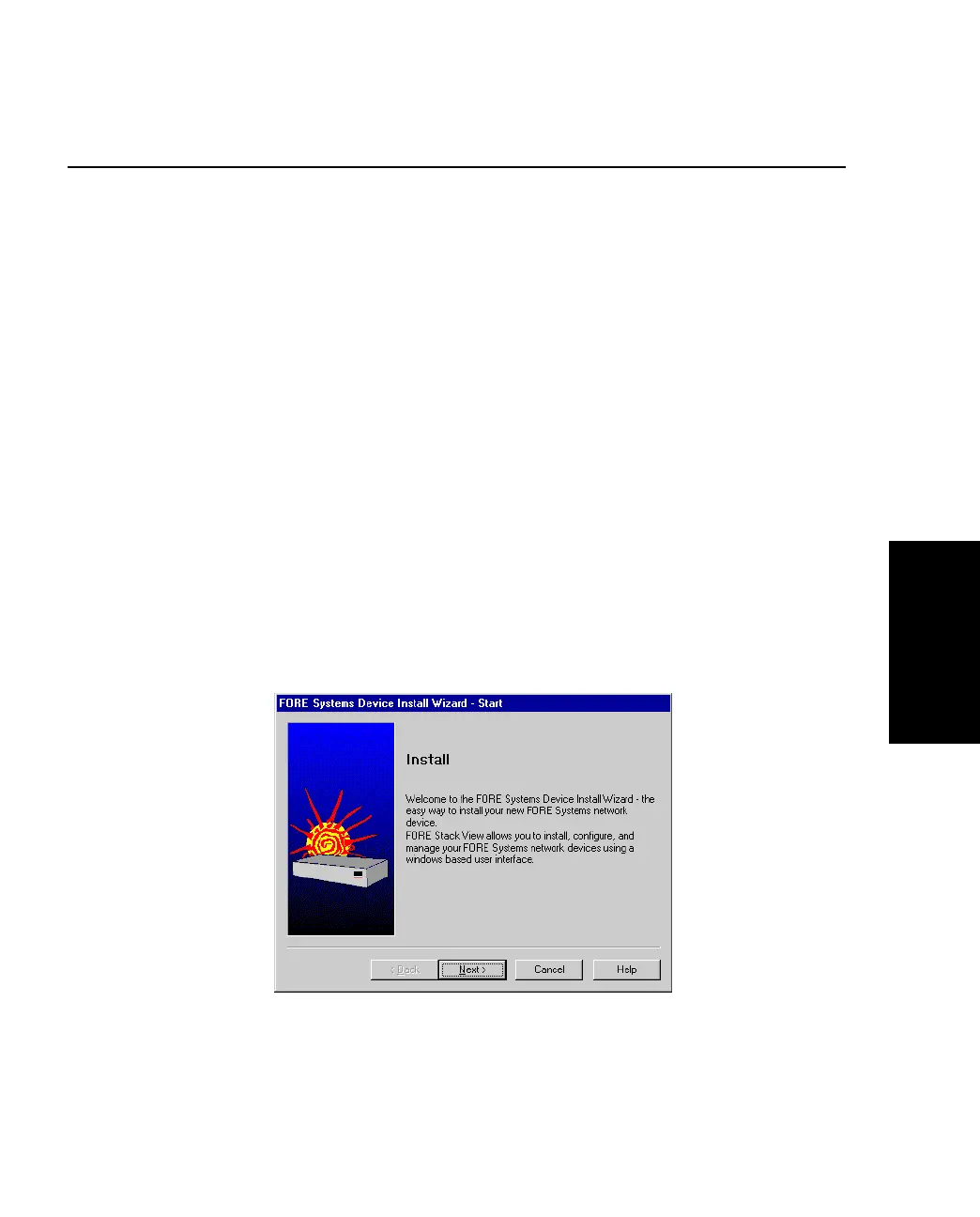
Device>Install. The Install Wizard will start and guide you through the installation.
2.9.3 The Install Wizard
The Install Wizard requires that you enter a minimum amount of information to set up the
switch for management by FORE Stack View. To select the correct new device, you need to
know the device’s MAC address. You can find this on a label on the rear panel of the device.
You must assign an IP address (and subnet mask) to the switch on your Local Area Network
(LAN). FORE Stack View uses this address for configuration and management purposes.
Figure 2.6 -
The Install Wizard



 To Next Page