3 - 14
FORE Systems ES-2810 Ethernet Switch User's Manual
Standard Configuration
3.10.2 Adding Port Mirroring
To add a mirrored port to a switch:
NOTE
If Port Mirroring is enabled, the source port will
be in store-and-forward mode. Therefore, Runts,
CRCs, etc. will not be forwarded or mirrored.
1. Select Device Setup or Stack Setup.
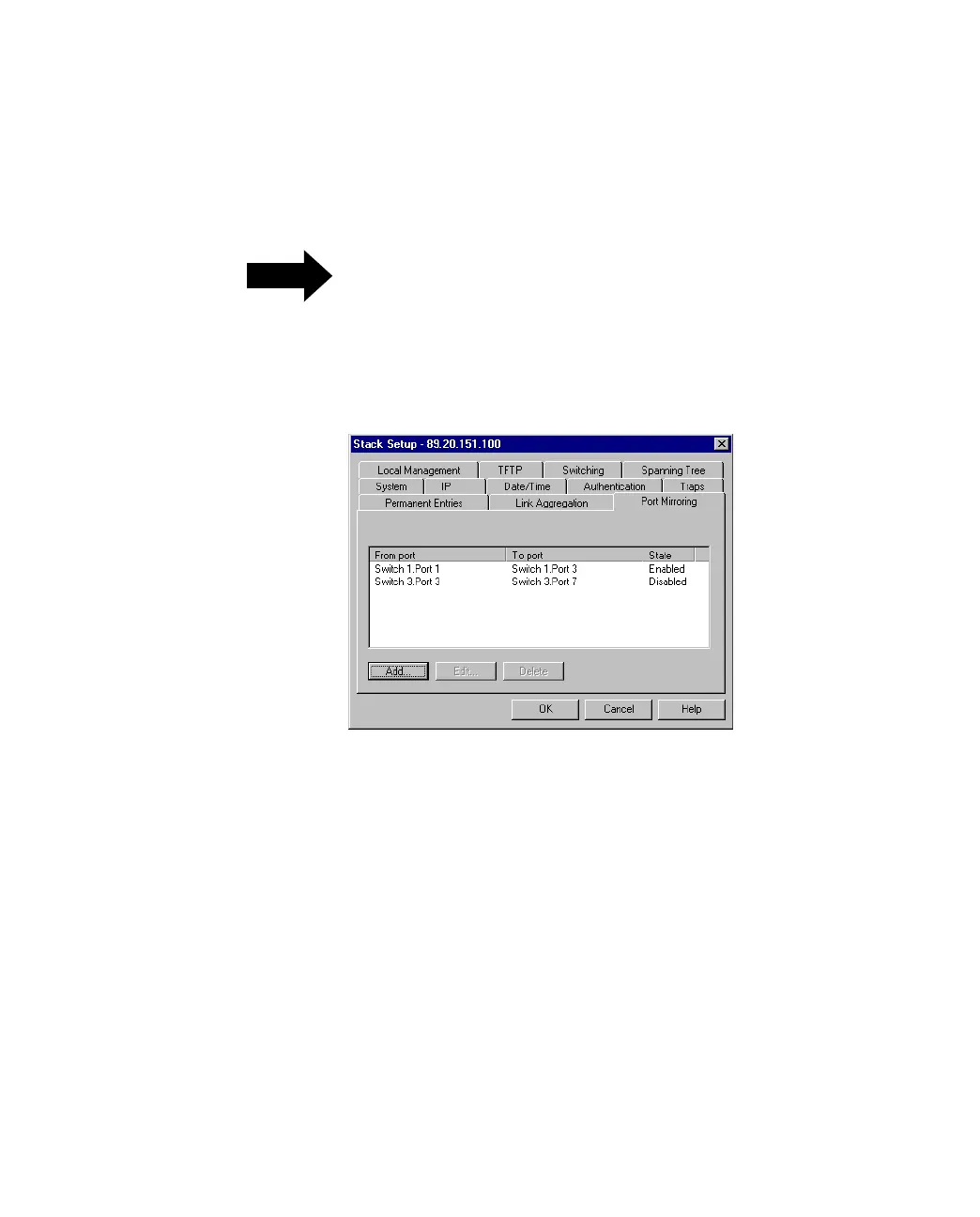
2. Click Port Mirroring.
Figure 3.8 -
Port Mirroring Tab of the Stack Setup Dialog Box
3. Click Add.
4. For a stack, click Switch and select one.
5. Click Reflect from and select the port that you want.
6. Click Reflect to and select the port to where the traffic can be
debugged/monitored.
7. Click OK.



 To Next Page