INS
GUI User’s Manual
Inertial Labs, Inc
TM
Address: 39959 Catoctin Ridge Street, Paeonian Springs, VA 20129 U.S.A.
Tel: +1 (703) 880-4222, Fax: +1 (703) 935-8377 Website: www.inertiallabs.com
173
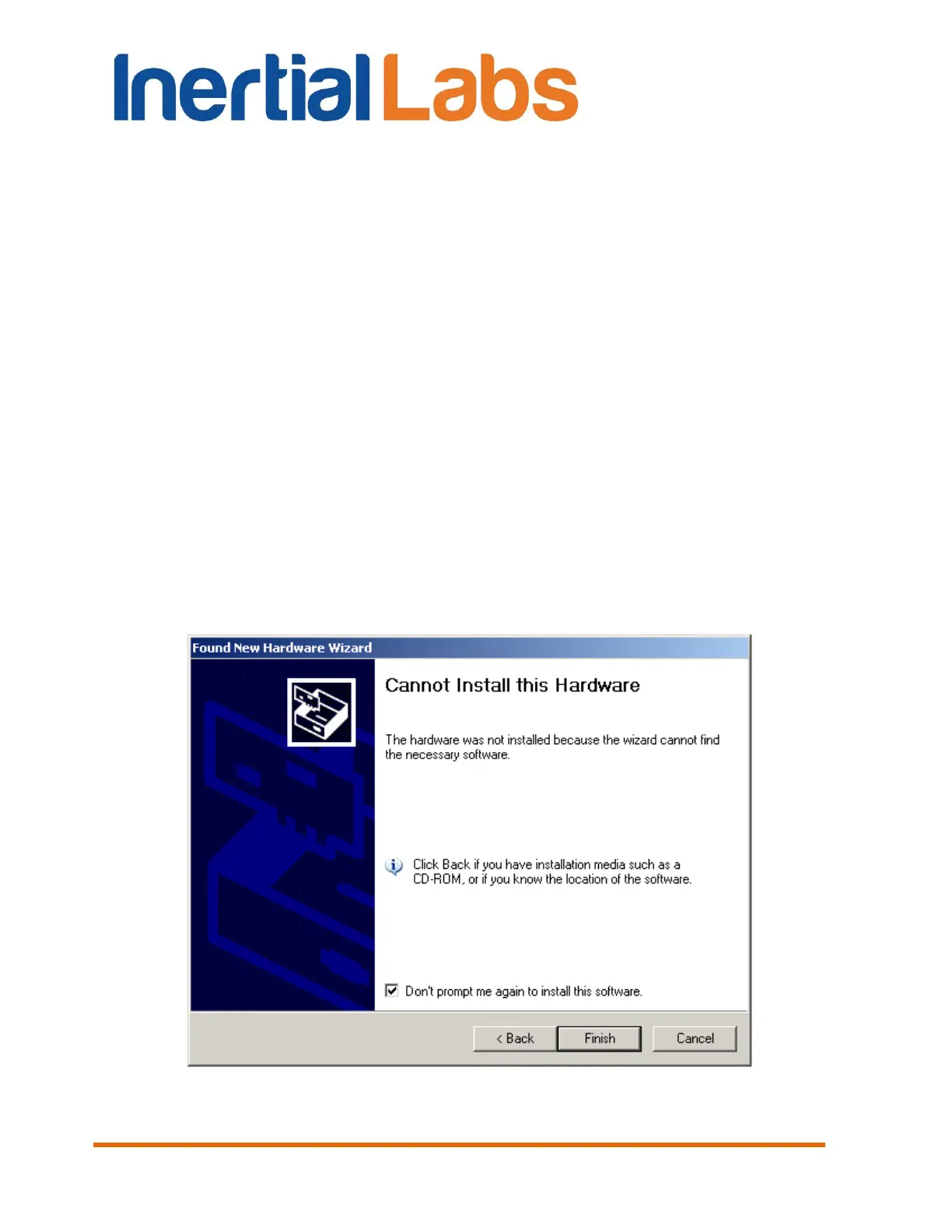
If the necessary drivers are not installed, an error message (Fig. A.7) will
appear. In this case, click “Back” and set the correct path to the driver files
in the window in Fig. A.3.
Once the converter driver is installed, you will need to know the number of
the additional COM-port set by the system and configure parameters of this
port for correct operation of the INS. To do this, press the “Device Manager”
button in the “System Properties” window, in the “Hardware” page. In the
opened “Device Manager” window (Fig. A.8) the additionally set СОМ-port
will be marked as “USB serial port (COMN)”. Number N in the port name
will be assigned by the computer.
Next, open the Properties window of this port “USB serial port (COMN)
Properties” (Fig. A.9) and press the “Advanced” button. In the opened
“Advanced Settings for COMN” window set the parameters:
Latency Timer (msec) to 4;
Minimum Read Timeout (msec) to 0;
Minimum Write Timeout (msec) to 0;
as it is shown in Fig. A.10, and click “ОК”.
Fig. A.7

 To Next Page
 Loading...