Chapter 5: Console Operation
Input Channels: Main Level, Mute and Cue
146/ 526 2.0 Eclipse User Guide
Mute
1. Press the MUTE button to mute the input channel.
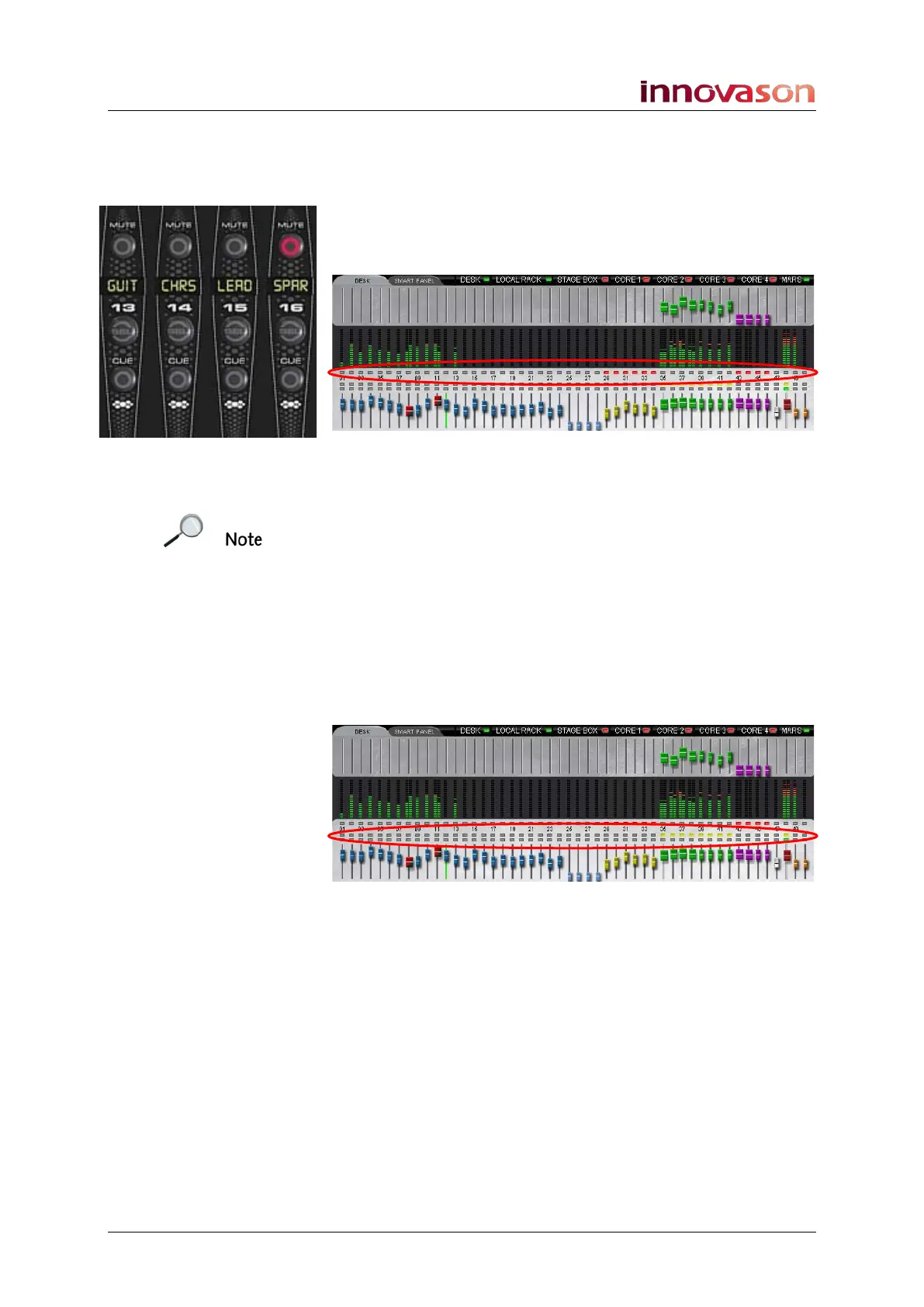
The MUTE button turns red when active.
The status of MUTE buttons is also shown by the upper row of
buttons (red) on the Main Mix display:
The MUTE function mutes all post-fader mix bus assignments;
any pre-fader Aux sends are not affected by the channel MUTE.
Note that if the MUTE button is flashing, this indicates that it is
being controlled by a VCA or Smart Fader master.
Cue
1. Press the CUE button to route the input channel onto
the console’s stereo Monitor bus.
The CUE button turns green when active.
The status of CUE buttons is also shown by the lower row of
buttons (green) on the Main Mix display:
For input channels, the CUE button may be set to operate as
PFL, AFL or SIP (Solo-in-Place). In addition, CUE can be
additive or intercancel, and you can clear all CUEs. These
options are set from the TB/MONITORING panel, see Page
206.



 To Next Page