Chapter 5: Console Operation
Monitoring
Eclipse User Guide 2.0 217/ 526
Monitoring Preferences
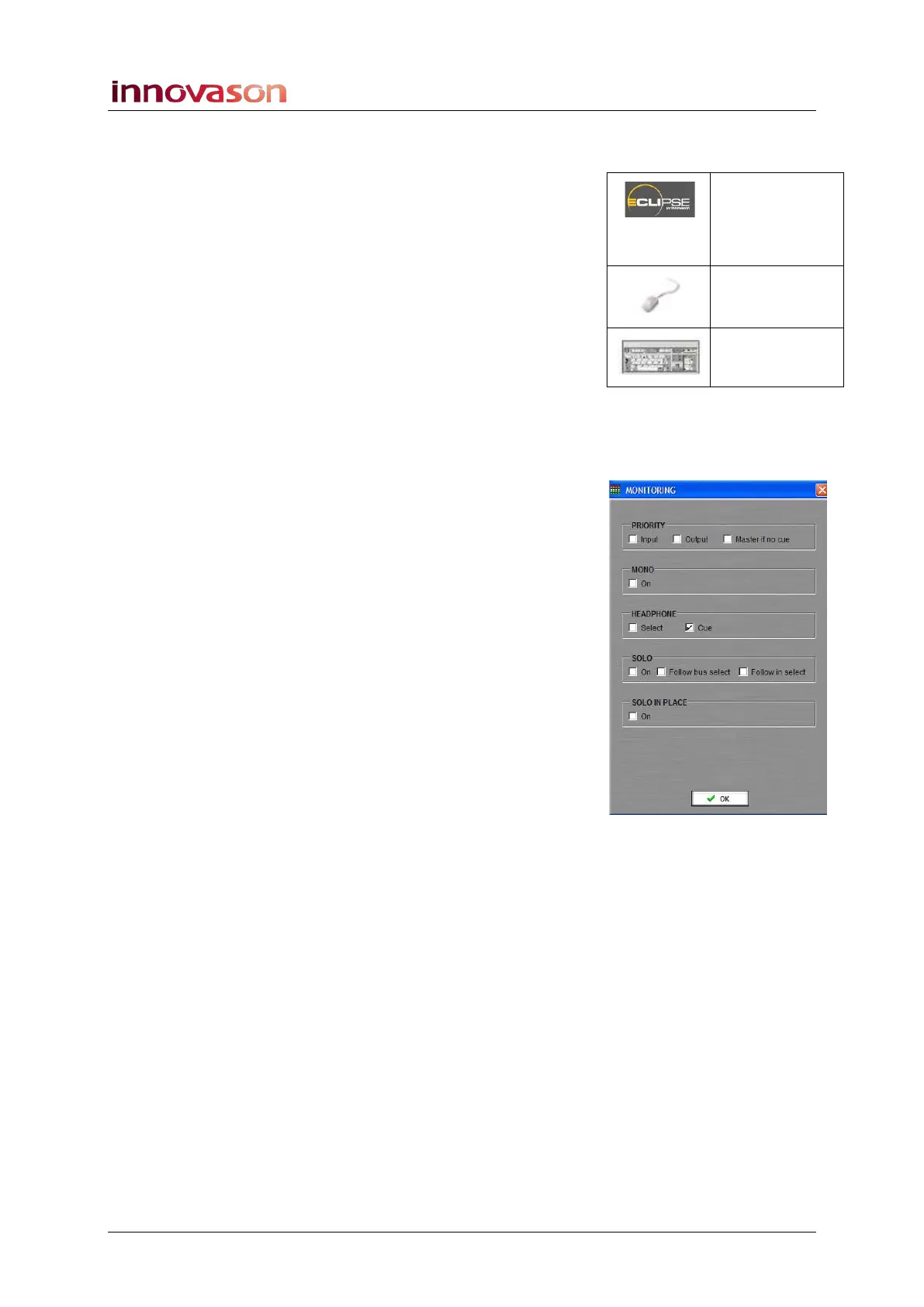
1. Using the trackball, select the “UTIL -> Monitoring”
menu path to open the MONITORING window.
A switch on the User Defined panel can also be assigned to
open this window, see Page 322.
The window configures the following preferences:
PRIORITY
• Input – cued inputs have priority over cued outputs.
• Output – cued outputs have priority over cued inputs.
• Master if no cue – if no CUEs are active, then the
Master mix bus has priority and feeds the stereo monitor
bus (Master Left and Master Right).
Note that if the Master if no cue option is on, you cannot
deselect the CUE buttons on the Master faders. (You can
deselect Master Left or Master Right to cue one side only.)
MONO
• On – when ticked, this option sets the Cue bus to mono.
HEADPHONE
Selects the monitor source for the Headphone output, see Page
210:
• Tick Cue to receive the Cue bus.
• Tick Select and the Headphone circuit monitors
whichever channel is currently selected (SEL active).
SOLO
• On – identical to turning on the Auto Cancel button on
the TB/MONITORING panel.
• Follow bus select – when ticked, the monitor bus
receives whichever bus is currently selected (SEL
active).
• Follow in select – when ticked, the monitor bus
receives whichever input channel is currently selected
(SEL active).
SOLO IN PLACE
• On – identical to turning on the SIP button on the
TB/MONITORING panel.
MON
(USER
DEFINED)
“UTIL ->
Monitoring”
n/a



 To Next Page