Chapter 6: Console Configuration
The Patch Input Display
244/ 526 2.0 Eclipse User Guide
Smart Fader Patching Tips
Return to the PATCH INPUT grid and notice that:
1. Pressing [s], or touching Sfad Zone switches between
the normal patching area and the Smart Fader zone.
This allows you to configure as many SVCAs and direct input
channels as you wish.
2. Crosspoints made to a SVCA are indicated with green
boxes .
This shows that the patch is a multiple patch, and not a direct
one-to-one assignment:
3. Each time you patch a source to a Smart Fader, an input
DSP resource is used.
This is indicated by boxes within the DSP resource row:
4. Smart Fader slaves are assigned to the control surface
in the order that you patch them.
For example, if you only have two sources, you can assign
them to any two faders within the Sfad zone.
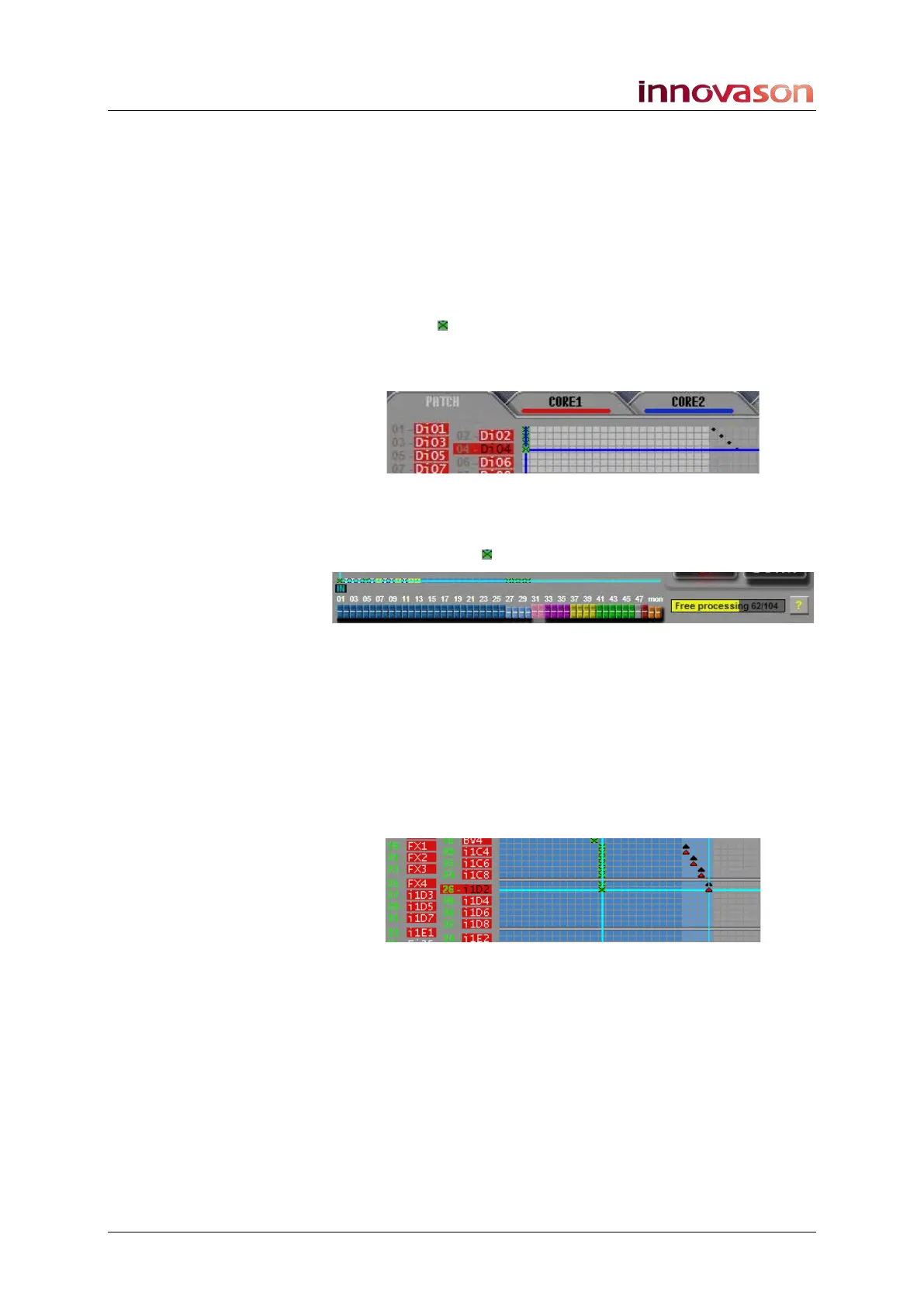
5. Smart Fader slaves can be either mono or stereo.
Create stereo Smart Fader slaves by patching two inputs to the
same Smart Fader – in our example, we have configured a
single SVCA master controlling four stereo slaves:



 To Next Page