Chapter 6: Console Configuration
The Patch Input Display
246/ 526 2.0 Eclipse User Guide
On-screen Button Summary
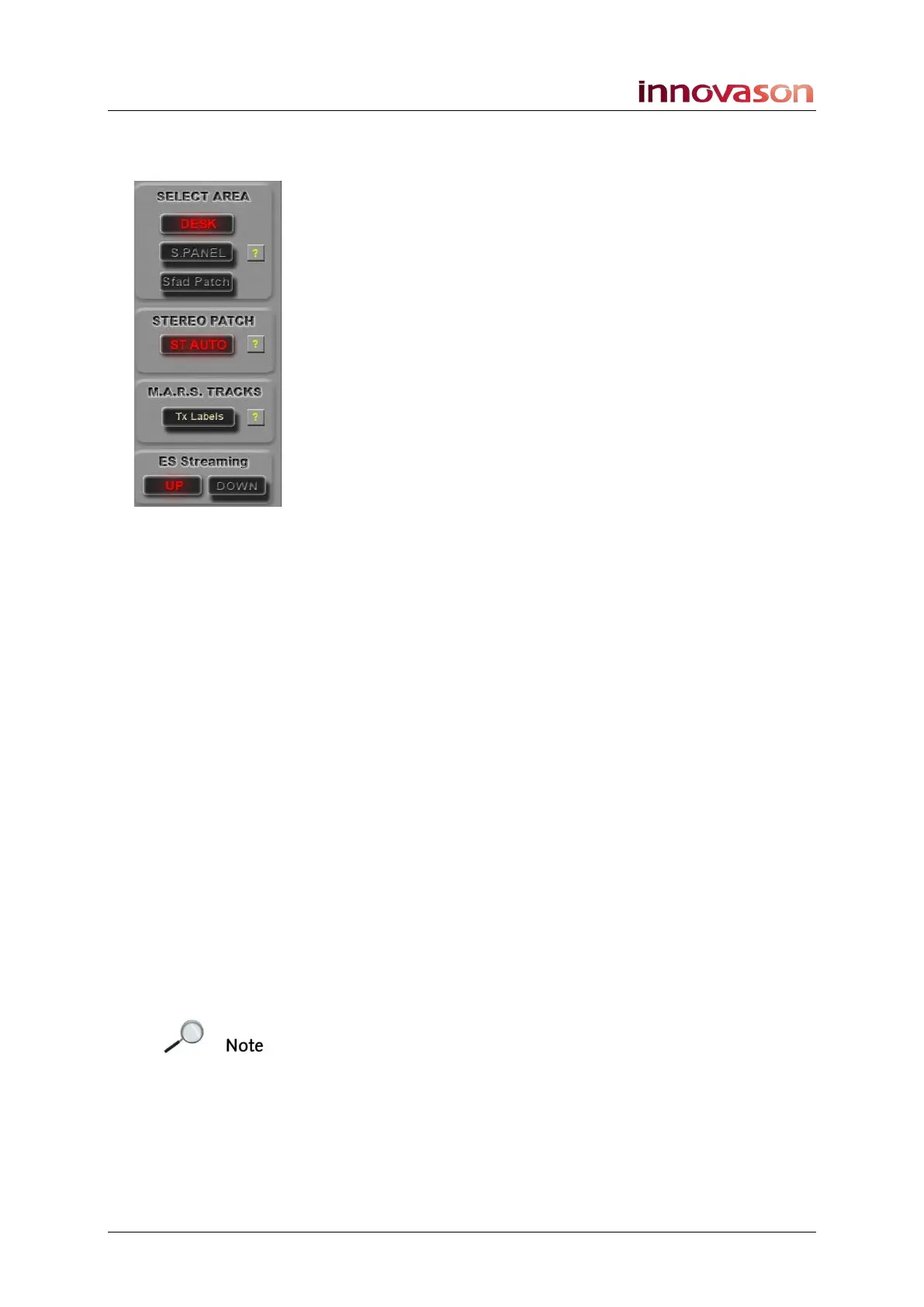
On the right of the PATCH INPUT display are a number of on-
screen buttons. These perform the following functions:
SELECT AREA
Selects the area of the console to patch:
• DESK = Faders 1 to 48.
• S. PANEL = Smart Panel controllers 1 to 48.
• Sfad Zone = Smart Fader slaves (if configured)
STEREO PATCH
Defines whether automatic stereo channel patching is enabled:
• ST AUTO = Stereo channels are created when you
patch a second source to the same Fader or Smart
Panel controller.
• MONO = Mono channels only. Making a second patch to
the same fader replaces the existing patch rather than
creating stereo channels.
M.A.R.S. TRACKS
If you have labelled the DioCore mic inputs, then you can
transfer these Labels to M.A.R.S. before you record. The
advantage is that each audio clip will be labelled according to
its source – e.g. kick, snare, HiHat, etc.
You can perform this operation from the PATCH INPUT or
PATCH OUTPUT grid, depending on whether the Ethersound
channel you are recording is upstream or downstream. See
Page 475 for details.
E.S. Streaming
This option is available when the DIO1 tab is selected, and it
defines the Ethersound streaming direction which will be
applied when you make a patch:
• UP = upstream
• DOWN = downstream
Note that the direction you choose depends on the
configuration of your Ethersound network. See Page 263 for
more details.



 To Next Page