Chapter 6: Console Configuration
Inserts
312/ 526 2.0 Eclipse User Guide
Assigning the Insert to an Input Channel
Having defined the insert it can be assigned to a channel. Note
that on input channels, insert points are always pre-fader.
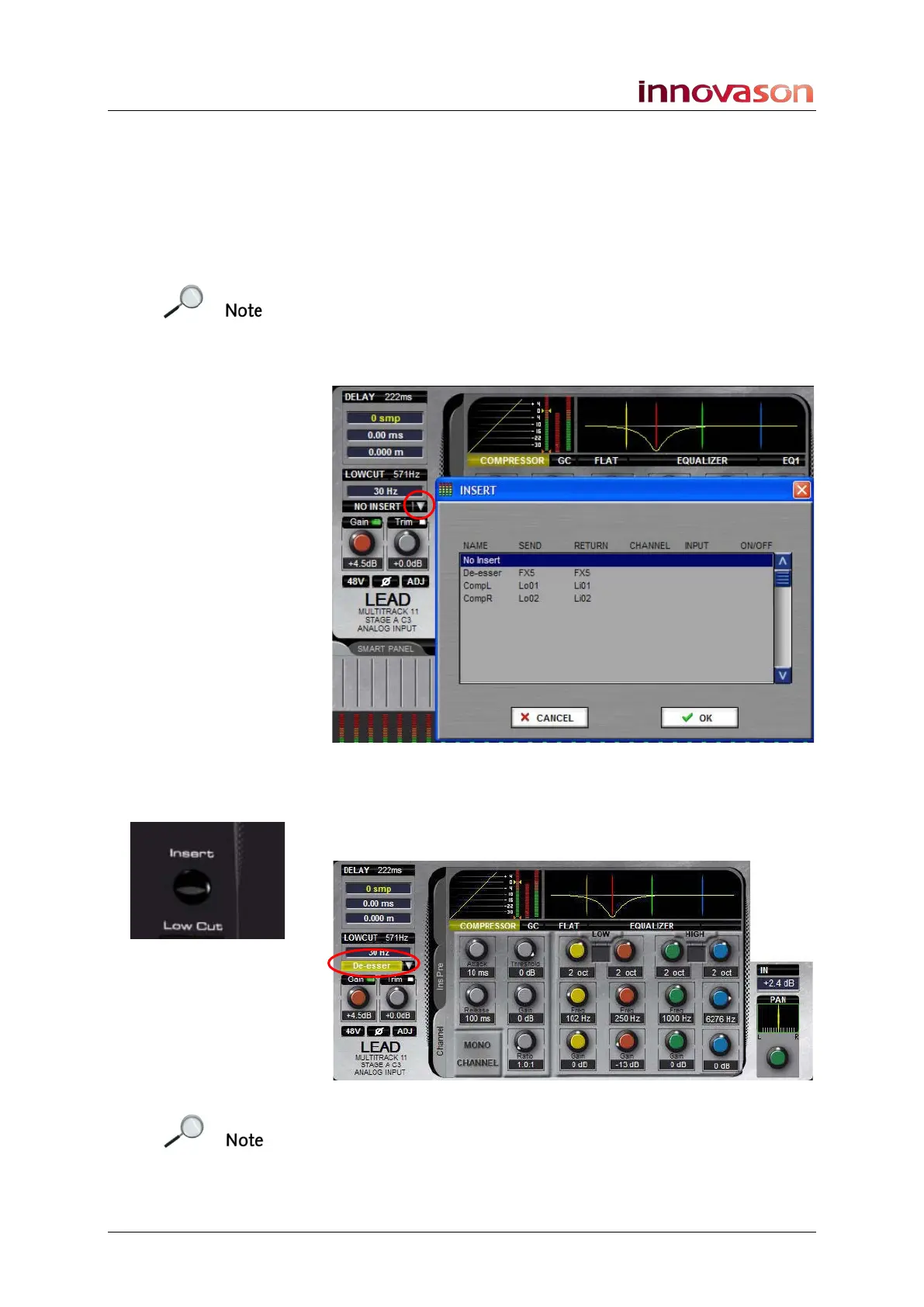
1. Return to the main Mix display and select the LEAD
vocal input channel (press SEL on the fader).
Note that the insert on/off button displays the name of any
assigned insert. In our example, there is nothing assigned and
so the button reads NO INSERT.
2. Click on the down arrow beside the insert on/off button
to open the INSERT selection list:
3. Select the insert you wish to assign – for example, De-
esser - and OK or press [Enter].
The insert point named De-esser is now assigned to the LEAD
vocal channel and is automatically switched on:
Note that if the channel is stereo you are automatically asked to
assign insert points to left and right.



 To Next Page