Chapter 7: Reset and Automation
File Management
350/ 526 2.0 Eclipse User Guide
Creating a New File
You can create a new File which is either empty or uses the
Pages stored in the Default NEWFILE.
Note that when you create a new File, you will lose Pages held
in memory so make sure you save before creating a new File.
To create a new File:
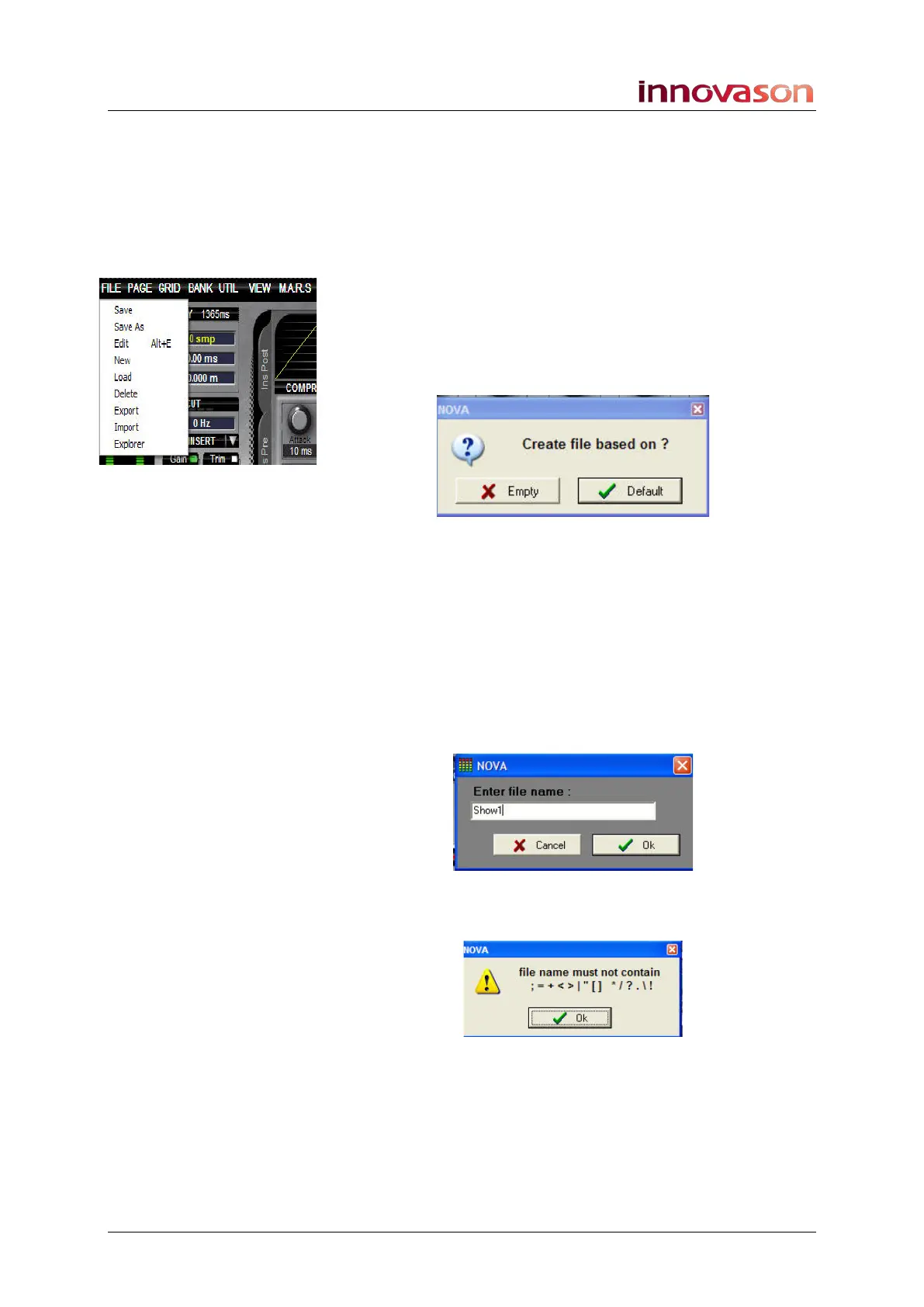
1. Using the trackball select “FILE -> New” from the main
menus.
If the hard disk contains a File named “NEWFILE” then the
following pop-up will appear:
• Click on Default (or press OK) to create a new file
based on the template (NEWFILE).
• Click on Empty to create a new empty File – blank
Page, no Labels, patches, settings, etc.
If this pop-up does not appear, then the Nova hard disk does
not contain a default File (NEWFILE), and the new File will
automatically be Empty.
2. Next, type in a name on the console keyboard – e.g.
Show1:
Note that the file name is limited to 8 characters, and cannot
contain spaces or invalid characters:
3. Confirm by pressing OK.
Nova now creates a new File on its hard disk called Show1. If
this is an empty File, then it will contain one Page given a
default name of INNOVA. The File and Page names appear at
the top of the Main Mix display.



 To Next Page