Chapter 7: Reset and Automation
Processing Libraries
384/ 526 2.0 Eclipse User Guide
Bank -> Save multiple
This operation saves settings from a range of channels. For
example, if you wish to save the complete drum mix as a
library.
Note that channels must be consecutive and of the same type –
e.g. all input channels.
1. Select “Bank -> Save multiple”.
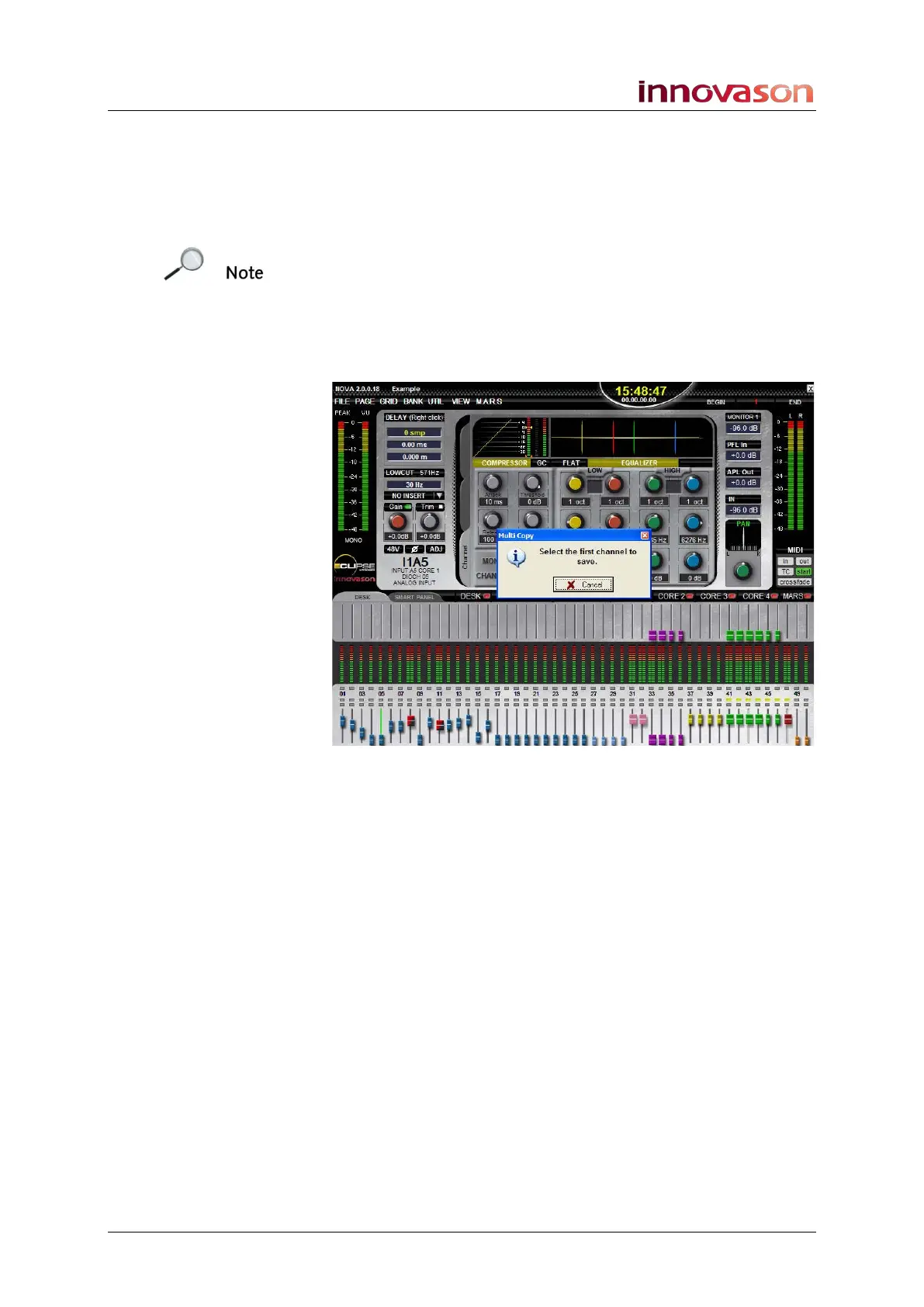
The Multi Copy pop-up window appears prompting you to
select the first channel to save, and all the SEL buttons on the
Fader strips and Smart Panel controllers flash:
2. Press the SEL button on the first fader (or Smart Panel
controller) you wish to save – e.g. on your Kick drum
fader.
The Multi Copy window now asks for the last channel you wish
to save:
3. Press the SEL button on the last fader (or Smart Panel
controller) you wish to save – e.g. on the OverHead
Right fader.
You will be asked to enter a name for the library.
4. Type in a name, up to 8 characters.
5. Press OK to confirm the save.
All processing settings across the range of channels are saved.



 To Next Page