Chapter 8: Utilities & Preferences
Copy and Paste
396/ 526 2.0 Eclipse User Guide
Multiple Channel Copy
This operation copies settings from a range of channels,
allowing you to paste them to a different range.
For example, if the same drummer plays in more than one song
and you wish to vary the channel layout between songs, you
can copy the drum mix to a different set of channels within each
Page.
Note that the source and destination channels must be
consecutive and of the same type – e.g. all input channels.
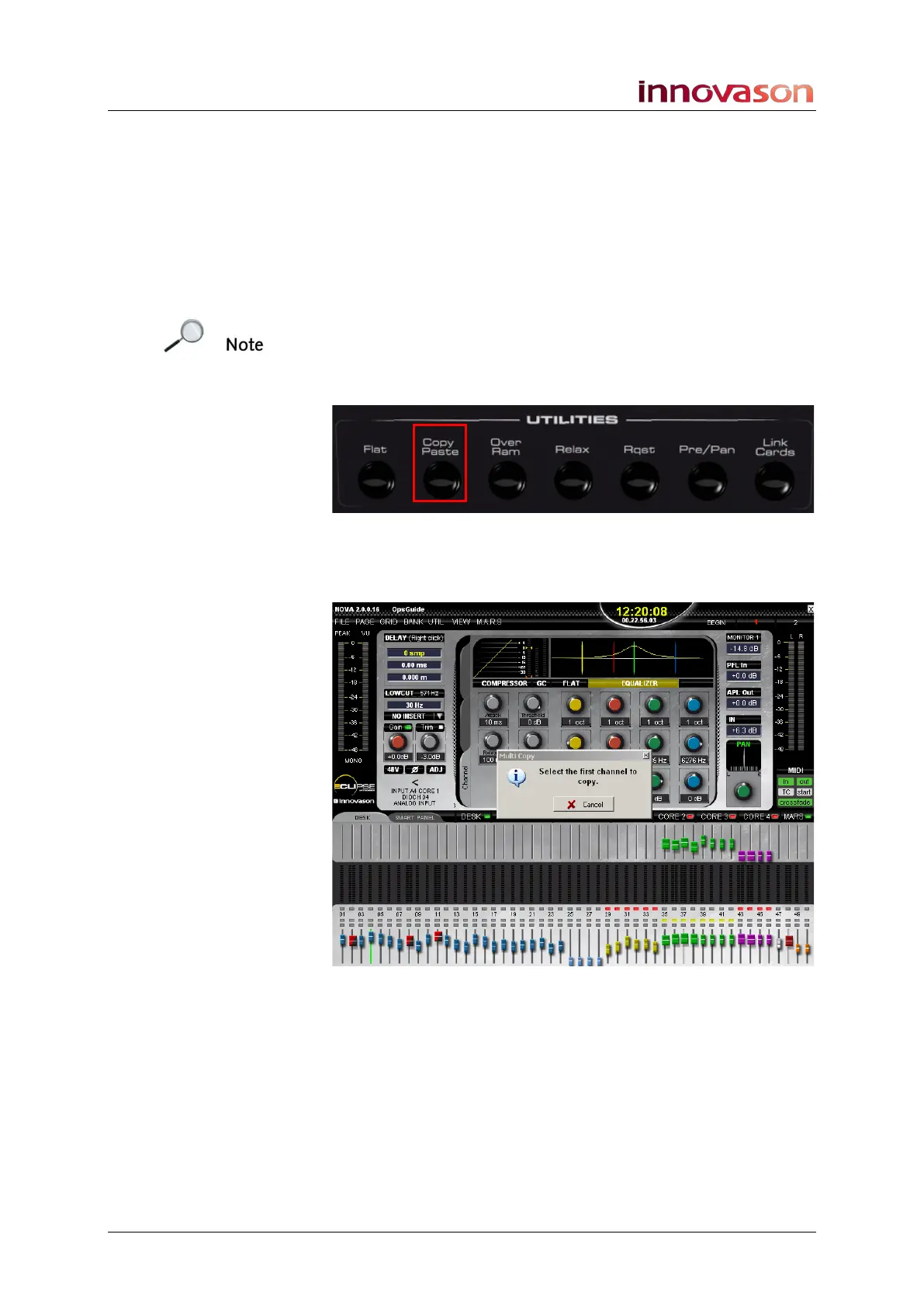
1. Press and hold the Copy/Paste button on the
UTILITIES panel for more than 2 seconds:
The Multi Copy pop-up window appears prompting you to
select the first channel to copy, and all the SEL buttons on the
Fader strips and Smart Panel controllers flash:
2. Press the SEL button on the first fader (or Smart Panel
controller) you wish to copy – e.g. on your Kick drum
fader.



 To Next Page