Chapter 8: Utilities & Preferences
Linking
416/ 526 2.0 Eclipse User Guide
The Link Channel Display
Channel links can also be configured using the LINK display. If
you are working offline, then this is the only method of
configuring channel linking.
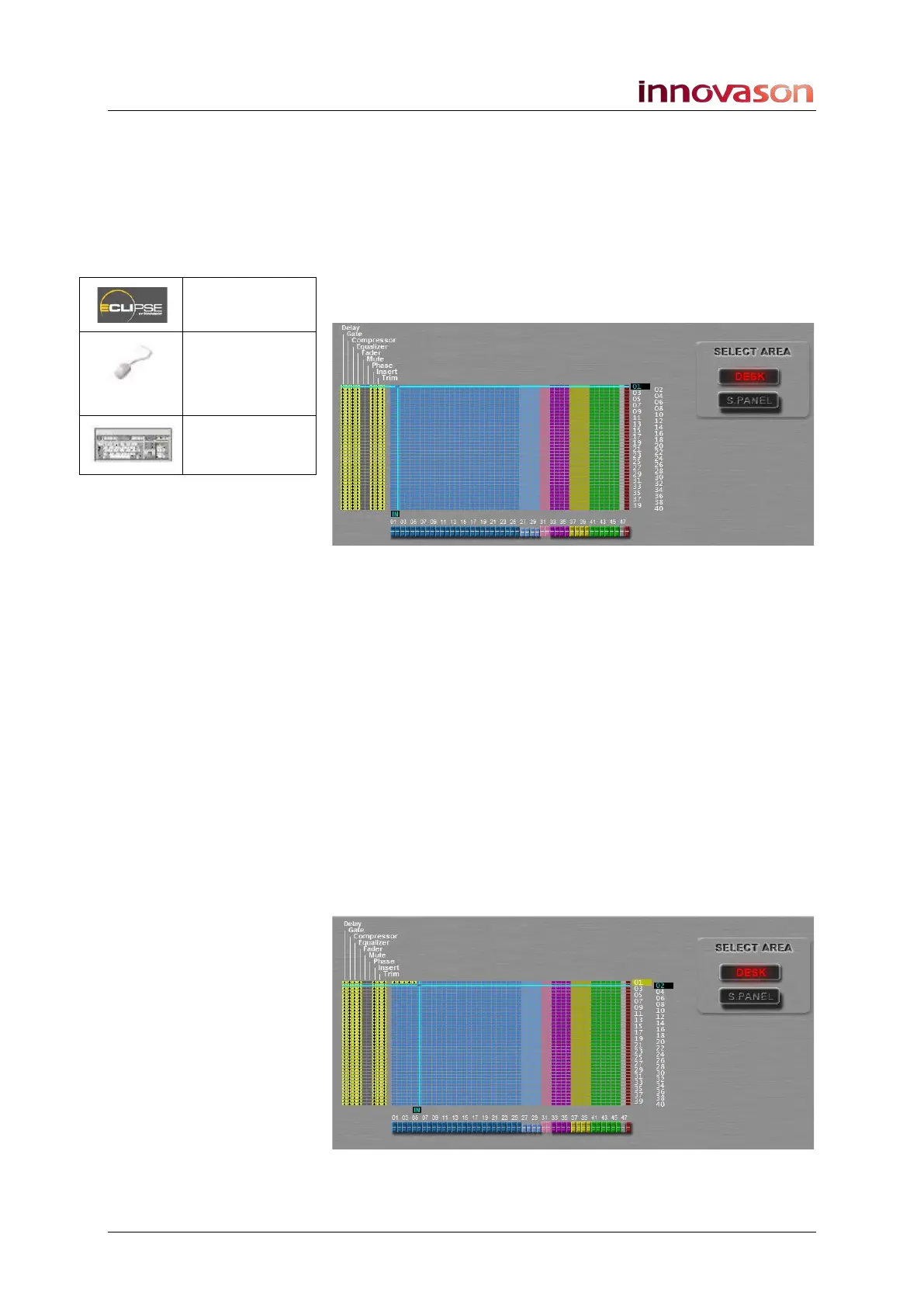
1. Select “GRID -> Link Channel” from the Nova menus:
The LINK display looks just like a patch grid and operates in a
similar manner:
On the left you can select which parameters are included in
each link group (01 to 40). Along the bottom are the console
faders.
You can configure channel linking for Fader strips and Smart
Panel controllers (DESK or S.PANEL).
To configure a Link group:
1. Select the first channel by pressing its SEL button.
2. Position the cursor over the next available link group
(e.g. 01).
3. Press the [SPACE BAR], or right-click, to add the
channel to link group 01.
4. Repeat these steps for each channel you wish to add to
the link group.
The LINK display should look something like this:
n/a
“GRID ->
Link
Channel”
n/a



 To Next Page