Chapter 8: Utilities & Preferences
Linking
Eclipse User Guide 2.0 417/ 526
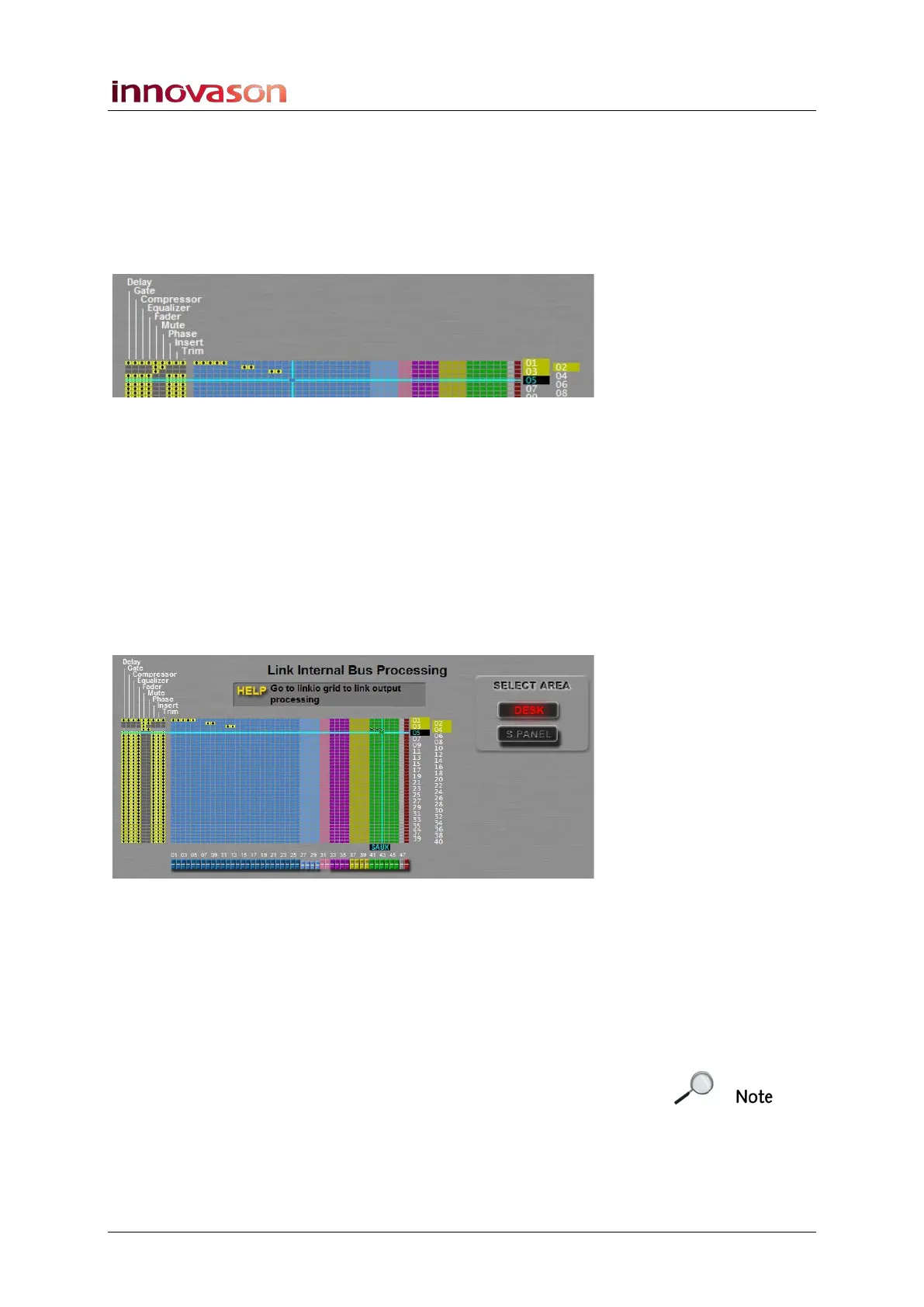
5. Now select the parameters which will be linked on the
left of the grid.
If a parameter cannot be linked it turns from white to grey.
6. Repeat for each Link group you wish to create.
The example below shows three separate Link groups (01, 02
and 03), with different parameters linked in each group:
• Link group 01 – all parameters are linked across five
consecutive channels.
• Link group 02 – faders and mutes are linked on two
adjacent channels.
• Link group 03 – only the faders are linked on two
adjacent channels.
Link groups for output channels are very similar but you can
only link faders, mutes and internal processing; you are
reminded in the Help area that if you wish to link UM8 output
processing you will need to use the LINK IO display:
If you have Smart Faders, you can link the master VCA faders
and mutes. To link individual channel processing, press SEL to
deploy the slaves; you can then select the individual component
channels.
7. Once you have finished, press CANCEL to return to the
Main Mix display.



 To Next Page