Chapter 2: Installation
System Connections
48/ 526 2.0 Eclipse User Guide
System Clock
Eclipse offers a fully redundant clock source structure with
external clocking options (Wordclock or AES) and an internal
sync generator. This allows the console to be clocked from a
choice of sync sources and recover from loss of external sync.
To view and configure the clock source:
1. Select the “UTIL -> System Clock Source” menu path
from the Nova software.
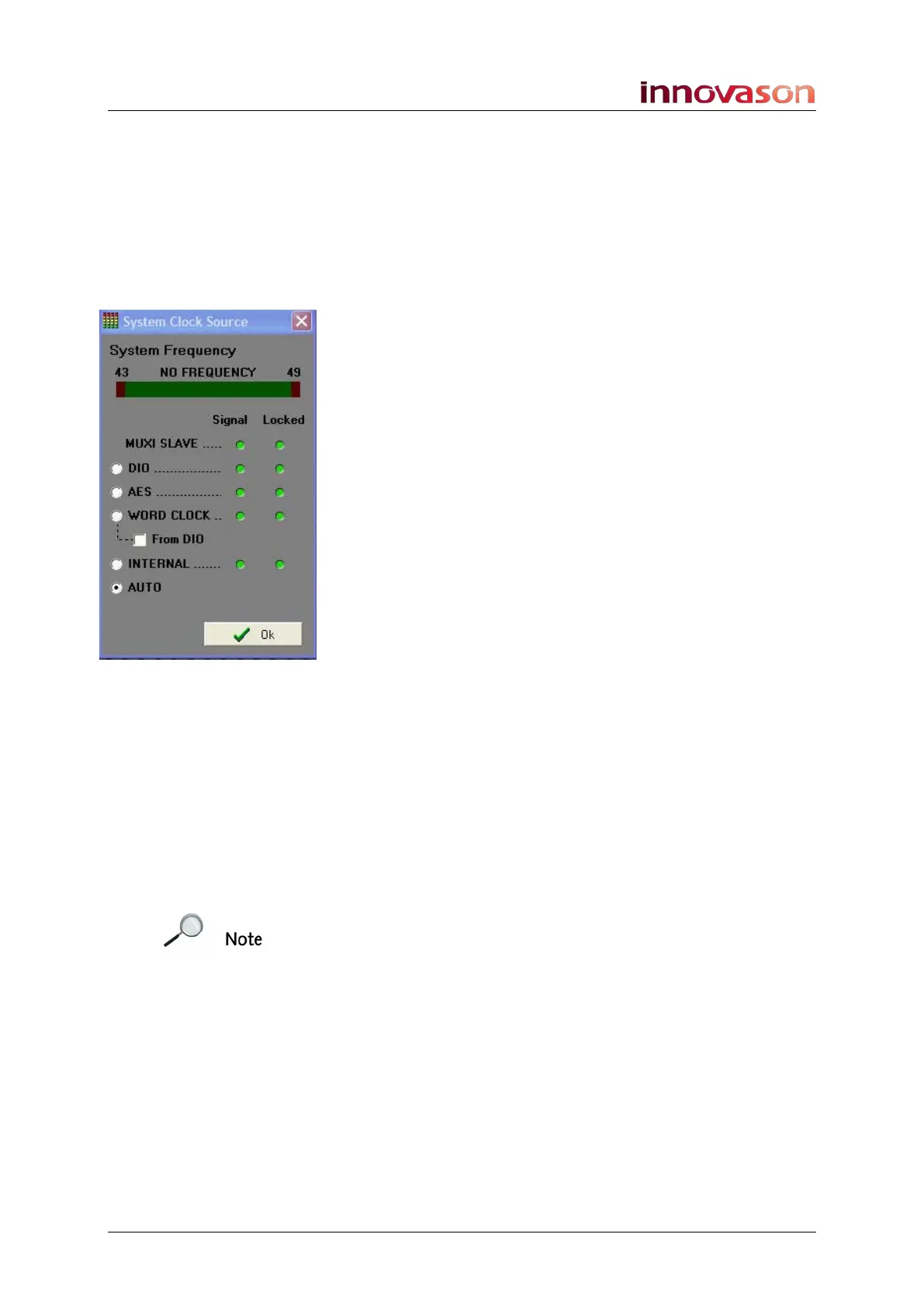
This opens the System Clock Source window:
• At the top of the window you will see the sampling
frequency of the selected clock source.
• The green Signal LED turns red if a valid clock signal is
detected.
• The Locked LED turns red when the system is locked to
the source.
By default, the system clock is set to AUTO. In this mode, the
available clock signals are analysed and locked to according to
a priority algorithm : Internal, Muxi, WC, Dio.
The available clock sources are:
• MUXI SLAVE – this source is not optional; the system
will automatically lock to this clock if you are receiving
data from a StageBox.
• AES – select this option to lock to the AES In (XLR) port
on the MC
optical
card at the rear of the console.
• WORD CLOCK – select this option to lock to the Wc In
(BNC) port on the MC
optical
card at the rear of the
console.
• INTERNAL – select this option to force the system clock
to the internal sync generator.
• AUTO – select this option to return to automatic
prioritisation.
Note that for the sync source to be valid, it must operate with a
sampling frequency between 43 and 49kHz.
2. Click on an option and press OK.
The system will lock to the selected source; the Locked LED
should turn red.



 To Next Page