Chapter 10: M.A.R.S.
Project Management in M.A.R.S.
Eclipse User Guide 2.0 493/ 526
6. Select E:\ to open the M.A.R.S. hard drive.
Or, select the corresponding file path for your USB drive.
On the E:\ drive, files are organised into two main directories:
• MT128_Media – inside this folder are the individual media
folders for every Project on M.A.R.S.; these folders contain
your audio files.
• MT128_Projects – inside this folder are the individual
project folders for every Project on M.A.R.S.; these folders
contain all the project information.
It is the audio files we are interested in so:
7. Select MT128_Media to open the folder.
8. Then select the sub folder which contains the audio you
wish to import – e.g. Media_Walking.
9. Then select OK.
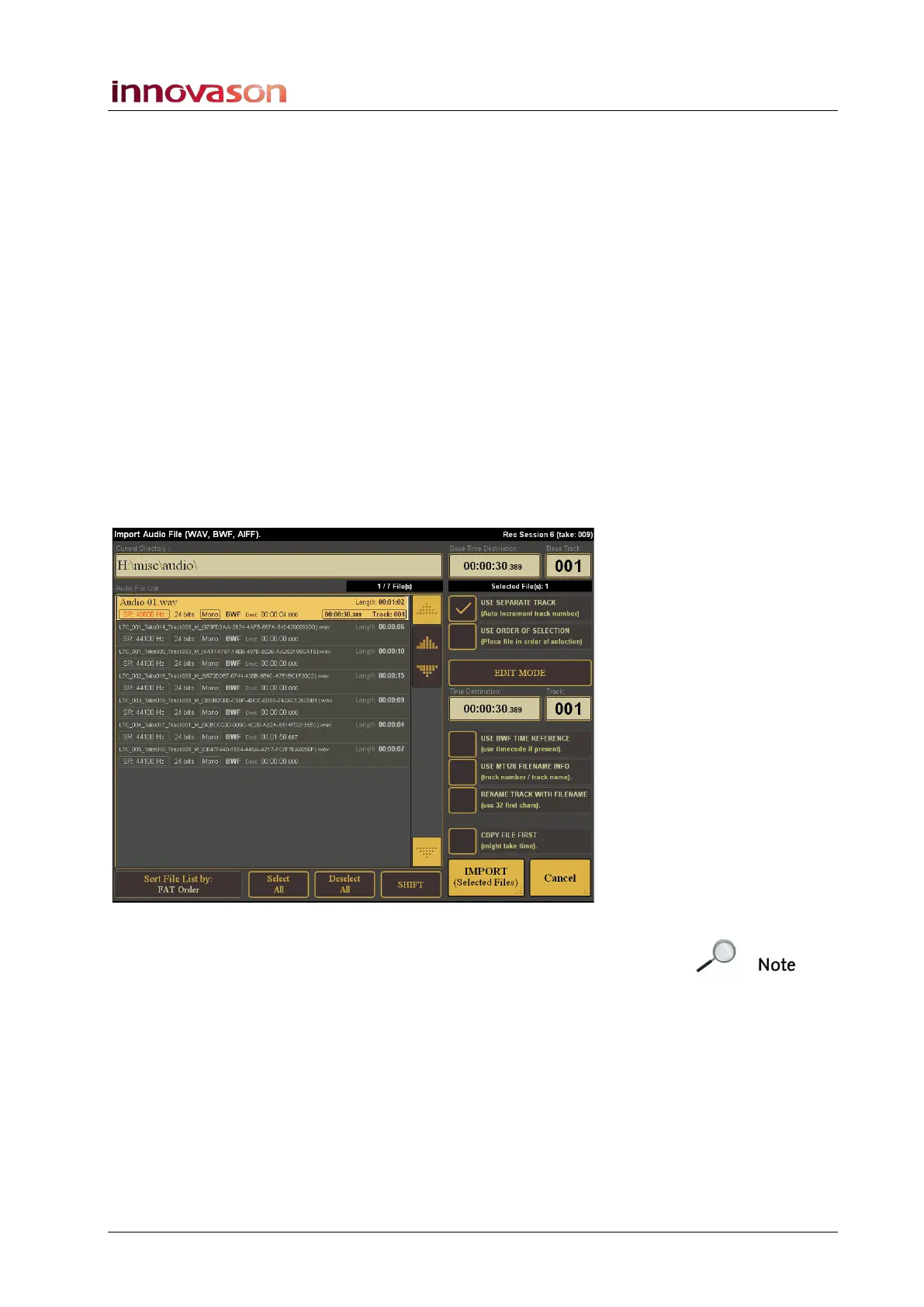
The File Selector closes, and the media files from your folder
appear in the Import Audio File window:
Note that the files appear in this list in alphabetical order.
Therefore, the best way to proceed depends on how the files are
named.
If you files are named as “01-Filename”, “02-Filename”, etc. then
proceed as follows:
1. Touch Select All.
2. Tick the COPY FILE FIRST option.
3. Select IMPORT (Selected Files).
The audio files are imported onto tracks 1 to 64 in their selected
order – i.e. “01-Filename” to Track 1, “02-Filename” to Track 2,
and so on.



 To Next Page