Chapter 3: Operating Principles
Fader Strips
Eclipse User Guide 2.0 61/ 526
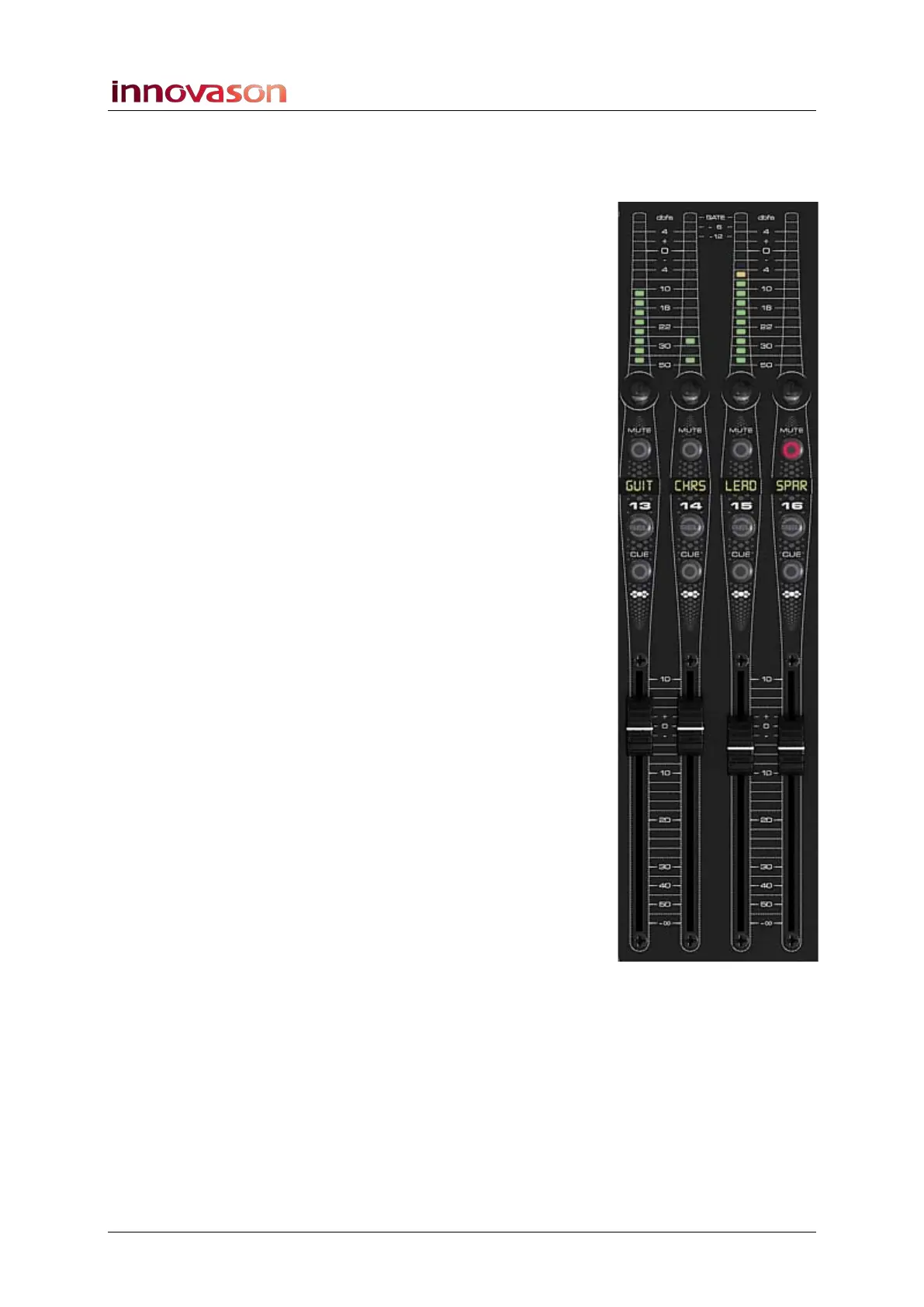
MUTE
1. Press the MUTE button to mute the channel.
On input channels, MUTE affects all post-fader mix bus
assignments; any pre-fader Aux sends are not affected.
On output channels, the MUTE button mutes the channel
output. This includes any post-fader bus assignments. For
example, if the Master is feeding a Matrix, you will mute the
Matrix send.
On stereo channels, VCAs and Smart VCAs, the MUTE button
mutes all slave channels. Note that the VCA MUTE will not
override any existing slave channel MUTEs. This is indicated on
the slave channels as follows:
• MUTE flashing – the channel is muted only by the VCA.
When you unmute the VCA, the channel MUTE cancels.
• MUTE steady state - the channel MUTE is active; it will
not be affected by the VCA MUTE. To unmute the
channel you must unmute both the VCA and the slave.
Label
The 4-character user Label can be entered by selecting the
channel (press SEL), and then pressing [F3] on the console
keyboard. Type in a name and press OK to confirm.
On input channels, the Label shows:
• the input Label (e.g. MIC1)
• Or, if the channel is not patched, the generic channel
name: e.g. IN.
On output channels, the Label shows:
• the output Label (e.g. SPK1).
• Or, if the bus is not patched, the generic mix bus name:
e.g. AUX, GRP, MST, MTX.
On stereo channels, VCAs and Smart VCAs, you will see the
channel Label; the default channel Label displays the channel
type (e.g. SIN = stereo input, SAUX = stereo aux, VCA = VCA!).
See Page 200 for more details on Labels.
Note that on Aux channels, the name of the Personal Mix (e.g.
John) takes priority over the channel Label if a Personal Mix is
loaded. See Page 387 for details.



 To Next Page