Chapter 3: Operating Principles
The Nova Touch-Screen
68/ 526 2.0 Eclipse User Guide
The Selected Channel
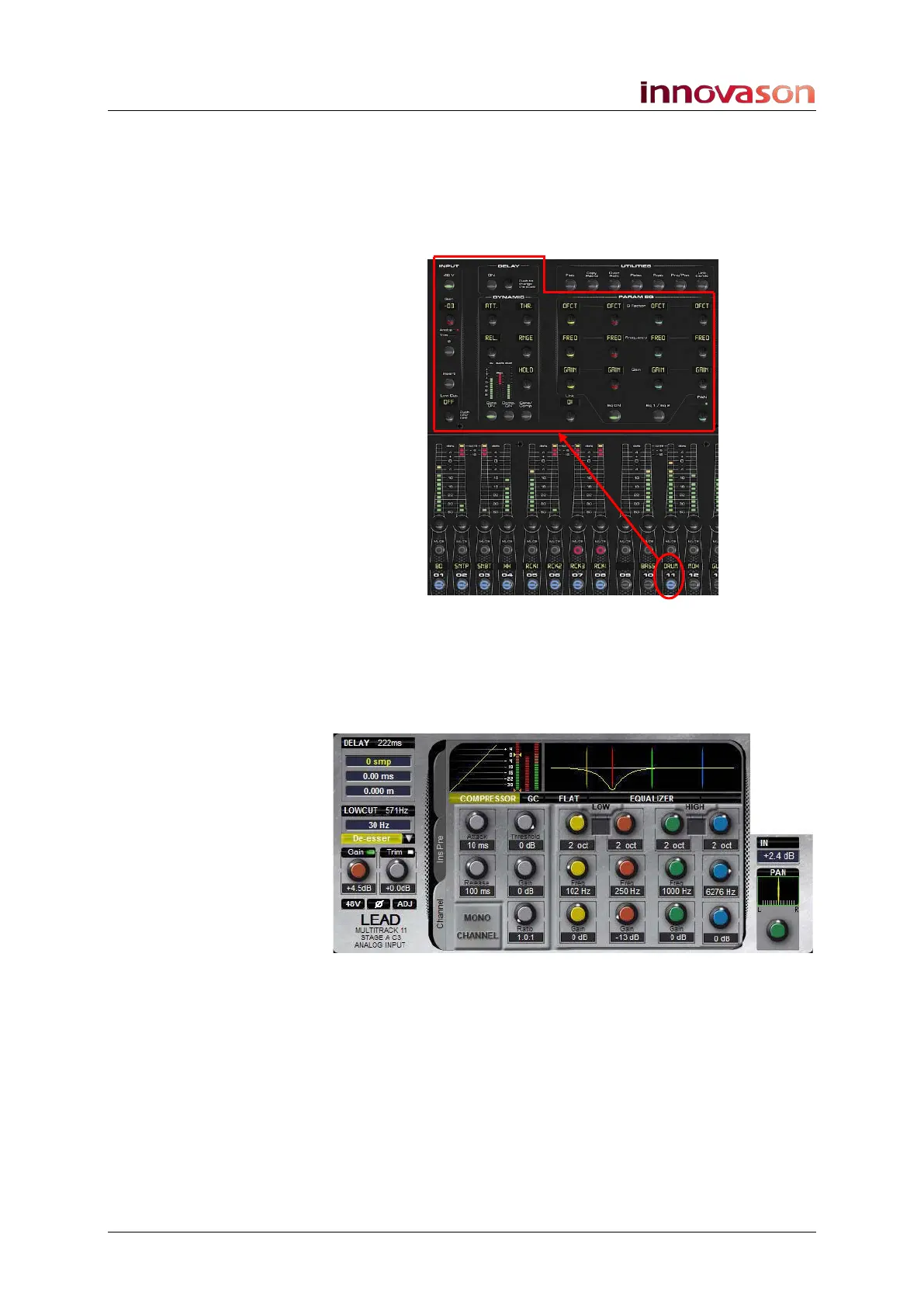
To the left of the SMART PANEL are the INPUT, DELAY,
DYNAMIC, PARAM EQ and PAN sections. Together these form
a “channel strip” for the selected Fader or Smart Panel
controller:
Once a SEL button is active (flashing), the Selected Channel
offers direct control of all settings – gain, insert switching, low
cut filter, delay, dynamics, equalisation and panning.
The controls work in conjunction with the Main Mix display
which provides graphical feedback on parameters:
So to adjust EQ on an input channel:
1. Press SEL on the input Fader or Smart Panel strip.
The SEL button and Label on the input should be flashing.
2. Reach up to the PARAM EQ panel and adjust the EQ
controls.
Any changes you make are shown on the Main Mix display
shown above.



 To Next Page