Status Popup
Status Popup
Options – Status Popup
When the Status popup window is enabled, and displayed, it is placed on top of the window in focus and hides any data
beneath it.
The Status Popup window is closed by pressing the assigned Status User or Status Admin key sequence.
Note: LXE recommends using a Diamond key for the assigned key sequence to use when opening and closing the
popup. If a Function key is used, that Function key is not available to applications that generally use Function keys such
as RFTerm.
Using the Buttons settings panel (Start | Settings | Personal | Buttons | Program Buttons), the System Administrator must first
assign a Status User key for the end-user when they want to toggle the Status Popup Window on or off. Select the desired key
and assign that key to StatPopup.
Similarly the System Administrator must also assign a Status Admin key to perform the same function for the Admin popup.
Select the desired key and assign that key to Admin StatPop.
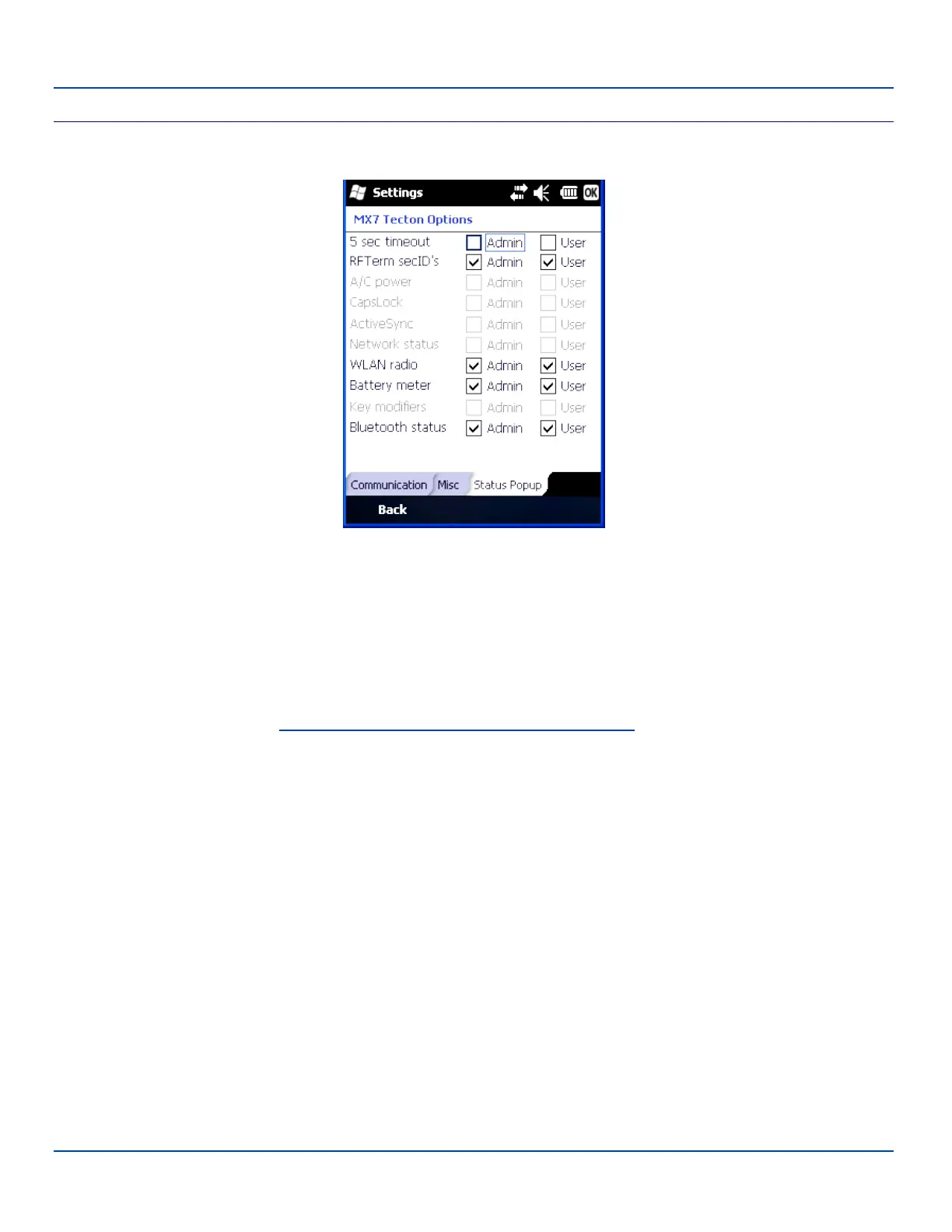
Status popup window display options (taskbar icons) are assigned on the Status Popup tab. E.g. WLAN radio, Battery meter,
Bluetooth status, RFTerm SecID's (Secondary IDs), etc.
The default is for the User and Admin status popup windows to show all status information. The 5-second timeout to remove
the status popup from the display is disabled by default for the User and Admin status popup windows.
E-EQ-MX7WMRG-A [ 143 ] MX7 Tecton™ for Windows Mobile Reference Guide



 To Next Page