Installing a Root CA Certificate
Click the DER button.
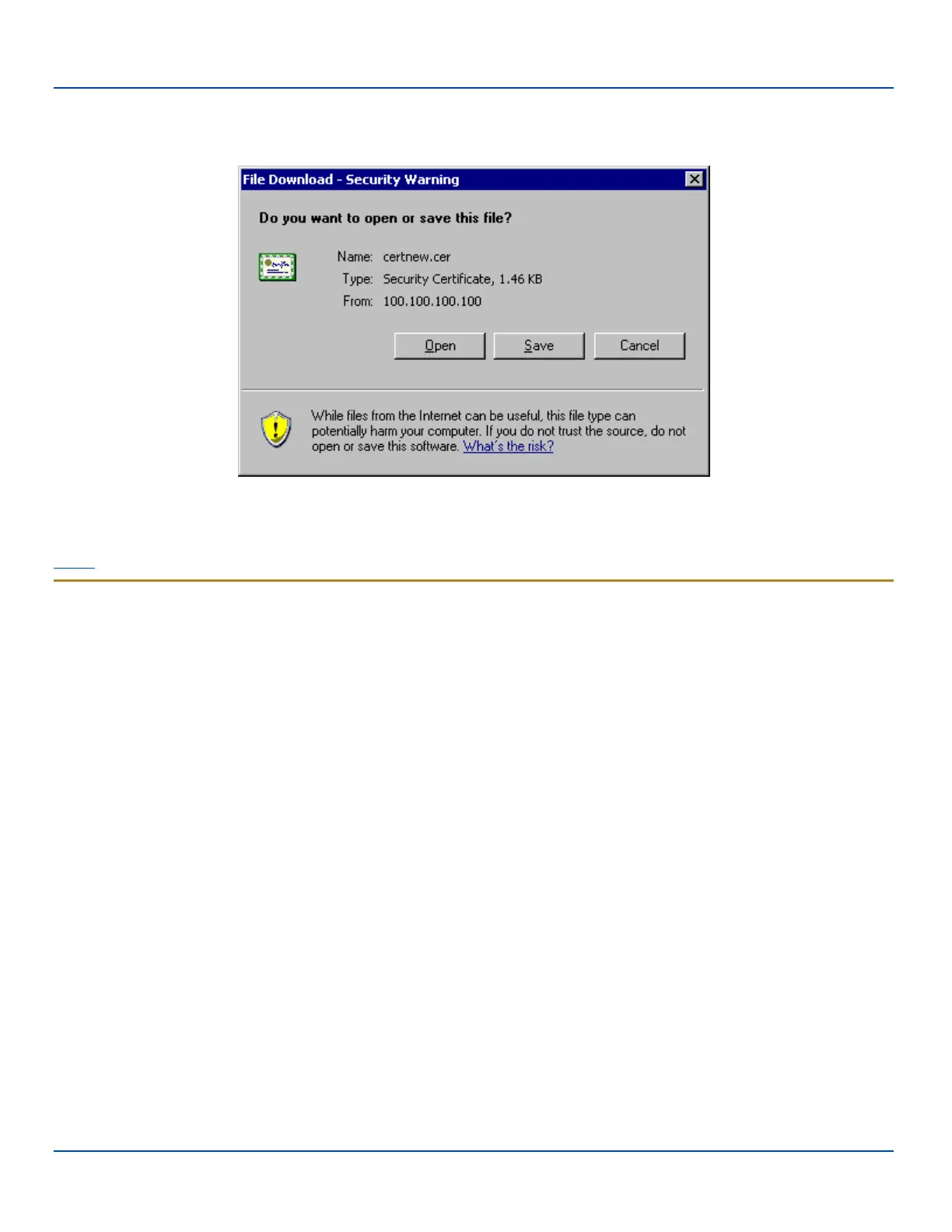
To download the CA certificate, click on the Download CA certificate link.
Download CA Certificate Screen
Click the Save button and save the certificate. Make sure to keep track of the name and location of the certificate.
Install the certificate on the MX7 Tecton.
Installing a Root CA Certificate
Note: This section is only if the Windows certificate store is used. If the certificate store is not used, copy the certificate
to the \System folder or other path specified in the Summit Certs global parameter.
Copy the certificate file to the MX7 Tecton. The certificate file has a .CER extension. Locate the file and tap it.
A certificate installation warning text box is displayed:
Your device is being asked to install a security certificate. You should block unless you require certificates for
processes such as synchronizing with Exchange Server or connecting to a wireless network.
Tap More to view the remainder of the warning in the text box:
Installing the certificate will cause your device to trust digital certificates from the requester. Malicious
requesters may try to mislead you about their identity. Do you want to block this certificate?
Tap Install to continue the installation. An installation successful message is displayed.
You can view any installed user certificates by selecting Start |Settings | System and tapping the Certificates icon.
Installed root certificates are displayed on the Root tab.
E-EQ-MX7WMRG-A [ 295 ] MX7 Tecton™ for Windows Mobile Reference Guide



 To Next Page