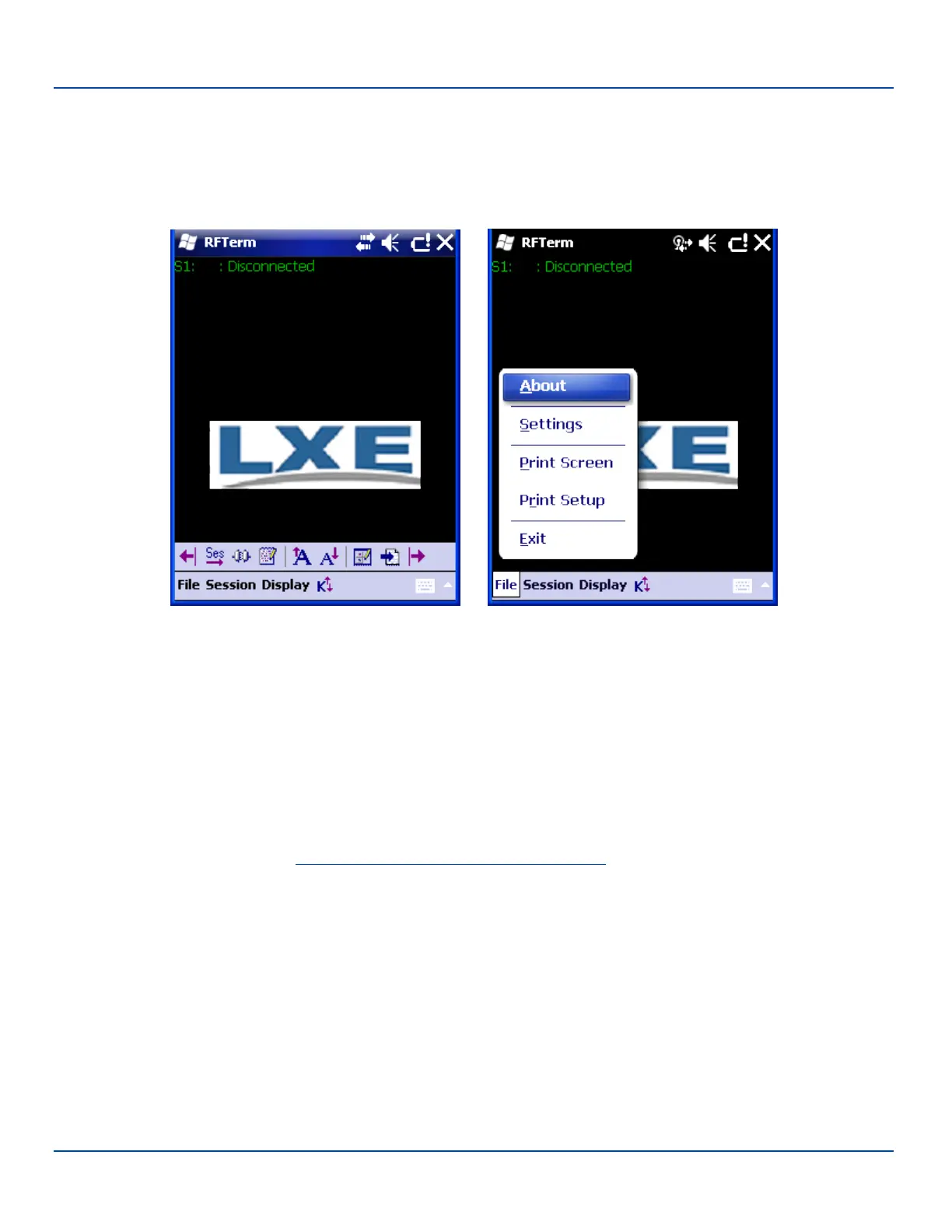
LXE RFTerm (Optional)
LXE RFTerm (Optional)
Start | RFTerm
Installed by LXE. The application can be accessed by tapping Start | RFTerm.
Refer to the RFTerm Reference Guide for complete information and instruction. WAV files added by the user should be stored
in System\LXE\RFTerm\Sounds.
Status Popup
Start | Settings | System | MX7 Tecton Options
The Status Popup provides real time information on several status icons when a specified keypress occurs.
To use the Status Popup, first map a key to the status window. Use the Buttons panel (Start | Settings | Personal | Buttons) to
assign a key to Admin Statpop (for the Admin Popup) and StatPopup (for the User Popup). LXE recommends using a Diamond
key for the popup. If a Function key is used, that Function key is not available to other applications such as RFTerm.
Use the MX7 Tecton Options panel (Start | Settings | System | MX7 Tecton Options) to configure other parameters including:
l Dismiss Status Popup on 5 second timeout
l Information to include in Admin or User Status Popup.
The Status Popup can be dismissed by the expiration of the timeout (if enabled), tapping the status window or pressing the key
assigned to the popup.
For more information, please refer to the Buttons and MX7 Tecton Options settings.
E-EQ-MX7WMRG-A [ 33 ] MX7 Tecton™ for Windows Mobile Reference Guide



 To Next Page