Using Windows Mobile Wireless Manager
Using Windows Mobile Wireless Manager
LXE recommends using the Summit Client Utility to manage wireless connectivity.
However, if desired, Windows Mobile includes the Wireless Manager utility to manage wireless network connections in place
of the Summit Client Utility.
To use the Windows Mobile Wireless Manager, first open the Summit Client Utility.
1. Select ThirdPartyConfig in the Active Profile drop down box on the Main tab.
2. A message appears that a Power Cycle is required to make settings activate properly.
3. Tap OK.
4. Suspend/Resume the MX7 Tecton.
Access the Wireless Manager utility by tapping the radio icon at the top of the screen or tapping:
Start | Settings | Connections | Wi-Fi
If the Wi-Fi icon is not present in the Connections panel, return to the Summit Client Utility and select ThirdPartyConfig.
Create a New Network Connection
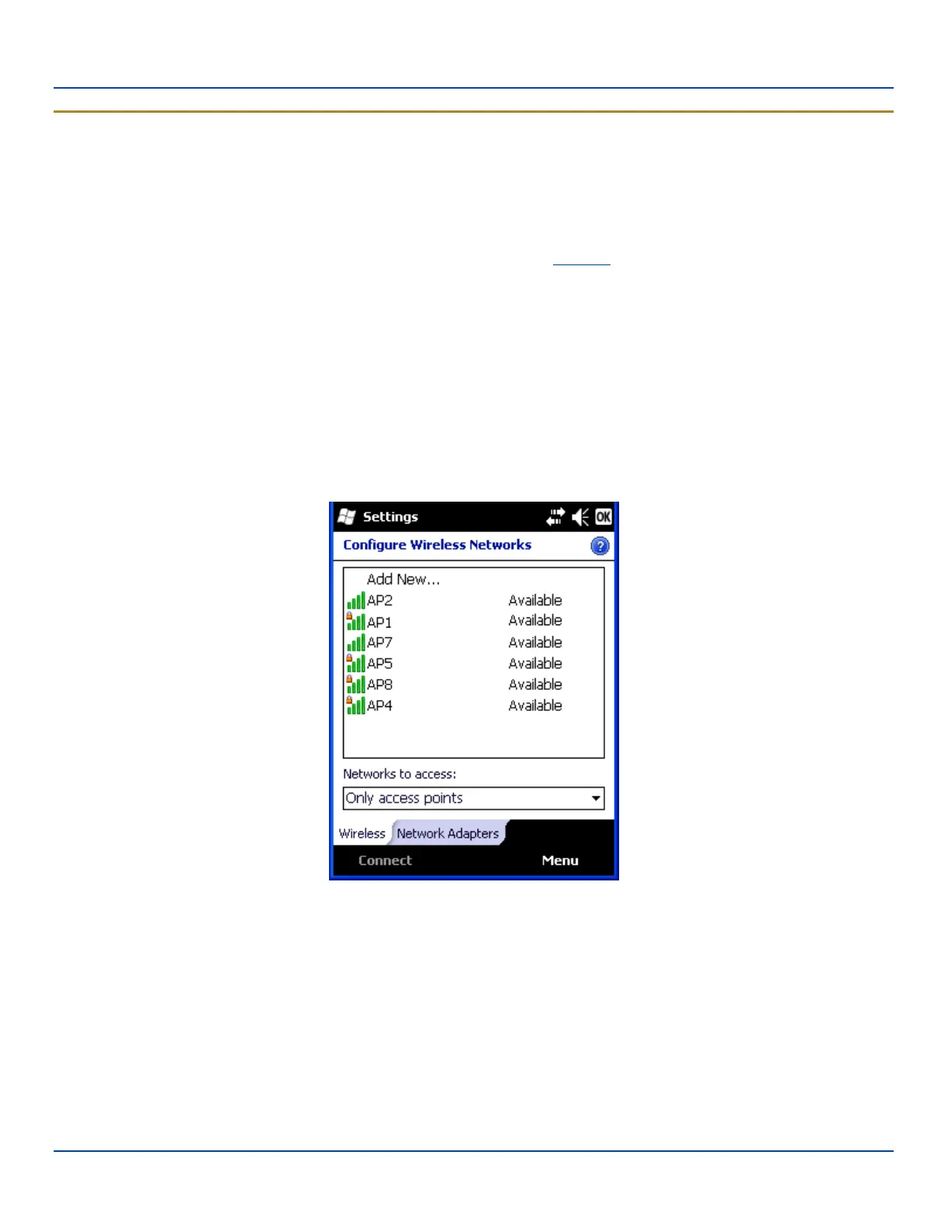
Click on the Wi-Fi icon. A list of available networks is displayed.
Available networks
If the desired network is not displayed, tap Add New. If the desired network is displayed in the list, tap the network name.
E-EQ-MX7WMRG-A [ 249 ] MX7 Tecton™ for Windows Mobile Reference Guide



 To Next Page