Bluetooth Barcode Reader Setup
Bluetooth Barcode Reader Setup
Please refer to the Bluetooth scanner manufacturer’s User Guide; it may be available on the manufacturer’s web site. Contact
your LXE representative for Bluetooth product assistance.
Introduction
LXE supports several different types of barcode readers. This section describes the interaction and setup for a mobile
Bluetooth laser scanner or laser imager connected to the MX7 Tecton using Bluetooth functions.
Prerequisites
l The MX7 Tecton must have the Bluetooth hardware and software installed. An operating system upgrade may be
required. Contact your LXE representative for details.
l If the MX7 Tecton has a Bluetooth address identifier barcode label affixed, then Bluetooth hardware and software are
installed.
l The mobile Bluetooth laser scanner / laser imager battery is fully charged.
l The MX7 Tecton main battery is fully charged. Alternatively, the MX7 Tecton may be cabled to AC/DC power.
l Important: The barcode numbering examples in this segment are not real and should not be created nor scanned with a
Bluetooth scanner.
l To open the LXEZ Pairing program, tap Start | Settings | System | Bluetooth or tap the Bluetooth icon at the bottom of
the Today panel.
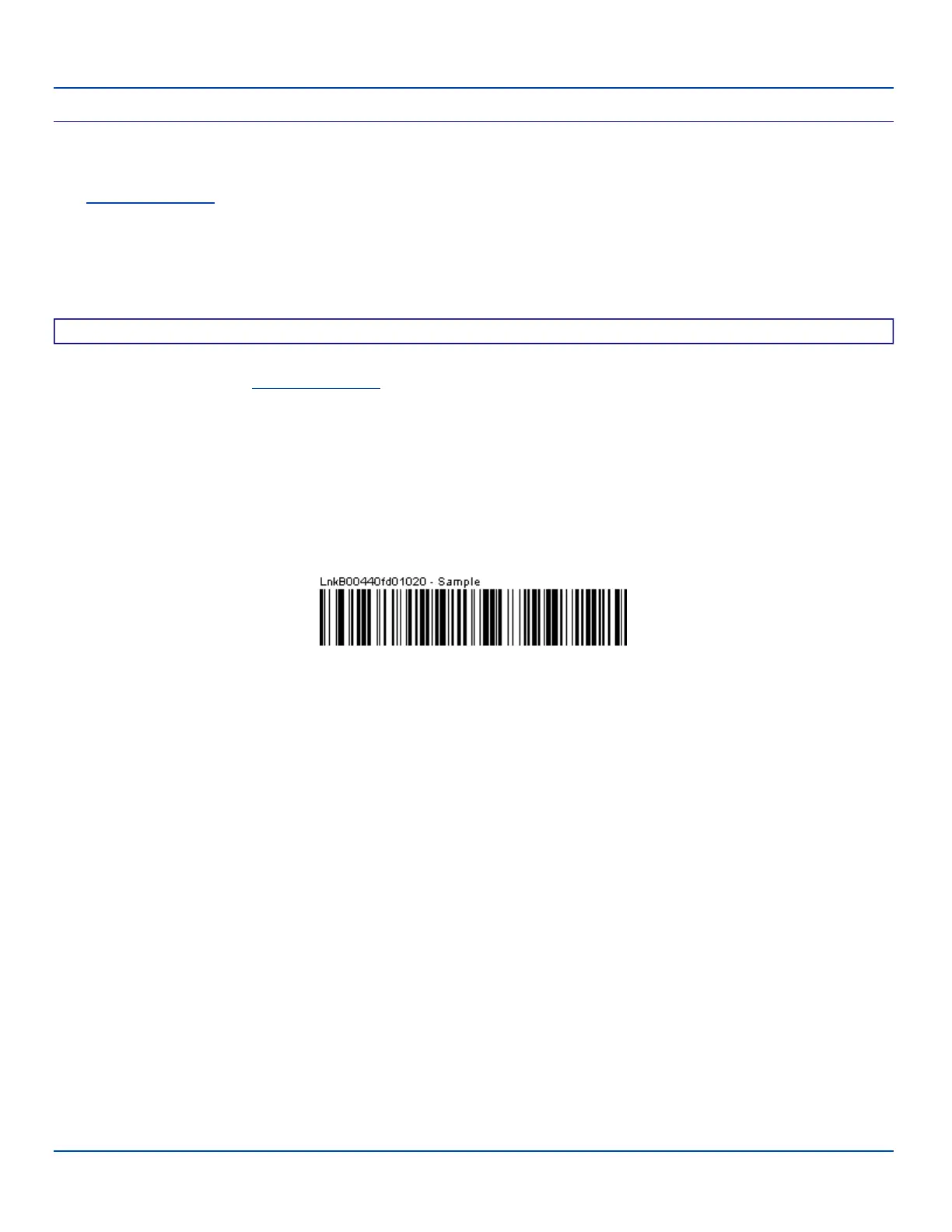
Sample Bluetooth Address Barcode Label
Locate the barcode label, similar to the one shown above, attached to the MX7 Tecton. The label is the Bluetooth address
identifier for the MX7 Tecton.
The mobile Bluetooth scanner / imager requires this information before discovering, pairing, connecting or disconnecting can
occur.
Important: The MX7 Tecton Bluetooth address identifier label should be protected from damage (rips, tears, spills, soiling,
erasure, etc.) at all times. It may be required when pairing, connecting, and disconnecting new Bluetooth barcode readers.
E-EQ-MX7WMRG-A [ 85 ] MX7 Tecton™ for Windows Mobile Reference Guide



 To Next Page