Using LXEConnect
4. Double-click the LXEConnect icon that was created on the PC desktop.
5. LXEConnect launches.
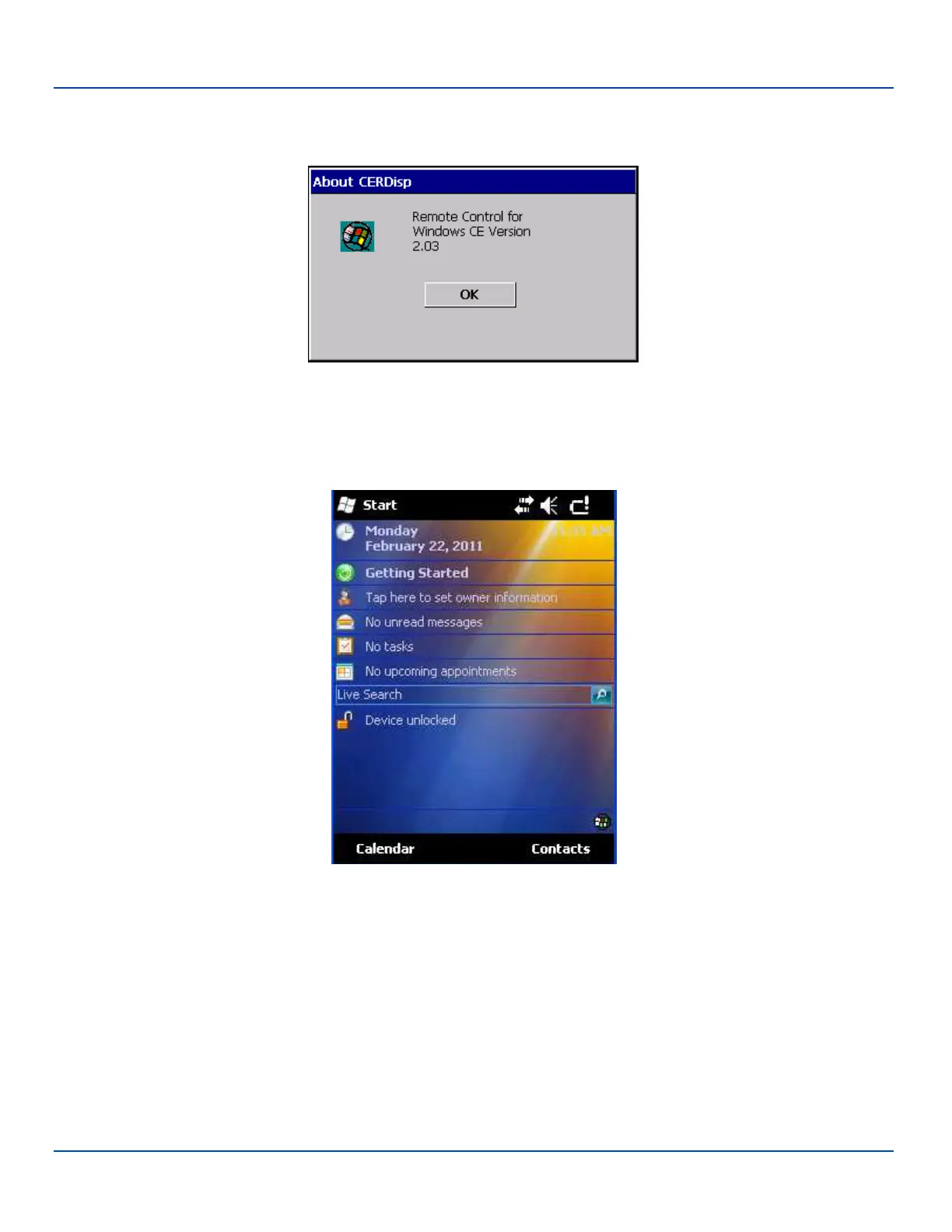
Example LXEConnect Notice
6. Click the OK button to dismiss the About CERDisp dialog box (see Example LXEConnect Notice image above) on the
MX7 Tecton desktop by clicking the OK button in the LXEConnect window on the PC desktop. The dialog box auto-
matically times out and disappears after approximately 20 seconds.
LXEConnect Desktop
7. The MX7 Tecton can now be configured from the LXEConnect window. Input from the PC’s mouse and keyboard are
recognized as if they were attached to the MX7 Tecton.
8. When the remote session is completed, terminate the LXEConnect program by selecting File | Exit or clicking on the X
in the upper right hand corner to close the application, then disconnect the ActiveSync cable.
E-EQ-MX7WMRG-A [ 200 ] MX7 Tecton™ for Windows Mobile Reference Guide



 To Next Page