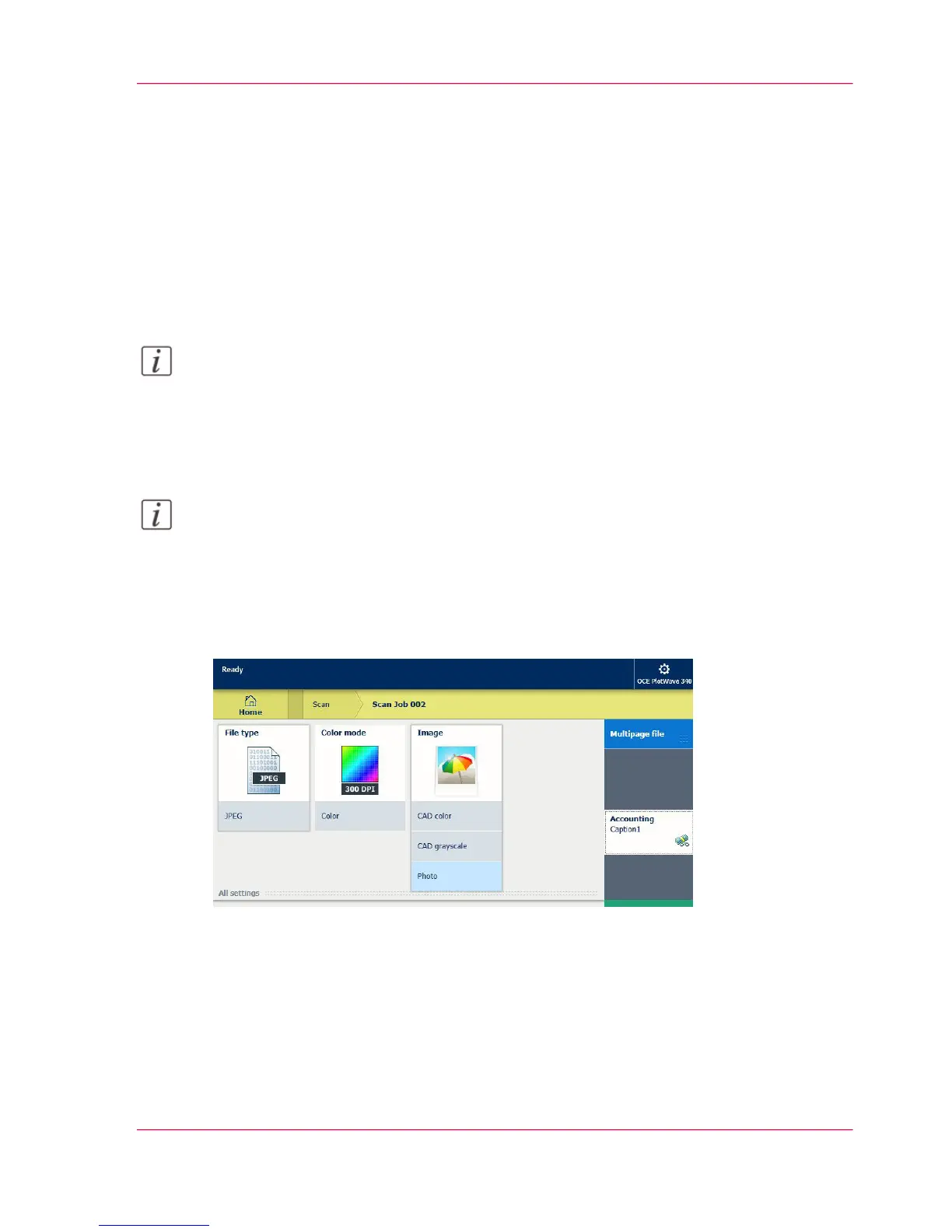
Scan a photo to 'JPEG' format
Introduction
When you want to scan a photo to 'JPEG' format, you can select the presets on the user
panel.
1.
Feed the original face up and centered on the original feeding table.
Note:
You do not need to center the original precisely. The exact position of the original is au-
tomatically detected by the scanner.
2.
Tap the 'Scan' tile on the user panel and select your preferred location in the scan Smart
Access.
Note:
When you do not select a location, the file is sent to the public Smart Inbox.
3.
Tap the 'Scan' tile again. A window with a list of presets opens.
4.
Tap the 'File type' preset.
5.
Select'JPEG'.
6.
Tap the 'Image' preset.
7.
Select 'Photo'.
8.
Tap the green button.
Result
A scan to 'JPEG' file is made and sent to your preferred location. As default, you can find
your file in the public Smart Inbox in Océ Express WebTools.
Chapter 4 - Use the Printing System 257
Scan a photo to 'JPEG' format


 To Next Page