3.11
Date Code 20150130 Instruction Manual SEL-787 Relay
PC Software
Event Analysis
View Event History
You can retrieve event files stored in the relay and transfer these files to a
computer. For information on the types of event files and data capture, see
Section 9: Analyzing Events. To download event files from the device, click
Tools > Events > Get Event Files. The Event History dialog box appears, as
shown in Figure 3.10.
Get Event
Highlight the event you want to view (e.g., Event 3 in Figure 3.10), select the
event type with the Options Event type function (4 samples or 16 samples),
and click the Get Selected Event button. When downloading is complete,
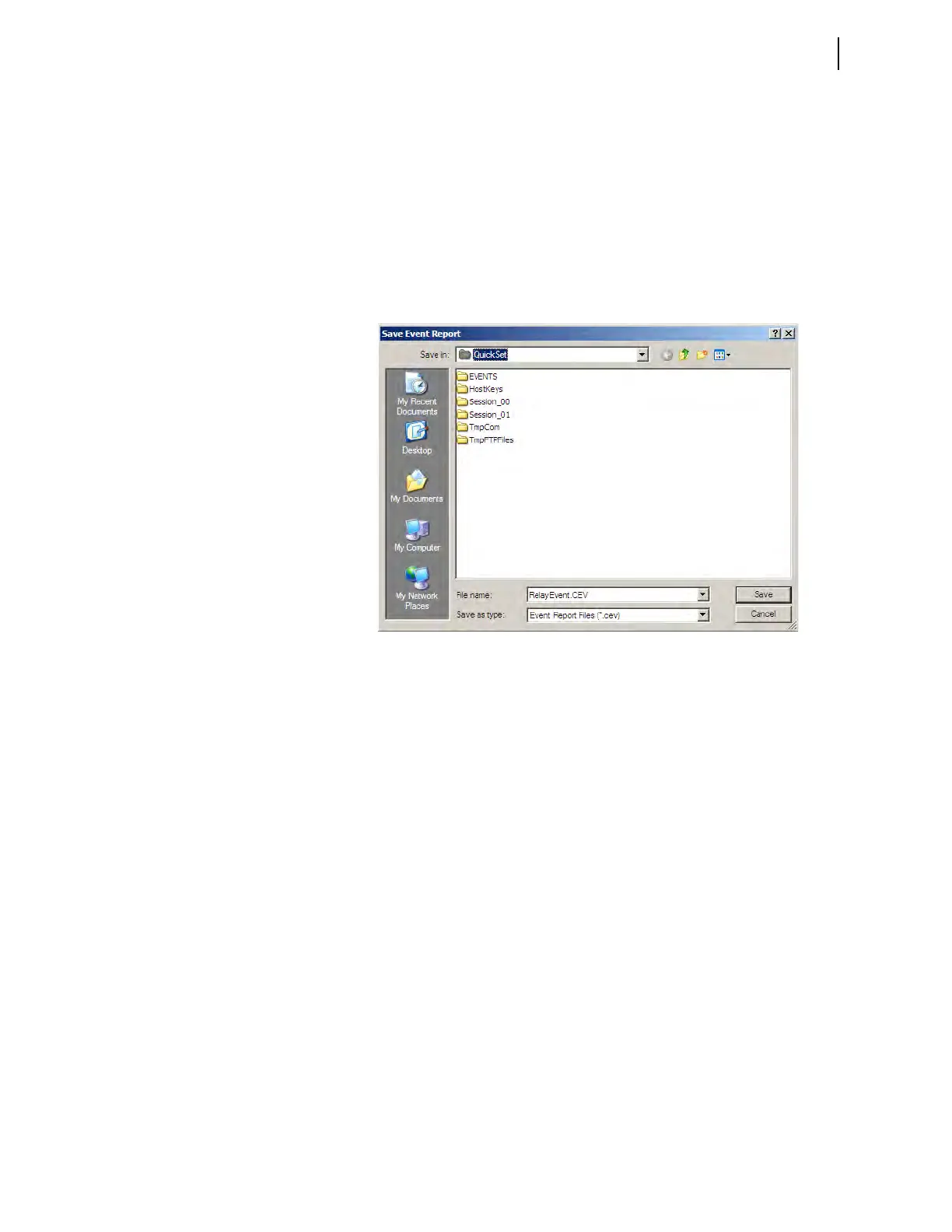
ACSELERATOR QuickSet queries whether to save the file on your computer, as
shown in Figure 3.11.
Figure 3.11 Saving the Retrieved Event
Enter a suitable name in the File name text box, and select the appropriate
location where
ACSELERATOR QuickSet should save the event record.
View Event Files
To view the saved events, you need ACSELERATOR Analytic Assistant. Use
the View Event Files function from the Tools > Events menu to select the
event you want to view (
ACSELERATOR QuickSet remembers the location
where you stored the previous event record). Use View Combined Event
Files to simultaneously view as many as three separate events.



 To Next Page