The Universal Configuration Module
Page 190 OmniTrax Product Guide
3. Set the Address for the processor.
4. Set the initial configuration parameters.
5. Save the UCM file and download the configuration changes to the processor.
6. Record the sensitivity profile.
7. Set the transmitter power level.
8. Save the file and download the configuration changes to the processor.
The Universal Configuration Module
The Universal Configuration Module (UCM) is a Windows based software application, which
serves as the calibration, setup and maintenance tool for the OmniTrax system. The UCM
communicates with the OmniTrax processor directly through a local USB connection to T2 on the
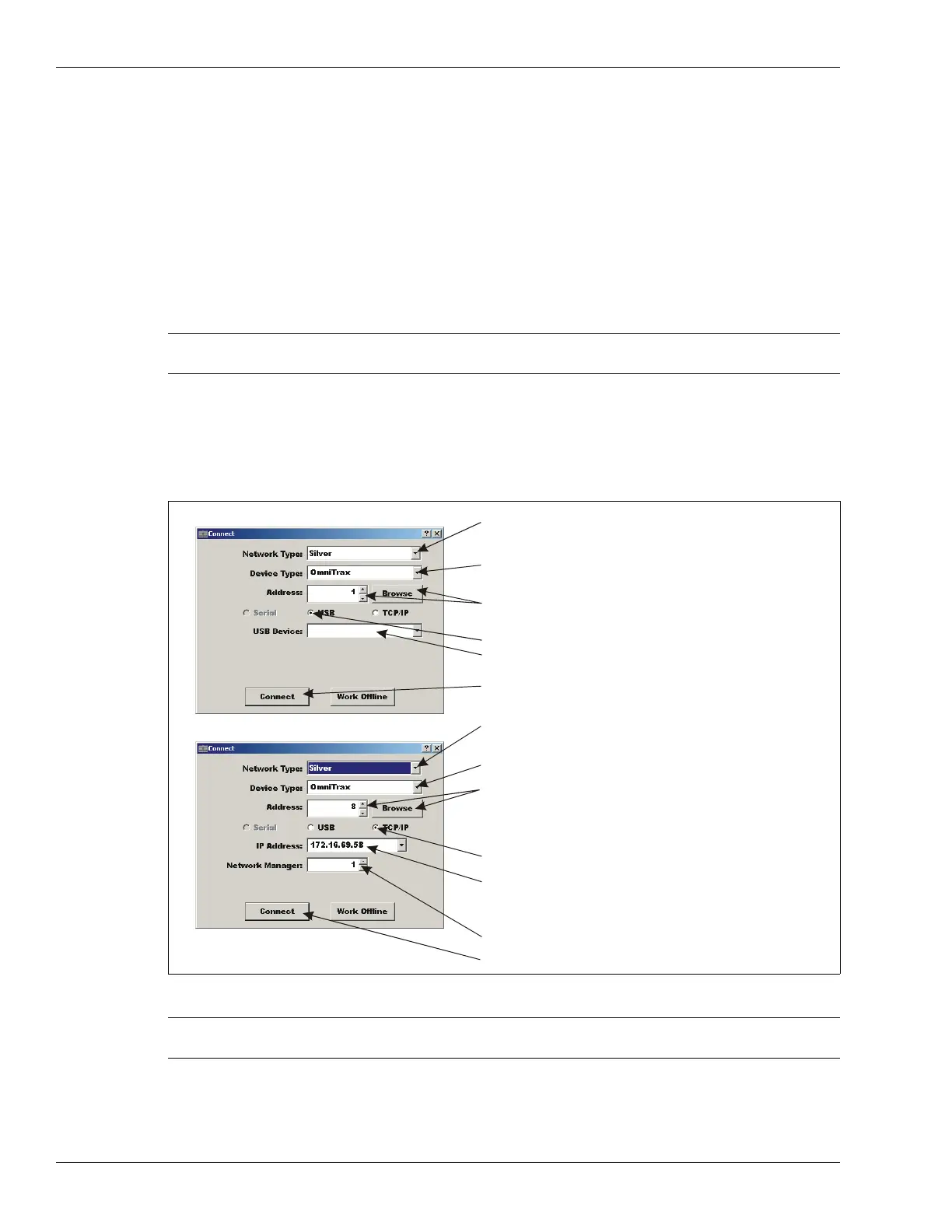
processor, or remotely via the Silver Network Manager. When you start the UCM, a window
displays that enables you to specify the device to which you are connecting.
Note Refer to the UCM online help for details on the operation of the UCM,
and the calibration and setup of the OmniTrax processor.
Figure 166: Connecting the UCM
Tip Save UCM files with a meaningful name, which includes the time and
date. The files can then be reopened at a later time (Work Offline).
USB direct connection
TCP/IP connection via Network Manager
in the Network Type: field select the network to
which you are connecting (Silver for OmniTrax)
in the Device Type: field select the device (OmniTrax)
use the Browse button to locate the processor address OR
use the Address field to specify the processor address
select the physical connection media (i.e., USB)
a list of connected USB devices is then displayed
select the connect button to establish the connection
in the Network Type: field select the network to which you
are connecting (Silver for OmniTrax)
in the Device Type: field select the device (OmniTrax)
to connect via the Silver Network Manager, use the Browse
button to locate the processor address OR use the Address
field to specify the processor address (Browse requires a
previously specified IP address and Network Manager ID)
select the physical connection media (i.e., TCP/IP)
enter the IP address of the Network Manager PC
(if the NM and UCM are located on the same PC,
enter 127.0.0.1 as the IP Address)
specify the number assigned to the Network Manager
select the connect button to establish the connection


 To Next Page