Calibration
Page 192 OmniTrax Product Guide
Calibration
Calibrate the OmniTrax sensor to meet the site-specific detection requirements.
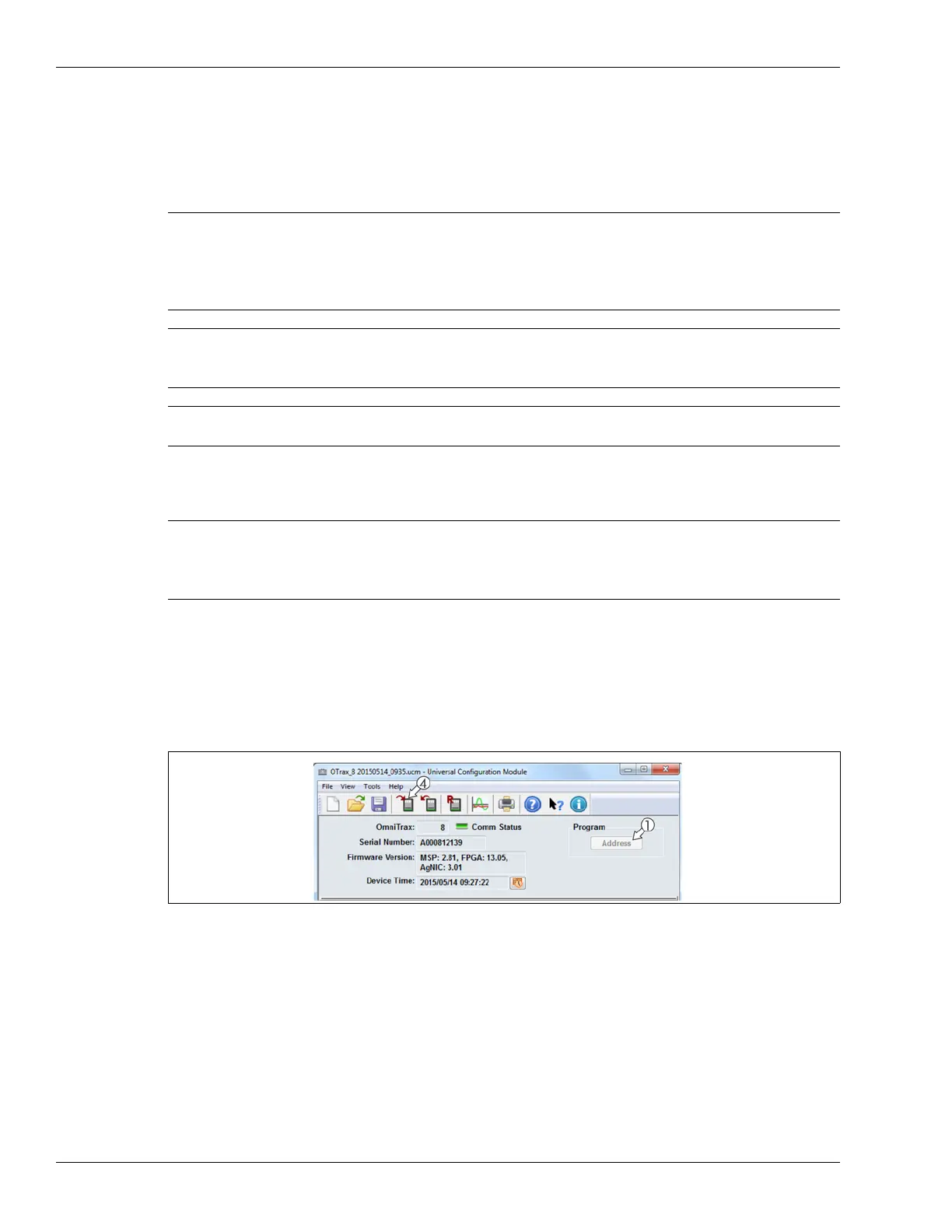
Assigning the processor address (Silver Network processors)
1. On the main UCM screen, select the Address button in the Program field.
A popup displays, which lists the processor’s serial number and address.
2. In the New Address field, assign the processor address, according to the site plan.
3. Select the Program button to save the assigned address.
4. Select the Download button to change the processor address.
Note Senstar recommends that the initial calibration of the OmniTrax
processor be performed using a direct USB connection between the
processor and the UCM computer.
An enclosure tamper condition must be active to establish a direct USB
connection to the OmniTrax processor (i.e., enclosure door opened).
Note You can setup passwords to enable changing the advanced parameter
settings as well as to enable the ability to download configuration
changes to the processor (Tools > Password Maintenance).
CAUTION Always test your OmniTrax detection system after calibration and setup,
and any time detection parameters are adjusted.
Note Silver Network based OmniTrax processors require a unique address
for network communications. The valid address range is from 1 to 60.
Standalone processors can use the default address of 1. You must have
a direct USB connection to the processor to set the address.
Figure 168: Assigning the processor address


 To Next Page