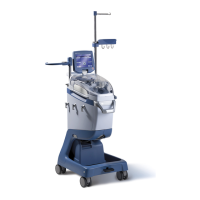
How to resolve 'Check centrifuge arm closure' message on sorin XTRA?
- MMarie LaneSep 10, 2025
Check bowl insertion into the centrifuge, verify that the centrifuge arm is locked, close the centrifuge lid and press PLAY to resume.
How to resolve 'Check centrifuge arm closure' message on sorin XTRA?
Check bowl insertion into the centrifuge, verify that the centrifuge arm is locked, close the centrifuge lid and press PLAY to resume.
What to do if the Sorin Medical Equipment shows 'Wash bag empty'?
The sensor detects air in the wash line. The wash line might be clamped or occluded. Remove the occlusion and press PLAY to resume. The saline solution bag might be empty. Spike a new saline solution bag and press PLAY to resume.
How to fix 'Pump rotor out of position' error on Sorin Medical Equipment?
Open the centrifuge lid and check the position of the pump rotor: open the white lever, push the pump rotor fully down, turn the pump rotor to align the white lever with the slot in the metal shaft, close the white lever into the slot, and make sure the white lever is completely down. Close the centrifuge lid and press PLAY to resume.
What to do if sorin XTRA displays 'Reservoir empty. Bowl not filled'?
If the reservoir is not empty, check the air sensor, make sure the tubing going to the bowl is seated properly inside the sensor and the fill line is not occluded/clamped. Press FILL to resume. If this is the last cycle, press LAST BOWL (only if enabled) to automatically complete the case. You can also press CONCENTRATE to start the concentration phase or RETURN (only if present) to return the blood into the reservoir. If the bowl is sufficiently packed with RBCs, you may decide to press WASH to proceed to the Wash phase or 2XWASH to use twice the saline solution.
What causes 'Pump loop loading failed' on sorin XTRA Medical Equipment and how to resolve it?
The machine cannot properly load the pump loop. If the pump loop is blocking the rotor, manually remove it. Check for any eventual damage to the pump loop and, if present, replace the disposable. If the pump loop is not damaged, manually seat it and press PLAY to resume. If the rotor is blocked by any other object, remove it, then press PLAY to resume.
What to do if Sorin Medical Equipment shows 'Fluid loss in centrifuge: Biohazard risk'?
Open the centrifuge lid and the centrifuge arm, check that the bowl is not leaking, and make sure that all clamps of bowl set and waste bag are open. If there is a leak, press X to exit and display the current screen, unload the pump loop and remove the disposable. Clean the centrifuge housing and sensor, install a new disposable, start a new case and eventually reopen the case from the Tally Screen. If there is no leak, clean the ‘Centrifuge Fluid Loss’ sensor with a dry cloth, make sure the bowl set is mounted properly, close the centrifuge lid and press X to exit and display the current screen. You may decide to disable the sensor and the related alarm for the current case by pressing DISABLE ALARM.
What to do if sorin XTRA Medical Equipment displays 'Bowl not washed'?
Press FILL to resume the Fill phase. Press WASH to start / resume the Wash phase. Press EMPTY to confirm the Empty phase.
What causes 'Centrifuge test failed' on sorin XTRA?
Do not force the centrifuge lid. Verify that the centrifuge is not blocked by any object, which might prevent its proper rotation. Press PLAY to try to resume. Restarting the machine might solve the problem.
What to do for 'Check centrifuge lid lock' message on sorin XTRA Medical Equipment?
Press X to restore Lock position, then close the lid.
What to do if 'HCT indicator calibration failed' on sorin XTRA Medical Equipment?
The machine cannot calibrate the HCT indicator. Verify that the line is properly seated in the indicator and not dirty on the outside. Press PLAY to retry (max. 3 attempts). After 3 failures, press DELAY CALIBRATION to exit. The system can still be operated, but the HCT indicator will not be available for the current case.

Details the XTRA system components, including its automated and programmable options.
Details the three stages of blood processing: Fill, Wash, and Empty.
Illustrates and labels the major components of the XTRA system from front and back views.
Describes the control panel's components, including the touch screen display and physical Stop button.
Locates and describes the centrifuge arm, plate, and lid, including safety features.
Explains the function of three clamps used to control fluid flow during normal processing.
Describes the processing pump's role in moving fluids and its operational rates.
Explains the ultrasonic air detector's function in sensing air and detecting empty conditions.
Describes indicators that monitor blood quality during processing.
Describes the optional vacuum module that connects to the XTRA cart for negative vacuum pressure.
Shows a front view of the XTRA with the disposable set installed, labeling key components.
Describes the XTRA Collection Set, its components, and available configurations.
Details the XTRA Blood Collection Reservoir, its capacity, graduated scale, and port descriptions.
Describes the dual lumen tubing for mixing anticoagulant with aspirated blood.
Describes the clear plastic tubing used to create vacuum in the blood collection reservoir.
Contains tubing harness, centrifuge bowl, waste bag, and RBC bag for processing blood.
Designed for concentration and separation of blood components with available sizes indicated by collar ring color.
Describes the 10-liter waste bag with a slide clamp and drain valve for collecting overflow fluid.
Describes the one-liter primary RBC bag provided with the Bowl Set, including its ports.
Equivalent to Collection Set CARDIO and Bowl Set, containing all components for blood collection and processing.
Provides instructions for preparing and adjusting the anticoagulant solution flow rate.
Recommends sterile normal saline as the wash solution and its availability in various sizes.
Details the setup procedures for intraoperative red cell recovery and reinfusion.
Provides step-by-step instructions for installing the blood collection reservoir.
Guides the user through preparing anticoagulant solution and connecting the dual lumen suction line.
Instructs on attaching the vacuum line to the XVAC system and reservoir, and regulating vacuum levels.
Provides step-by-step instructions for installing the bowl set, including opening the centrifuge arm and lid.
Guides on connecting wash lines to saline solution containers and spiking the solution bag.
Provides instructions for removing and hanging the waste bag on the machine's panel.
Details the steps for safely removing disposable sets after case completion.
Explains how to interact with the touch screen, including button states and important notes.
Details the components of a typical autotransfusion processing screen.
Explains how to modify parameters displayed in text boxes on various screens.
Covers running intraoperative and postoperative protocols, including touch screen interface.
Details the procedure for unloading the pump loop to start a new case or shut down the machine.
Explains how to resume an interrupted case by retaining case data after power loss.
Provides a special protocol variation to minimize operator intervention in emergencies.
Explains how to select protocols and operating modes from the Protocol/Mode tab.
Provides steps to manually empty the bowl and remove the disposable set after a power loss.
Allows returning blood from the bowl back to the reservoir.
Used to complete bowl filling from the RBC bag when reservoir volume is insufficient.
Pumps wash solution into the RBC bag and empty line to simplify reinfusion line priming.
Allows the operator to remove accumulated air from the RBC bag.
Describes methods and precautions for reinfusing processed red blood cells under physician supervision.
Automatically initiates the first Fill phase based on reservoir blood volume.
Allows automatic sequential processing of multiple cycles without operator intervention.
Automates case conclusion by processing remaining blood and emptying the RBC line.
Doubles the wash volume for a single cycle when a bowl cannot be completely filled.
Optimizes Wash phase using centrifuge accelerations and decelerations.
Solves incomplete bowl emptying by activating a further special Empty phase.
Accesses password-protected screen for general system configuration.
Provides steps to access the Configuration Mode Screen by entering a password.
Explains how to enable/disable optional features from the Features tab.
Allows configuration of available processing protocols (ATS, SEQ, Emergency, User).
Configures system's initial settings at power on, including ATS mode, Autostart, and Vacuum set points.
Configures rapid selection of ID fields for use in the ID Tab of the Menu Screen.
Allows resetting machine configuration to factory defaults or deleting all cases from memory.
Requires enabling "User Protocols" in Configuration Mode to create custom protocols.
Guides on creating, modifying, and deleting custom protocols via the Protocol/Mode tab.
Step-by-step instructions for creating a new custom protocol by duplicating and customizing a base protocol.
Explains how to adjust protocol parameters at run time or from the Protocol/Mode tab.
Details how to adjust programmable parameters via the Protocol/Mode tab.
Guides on renaming existing custom protocols using the Keyboard Screen.
Explains how to designate a protocol as the initially active protocol for new cases.
Guides on deleting existing custom protocols.
Guides on enabling sequestration protocols via the Configuration Mode Screen.
Outlines the setup differences for preoperative sequestration.
Refers to Chapter 4 for detailed disposable installation steps.
Covers running preoperative sequestration cases using dedicated SEQ protocols.
Guides on loading the pump loop tubing via the Setup Screen's Load button.
Used to complete bowl filling from the RBC bag or rewash RBC collection bag contents.
Steps to finish sequestration and prepare for blood recovery, including removing air and connecting lines.
Requires enabling download methods in the Configuration Mode Screen Features tab.
Explains where case data can be printed or downloaded from the interface.
Guides on entering and modifying optional data fields in the ID tab.
Explains how to select past cases for display or saving from the End of Case or Tally tab.
Guides on selecting the output destination for case data using a drop-down menu.
Provides steps for printing current and past case data.
Guides on saving current and past case data to a USB storage device.
Details steps for sending current and past case data to the Stöckert Data Management System.
Explains PC connection requirements and data transmission via RS232 port.
Steps for sending current case tally data to a PC via RS232 port.
Steps for sending past case tally data to a PC via RS232 port.
Explains that Hct, Supernatant Removal, and Waste Line Color indicators must be enabled.
Determines default vacuum mode and pressure set points based on last use or wakeup protocol.
Explains local control of the XVAC via its panel when XTRA interface is unavailable.
A physical button to interrupt operations and return to the safe Ready Screen.
Lists warnings that may occur during the XTRA setup phase and their operator responses.
Describes fatal errors indicating unrecoverable hardware anomalies requiring technical intervention.
Outlines regular maintenance checks by authorized service technicians.
States that corrective maintenance must be performed by authorized Field Service Engineers.
Provides an overview of the operating procedures for setting up the disposables.
Guides on setting the active protocol and operating mode via the Menu Screen.
Provides an overview of running an ATS case, from disposable installation to case completion.
Provides an overview of running a PRP Sequestration case.
Provides an overview of creating a custom protocol.
Illustrates printing a report from the Tally tab of the Menu Screen.
| Brand | sorin |
|---|---|
| Model | XTRA |
| Category | Medical Equipment |
| Language | English |