Processing
X
TRA Operator’s Manual 20077/021 US 5-39
5. Emergency Button
Touching the Emergency button, and then confirming in the subsequent confirmation screen,
initiates the Emergency function (refer to “Emergency” on page 5-26).
While the Emergency function is active, this button appears in its pressed state (inset and green).
Touching it again will disable the Emergency function, re-enabling the previous protocol (confirmation
not required).
The Emergency button is only available during intraoperative and postoperative protocols.
6. “End Case” Button
Touching the “End Case” button displays the End of Case Screen and allows the operator to
end the current case (refer to “End of Case Screen” on page 5-50).
Processing Screen
Once a processing cycle has been initiated from the Ready Screen, the Processing Screen is displayed
on the touch screen display.
From the Processing Screen, each phase of each cycle may be monitored and controlled. The
processing displet (in the center of the screen) changes during processing to present controls and
information relevant to the current phase. The title bar of the processing displet always indicates the
current phase. In this section, the Processing Screen is described as four different screens, one for
each phase: Fill, Wash, Empty and Fat Removal (only present if Pfat protocol is being used).
Fill Screen
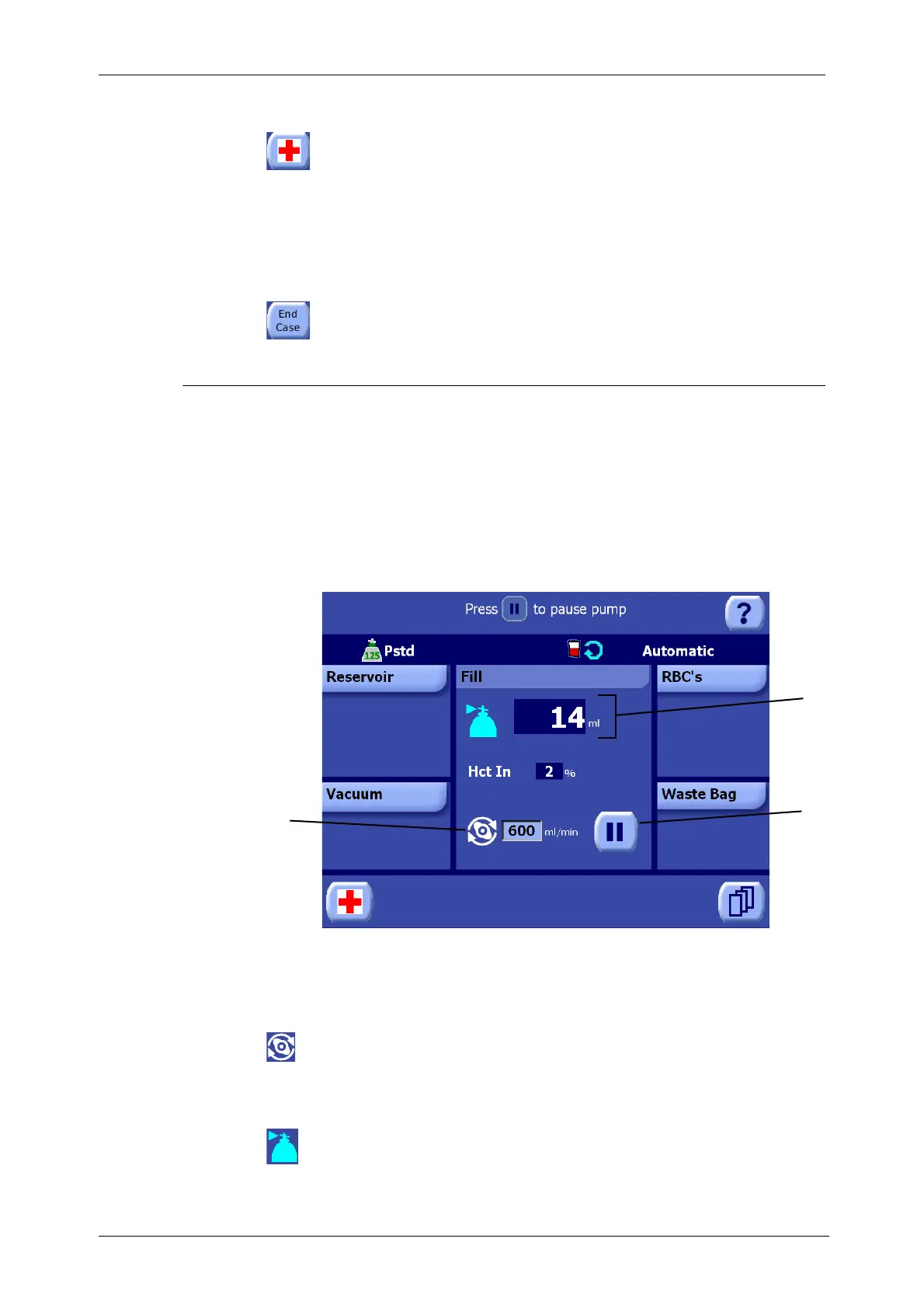
Figure 5-37 Fill Phase of the Processing Screen
1. Pump Speed
The pump speed (ml/min.) is displayed in a text box in the processing displet to the right of the
pump rotor icon. Except during the Fill phase of the Popt, Pfat and Post-op protocols, the pump
speed may be adjusted by touching the text box and using the up and down arrow buttons
(refer to “Modification of Parameters” on page 5-5).
2. Fill Status Line
The fill status line indicates the current phase with the fill icon. To the right of the icon is a text
field which displays the amount of fluid which has been pumped into the bowl (ml) during the
current cycle.
1 Pump speed 2 Fill Status line
3 Play/Pause button
1
2
3






 To Next Page