Data Download Option
X
TRA Operator’s Manual 20077/021 US 11-3
Refer to “Sending Tallies to the XTRA USB Memory Device” on page 11-6 for instructions on saving case
data via a USB port.
RS232 Ports
The three integrated RS232 serial ports situated on the rear panel of the XTRA system allow the system
to be connected to external computers or peripherals.
One port will be designated for connecting to a computer for data download (refer to “Sending Tallies
to a PC Through the RS232 Port” on page 11-7), and one port will be designated for connection to the
Stöckert Data Management system (refer to “Sending Tallies to the Stöckert Data Management
System” on page 11-7).
Case Data Download
There are three places within the touch screen user interface from which case data may be printed or
downloaded once processing of the case has completed:
• The End of Case Screen, which appears upon completion of processing for every case. Refer to
“End of Case Screen” on page 5-50.
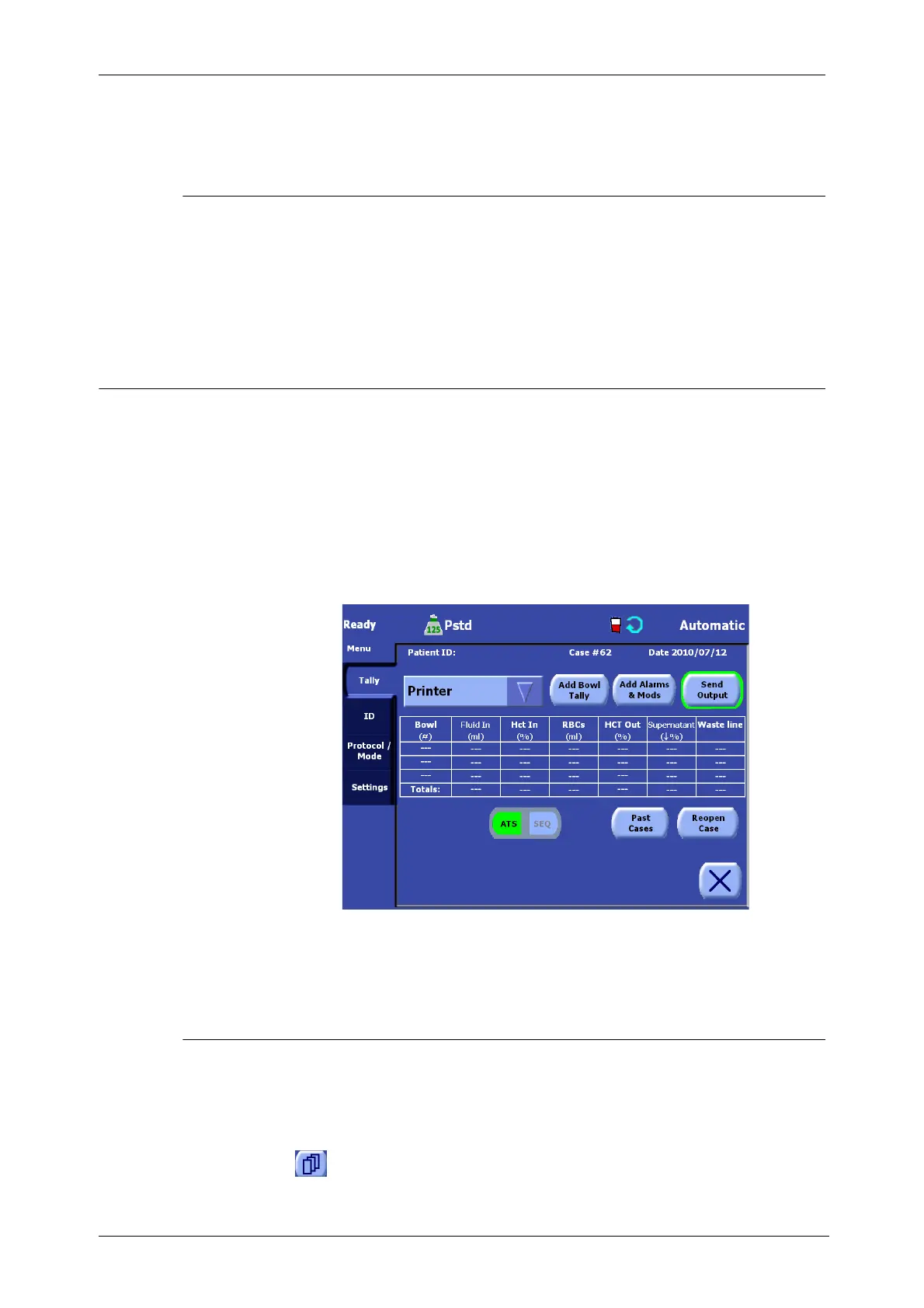
• The Tally tab of the Menu Screen (see Figure 11-3) which may be accessed at any time during a
case by touching the Menu button from any screen.
• The Past Cases Screen (see Figure 11-5) which may be accessed from either the End of Case
Screen or the Tally Tab of the Menu Screen.
Figure 11-3 Tally Tab of the Menu Screen
For a detailed explanation of the
Tally tab, read “Tally Tab” on
page 5-44.
Entering and Modifying Optional Case Data Fields
In addition to the standard data stored for each case, such as the volumes of collected RBC, PPP, and/
or PRP, the X
TRA system allows for optional data fields which may be entered by the operator and
saved with the standard case data.
The content of optional data fields may be entered and modified from the ID tab of the Menu Screen:
1. Touch the Menu button from any screen.





 To Next Page