Processing
X
TRA Operator’s Manual 20077/021 US 5-37
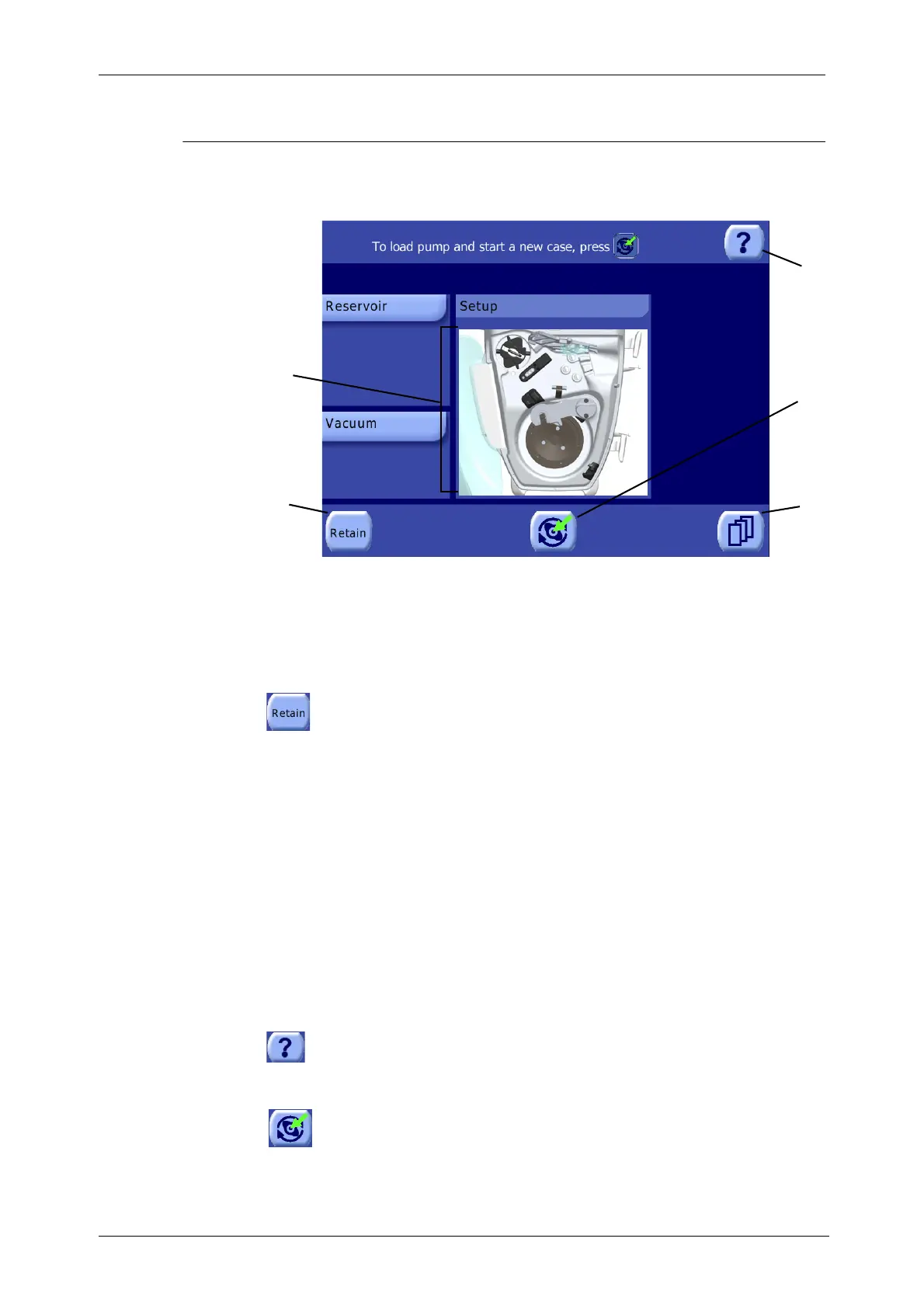
Setup Screen
After powering on and confirming any disabled warnings or alarms (see “Turning On the XTRA System”
on page 5-5), the operator is presented with the setup screen (see Figure 5-35).
Figure 5-35 Setup Screen
1. “Retain” Button
The “Retain” button allows the operator to proceed with a case previously interrupted by
switching OFF the machine without unloading the pump loop (refer to “Retaining Case Data
Between Power Cycles” on page 5-16). Touching the “Retain” button will initiate the
auto-load process much like touching the Load button. The pump and bowl will spin during testing/
loading. Each step of the load process is tracked visually by the processing displet. Once loaded, the
Ready Screen is displayed (refer to “Ready Screen” on page 5-38).
2. Load Diagram
The processing displet of the Setup screen contains a top-view diagram of the XTRA system. A green
circle highlights the component in the diagram being tested and loaded during each step of the
auto-load process.
3. Help Button
Touching the help button from any screen will toggle the display of a context-sensitive Help
Screen. Refer to the section “Help Screen” on page 5-51.
4. Load Button
Touching the load button will initiate the auto-load process which tests that the disposable is
installed correctly (as described in
Chapter 4: Installing the Disposables
) and loads the
pump-loop tubing. The pump and bowl will spin during testing/loading. Each step of the load
process is tracked visually by the processing displet. Once loaded, the Ready Screen is displayed (refer
to “Ready Screen” on page 5-38). If an error is detected during the loading/testing sequence, a
warning message will be displayed (refer to “Alarms and Warnings During Setup” on page 14-3).
CAUTION
When Retaining Case Data Between Power Cycles, do not change the
disposable and/or its positioning to avoid potential errors during the
auto-load process.
2
3
4
1
5
1 “Retain” button 3 Help button
2 Load diagram 4 Load button
5 Menu button





 To Next Page