Processing
5-2
20077/021 US XTRA Operator’s Manual
Screen Structure
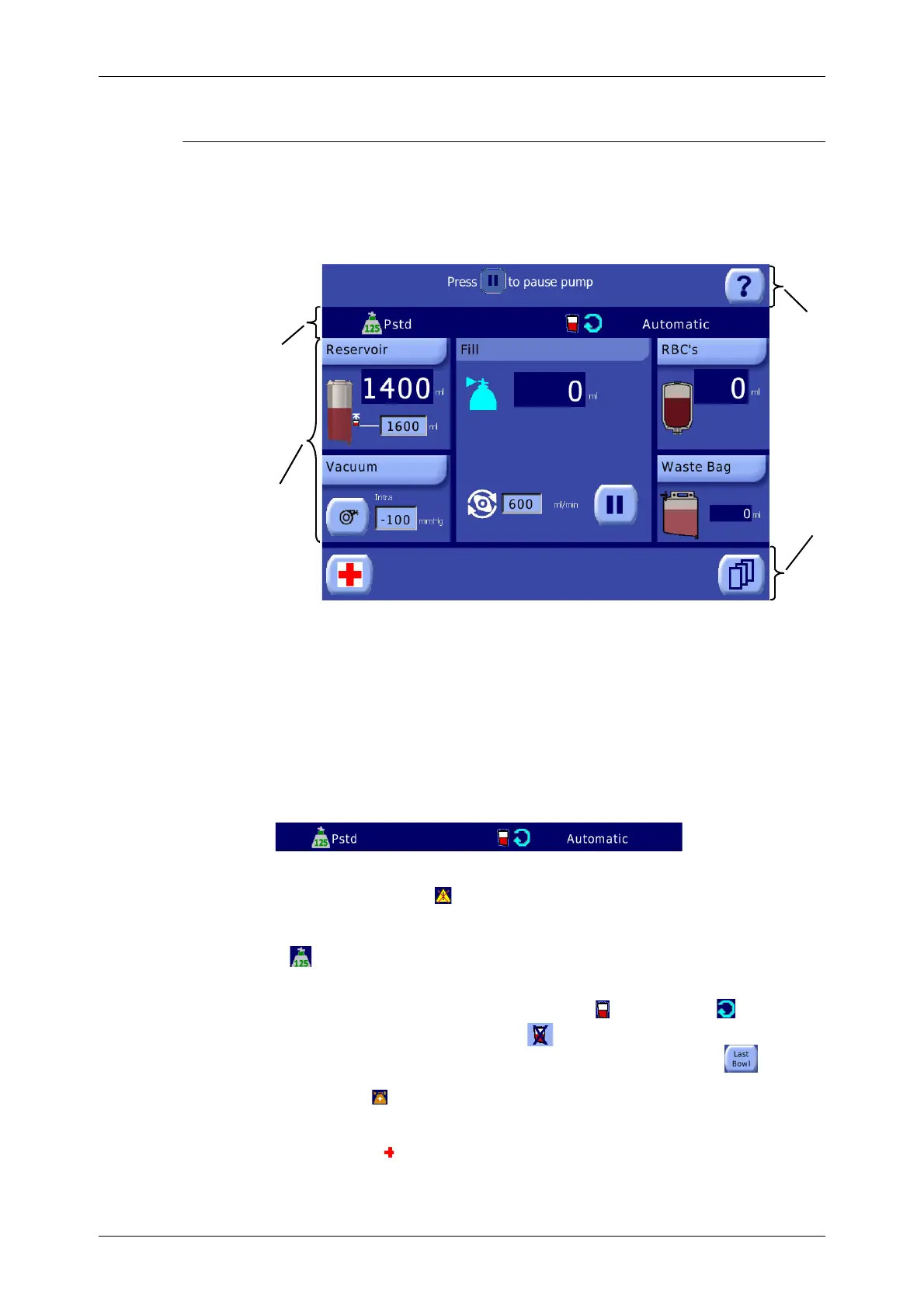
Figure 5-4 shows the structure of a typical processing screen.
Note: Opening a menu or help screen will obscure any currently displayed screen. Closing the menu
or help screen will return to the screen. Processing screens remain active and continue to be updated
even while obscured by a menu or help screen.
Figure 5-4 Typical Autotransfusion Processing Screen Structure
1. Displets Area
Most of the screen is occupied by the displets area which contains all of the displets for the current
screen. Visible in Figure 5-4 are the Reservoir, Processing, RBC’s, Waste Bag, and Vacuum displets.
See “The Displets” on page 5-3 for a detailed description of each.
2. Status Area
Below the message area is the status area which displays the following information, from left to right:
• The triangle warning icon ( ) appears to the far left if any warnings have been disabled and/or
there are any changes to the acoustic signals.
• The detected bowl size (55 ml, 125 ml, 175 ml, or 225 ml) in the form of the bowl size icon
().
• The current protocol (Pstd, Popt, Post-op, Pfat, PPP, PRP1, PRP2, or a user defined protocol).
• Icons representing the enabled automations: Autostart ( ) and/or Continue ( ).
• The icon representing disabled automation:
• The button identifying the last bowl appears in the right side of the button bar:
• The BQW icon ( ) is displayed when the Better Quality Wash function is enabled, along with an
indication on whether it is set for short cycle (2x) or long cycle (4x).
• While the Emergency function is active with either the No Wash or Rapid Transfer functions
enabled, an icon ( ) appears in the status bar above the name of the enabled function.
• And to the far right, the current operating mode (Automatic, 1 Touch, or Manual) is displayed.
1 Displet Area 3 Message Area
2 Status Area 4 Button Bar
1
2
3
4





 To Next Page