Chapter 4 — Configuring the Library Configuring Optional Library Settings
December 2019 User Guide—Spectra T200, T380, and T680 Libraries
142
Administrators can follow the instructions in the email they receive to
import identifying information for every barcode labeled cartridge and its
off-site location into the storage management software. Because the
cartridge barcodes are associated with the barcode of the magazine
containing the cartridges, groups of cartridges can be located using a single
barcode. Refer to the documentation that accompanied your software for
information about using the vltcontainers command to manage the
off-site magazines and cartridges.
Note: Before you can use Rotation Manager, you must enter the
activation key to enable it as described in Enter Activation Keys
on page 103.
User Privilege Requirements Only a user with superuser or administrator
privileges can configure Rotation Manager. See Configuring Library Users
on page 96 for information about the three types of user groups and what
types of privileges each has.
Configure Rotation Manager Use the following steps to configure the
Rotation Manager.
1. Log into the library as a user with superuser or administrator
privileges.
2. If necessary, obtain the activation key for Rotation Manager and enable
it as described in Enabling BlueScale Software Support, Options, and
Upgrades on page 101.
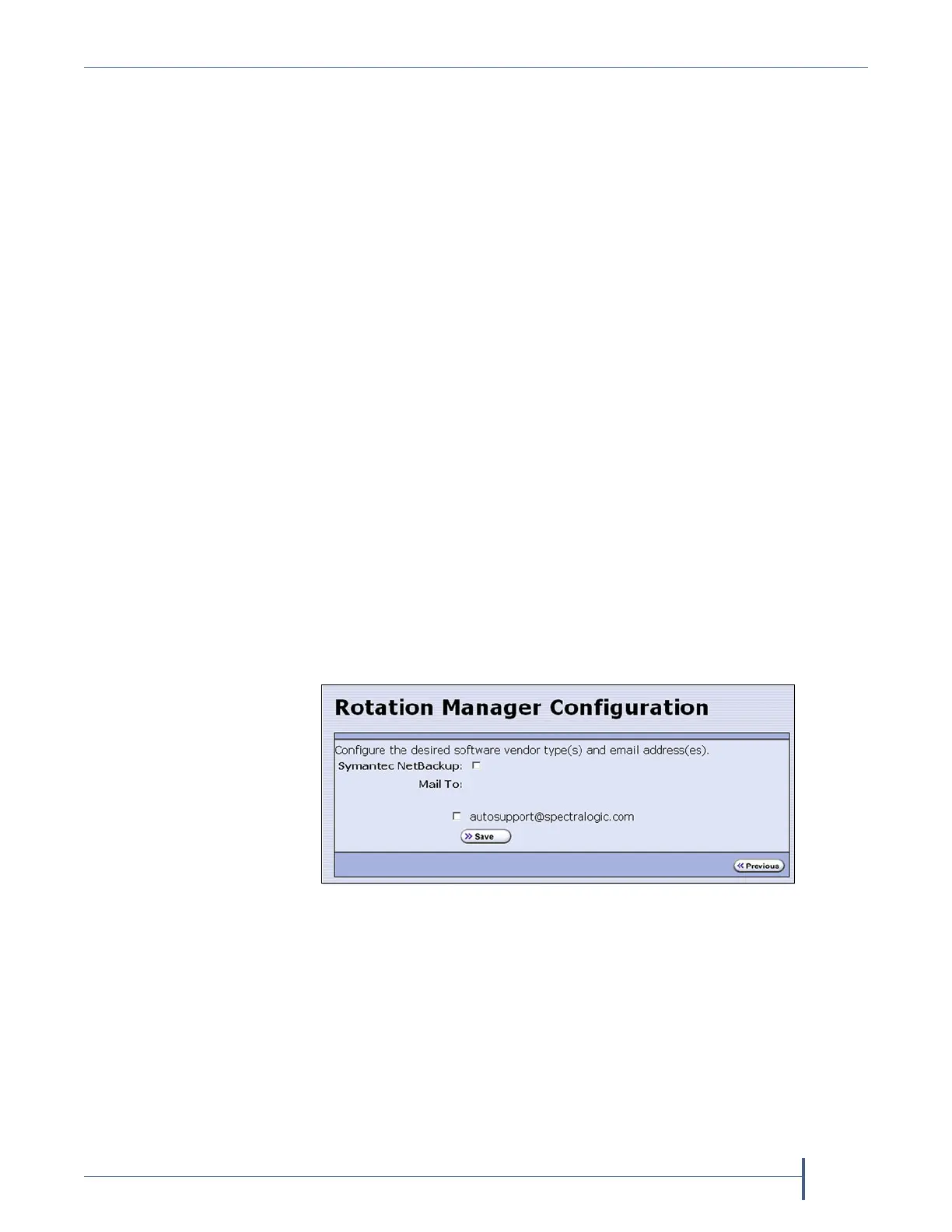
3. From the toolbar menu, select General > Import Export > Rotation
Manager. The Rotation Manager Configuration screen displays.
4. Symantec NetBackup is the only vendor supported by Rotation Manager
and is selected automatically.
Note: NetBackup Vault Manager was acquired by Symantec and
continues to be supported by Rotation Manager even though it is
not listed on the Rotation Manager Configuration screen.
Figure 70 The Rotation Manager Configuration screen.


 To Next Page