Chapter 13 — Drive Troubleshooting Using a Global Spare Drive
December 2019 User Guide—Spectra T200, T380, and T680 Libraries
406
Undo the Global Spare Drive
After you physically replace the failed drive (see Replace a Drive on
page 498), use the following steps to begin using the replacement drive and
return the Global Spare to the pool of available spare drives.
1. Log into the library as a user with superuser or administrator
privileges.
2. Use your storage management software to prepare the Global Spare
drive. Refer to your storage management software documentation for
information.
a. Stop all storage management software activity to the Global Spare
drive that replaced the failed drive.
b. If necessary, use your storage management software to eject the
cartridge from the drive and return it to its slot.
c. Take the Global Spare drive offline.
3. When the Global Spare drive is empty and offline, select Configuration
> Partitions on the toolbar menu to display the Shared Library
Services screen.
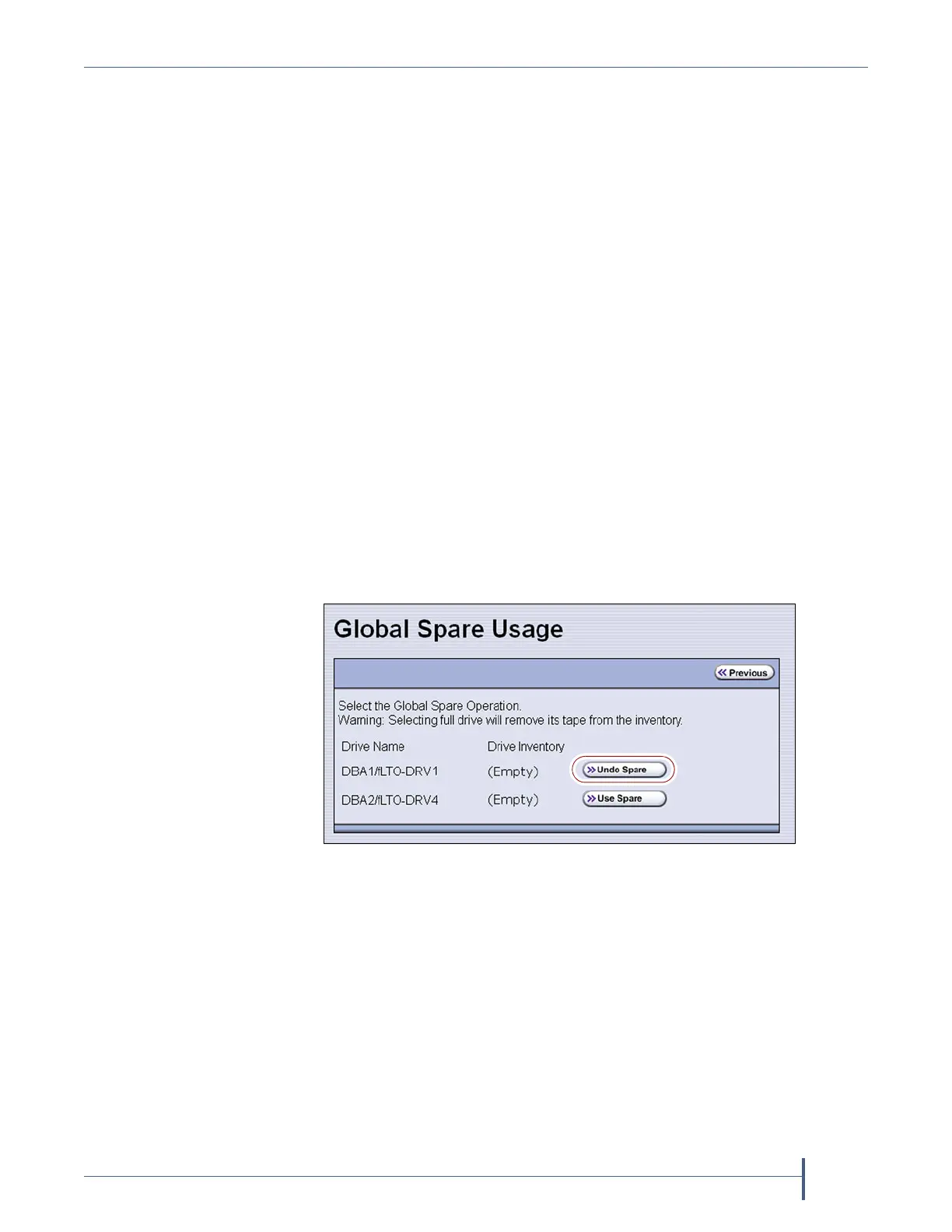
4. Click Global Spare for the partition that contained the failed drive to
display the Global Spare Usage screen.
5. Click Undo Spare next to the drive you physically replaced.
The BlueScale software stops substituting the Global Spare for the drive
it replaced and reconfigures the replacement drive back into the
partition. The Global Spare is then available to be used again, as needed.
6. Use your storage management software to bring the newly installed
drive online and resume backup operations. Refer to your storage
management software documentation for instructions.
Figure 254 Click Undo Spare to begin using the
replacement drive you installed.



 To Next Page