Chapter 3 — Introducing the BlueScale User Interface Overview of the BlueScale User Interface
December 2019 User Guide—Spectra T200, T380, and T680 Libraries
85
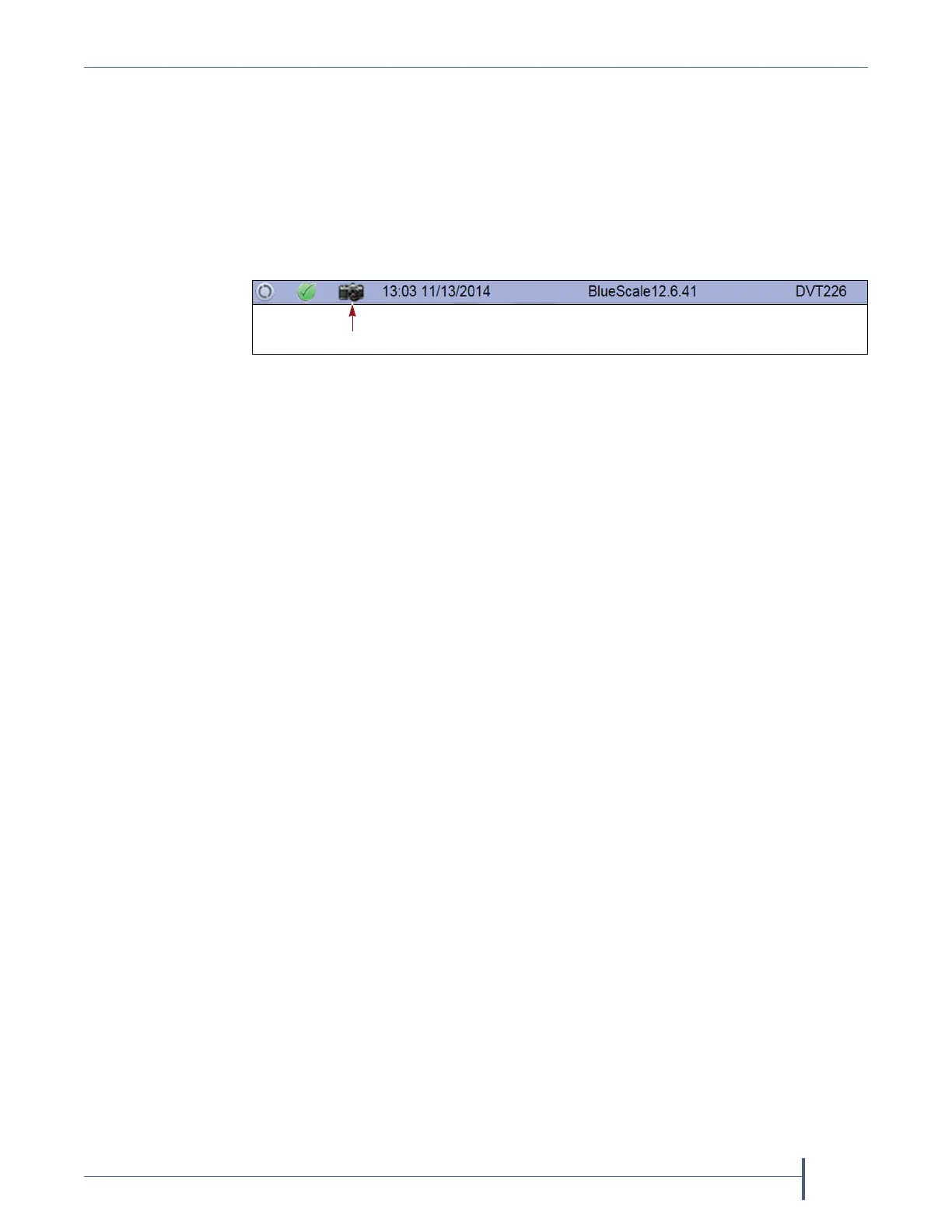
Camera Icon If one or more BlueScale Vision cameras are installed in the
library and their IP addresses are entered into the BlueScale user interface (see
BlueScale Vision IP Address on page 110), up to three camera icons appear
on the status bar. Click the icon to launch the web-based Network Camera
viewer and use it to observe the interior of the library over an Ethernet
network or the Internet (see Use the BlueScale Vision Camera on page 171).
Note: The Camera icon only appears on the BlueScale web interface; it
does not appear on the front panel touch screen interface.
Progress Bar
When the library is busy processing a command, a horizontal progress bar
displays above the status bar. Do not use the touch screen (or the BlueScale
web interface) until the progress bar disappears.
Library Management
The library management features in the BlueScale user interface provide
maximum configurability and ease of use for the library. To take full
advantage of the library’s versatility, read the following overview of the
library’s management features.
Automatic Email Alerts
Simple Mail Transfer Protocol (SMTP) lets users receive library status
information via email. When the library generates messages through the
library controller, it automatically sends email notifications to users who
are configured to receive them. Information included in the notification
consists of the message number, severity, details, remedy, and the time it
was generated. Message types are Information, Error, Warning, and Fatal
(see System Messages on page 159). You can select the types of messages
each library user receives (see Configure Mail Users on page 115).
AutoSupport
AutoSupport guides you through the process of sending email regarding
library problems — along with library logs and configuration
information — directly to internal support personnel or Spectra Logic
Technical Support. See Chapter 11 – Configuring and Using AutoSupport,
beginning on page 322 for detailed information.
Figure 39 The Camera icon in the BlueScale status bar.



 To Next Page