Chapter 4 — Configuring the Library Accessing the System Setup Screen
December 2019 User Guide—Spectra T200, T380, and T680 Libraries
99
3. Find the user’s name, then click Edit next to the name.
4. Change the user’s name, password, group, or any combination of these
as required.
5. Click Save to save your changes.
Delete an Existing User
Use the following steps to delete an existing user.
Note: The library requires there to be a minimum of one user assigned
to the superuser group. You cannot delete the last member of the
superuser group.
1. Log into the library as a user with superuser privileges.
2. From the toolbar menu, select Security > Edit Users. The Library Users
screen displays (see Figure 46 on page 97), showing a list of library user
names.
3. Locate the name of the user to delete, then click Delete next to that
user’s name. When the screen refreshes, the user list no longer includes
the user name you just deleted.
ACCESSING THE SYSTEM SETUP SCREEN
Overview All of the settings for the library’s general configuration options
are accessed through the System Setup screen. The screen is divided into
two panes. You may need to use the scroll bar to see the entire screen.
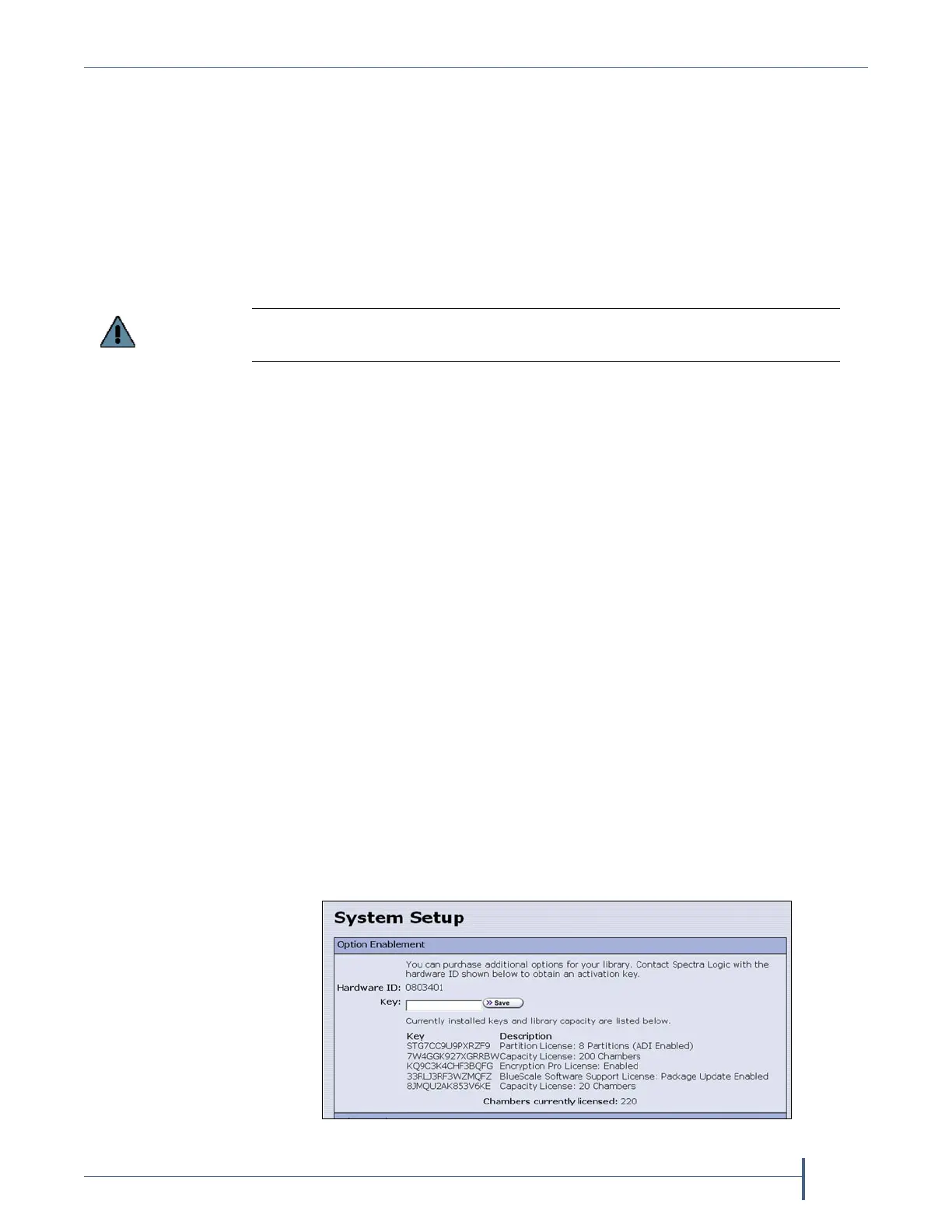
Option Enablement pane—Used for entering the activation keys
for any purchased options, including BlueScale Software Support,
licensed capacity (chambers), and Shared Library Services (SLS).
This panel also lists all of the currently licensed options.
If you delete the default users, make sure that you keep a record of at least one
superuser name and password.
Figure 47 The System Setup Option Enablement pane.



 To Next Page