Chapter 3 — Introducing the BlueScale User Interface Overview of the BlueScale User Interface
December 2019 User Guide—Spectra T200, T380, and T680 Libraries
75
OVERVIEW OF THE BLUESCALE USER INTERFACE
The BlueScale user interface lets you set configuration options, view
library and drive information and metrics, manage media, monitor library
operations, and perform maintenance operations.
Access Options
The BlueScale user interface is accessed using either the touch screen on
the library operator panel or through the BlueScale web interface.
Operator Panel Touch Screen Interface
The touch screen on the library’s operator panel is the library’s local
BlueScale user interface. You select options and enter information by
touching the appropriate location on the screen with a stylus or your finger.
The touch screen interface includes a soft keyboard that you can use to enter
alphanumeric characters into text fields. This soft keyboard can be accessed
from the keyboard icon that displays whenever text input is required.
In addition to using the touch screen, you can access the local user interface
using a monitor, keyboard, and mouse connected directly to the LCM (see
Figure 8 and Figure 9 on page 39). This method of accessing the local
BlueScale user interface provides the same functionality that is available
from the touch screen.
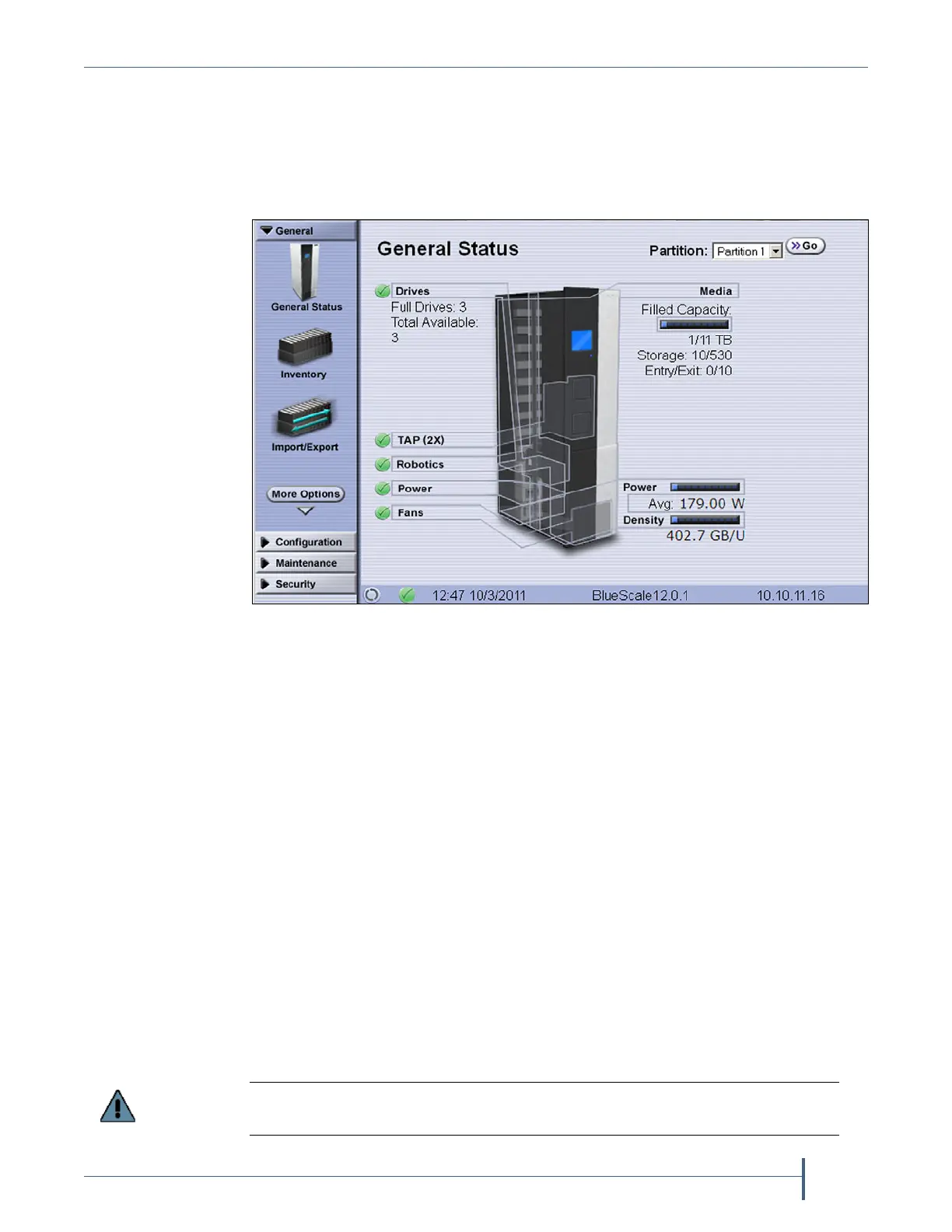
Figure 32 The BlueScale user interface General Status screen (T680 shown).
Do not use the Enter key on your keyboard when making selections in the BlueScale
user interface. It can cause inconsistent behavior in the BlueScale interface.



 To Next Page