Chapter 13 — Drive Troubleshooting Using a Global Spare Drive
December 2019 User Guide—Spectra T200, T380, and T680 Libraries
405
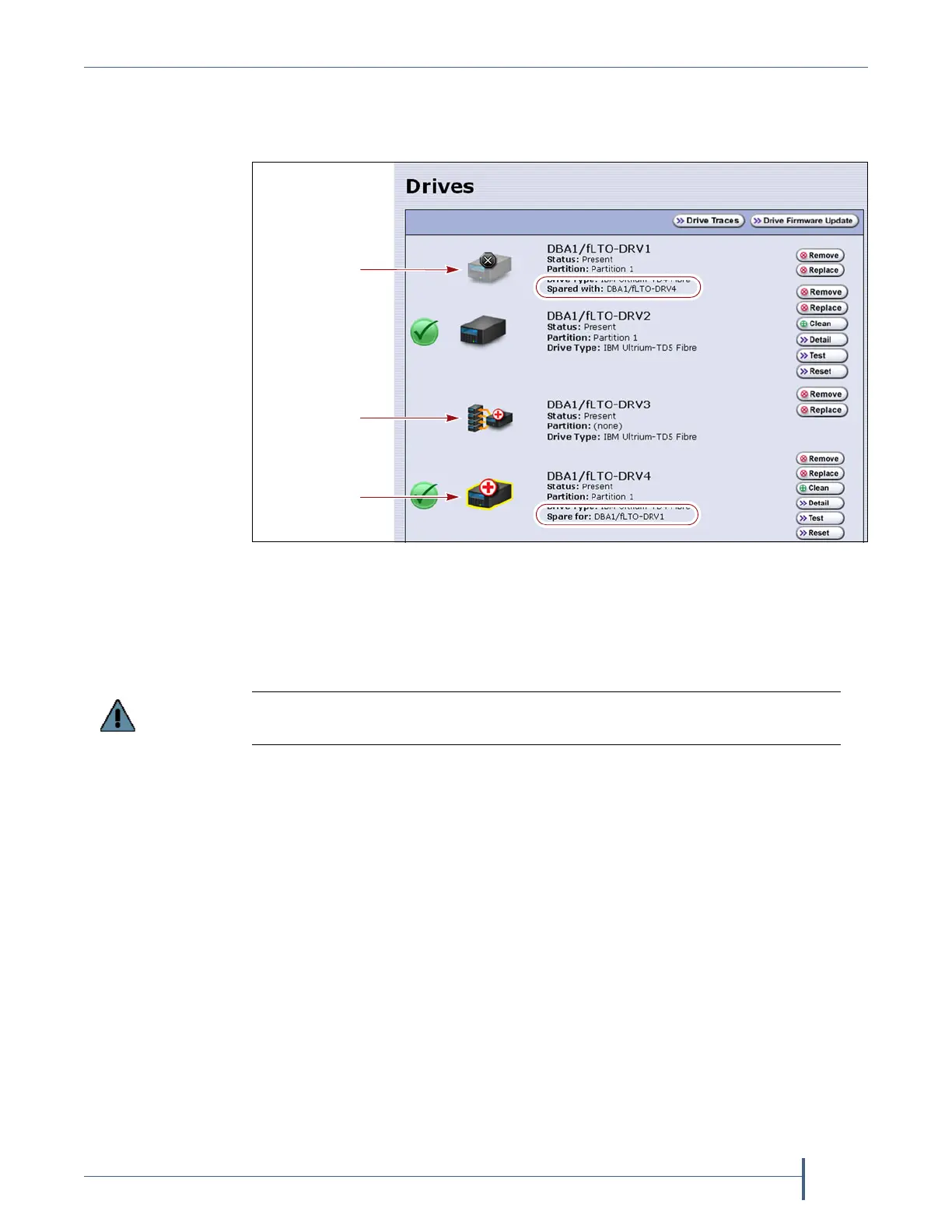
6. If desired, select Configuration > DLM (or Drives) to view the Drives
screen. The drive icons on the screen change to indicate the failed drive
and the Global Spare that replaced it.
7. If necessary, use your storage management software to bring the Global
Spare drive that replaced the failed drive online. Refer to your storage
management software documentation for instructions.
Note: If your storage management software cannot access the Global
Spare drive, confirm that the drive is properly connected to the
same SAN as the failed drive. You may also need to reconfigure
the Fibre Channel switch.
Figure 253 Check the Drives screen to confirm that the failed drive was
replaced by a Global Spare drive.
Failed drive
Available
Global Spare
drive
Global Spare
replacing
failed drive
Replace the failed drive as soon as possible and reconfigure the spare drive to
return it to a Global Spare configuration.



 To Next Page