Chapter 13 — Drive Troubleshooting Using a Global Spare Drive
December 2019 User Guide—Spectra T200, T380, and T680 Libraries
404
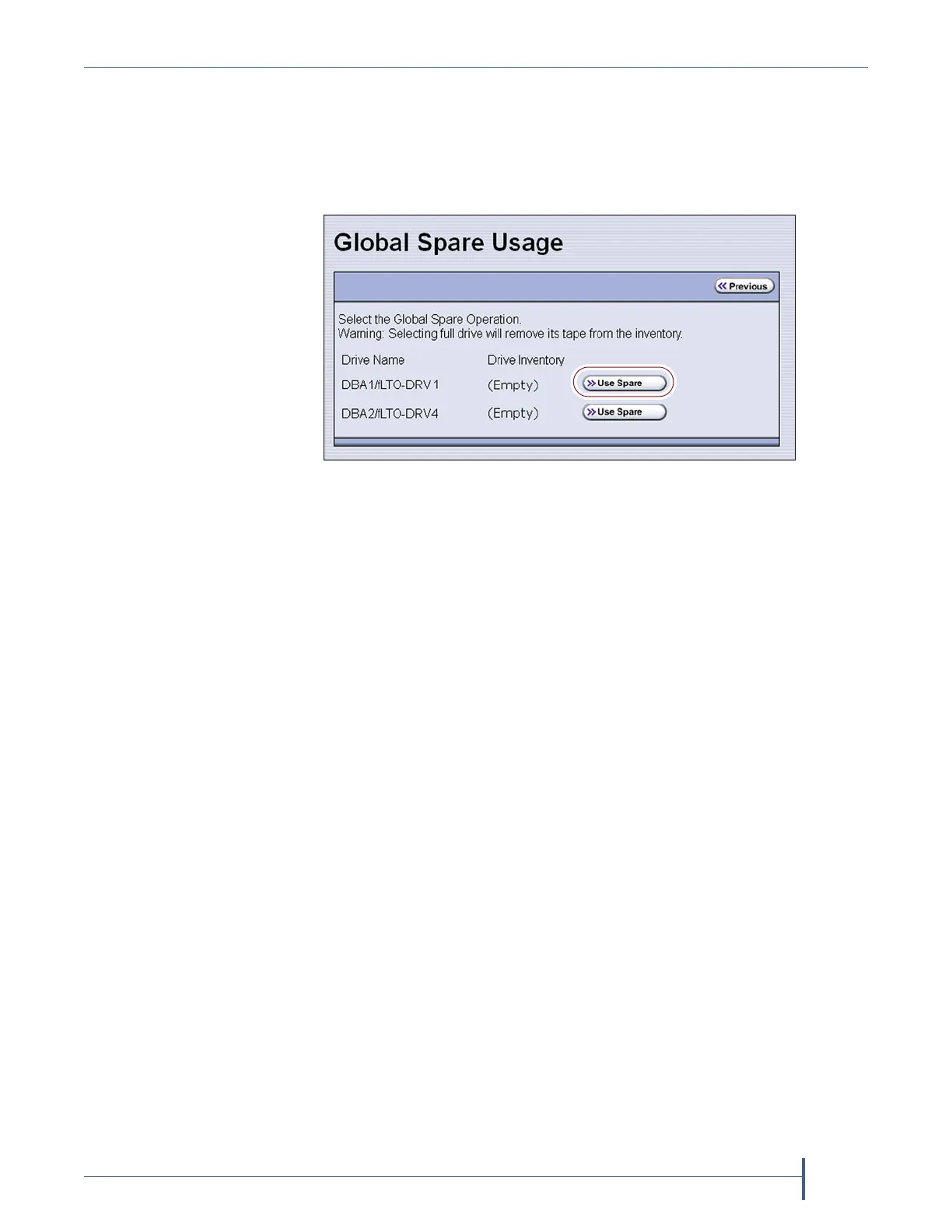
4. Click Global Spare for the partition that contains the failed drive to
display the Global Spare Usage screen.
Note: The Global Spare button is not present if one or more drives are
not configured as Global Spares for the partition (see Assign
Global Spare Drives on page 193).
5. Click Use Spare next to the drive for which you want to substitute an
available Global Spare drive. Wait for the library to complete the
sparing operation.
Notes: When you select the drive to replace, the BlueScale software
disables the selected drive and configures an available Global
Spare drive to report the same WWN and serial number as
the drive it is replacing. The failed drive can then be removed
and replaced the next time you are physically at the library.
If you have more than one available Global Spare drive, the
library automatically selects a drive in no particular order.
Figure 252 Click Use Spare for the drive you want to replace.



 To Next Page