User’s Manual
152 Software Configuration
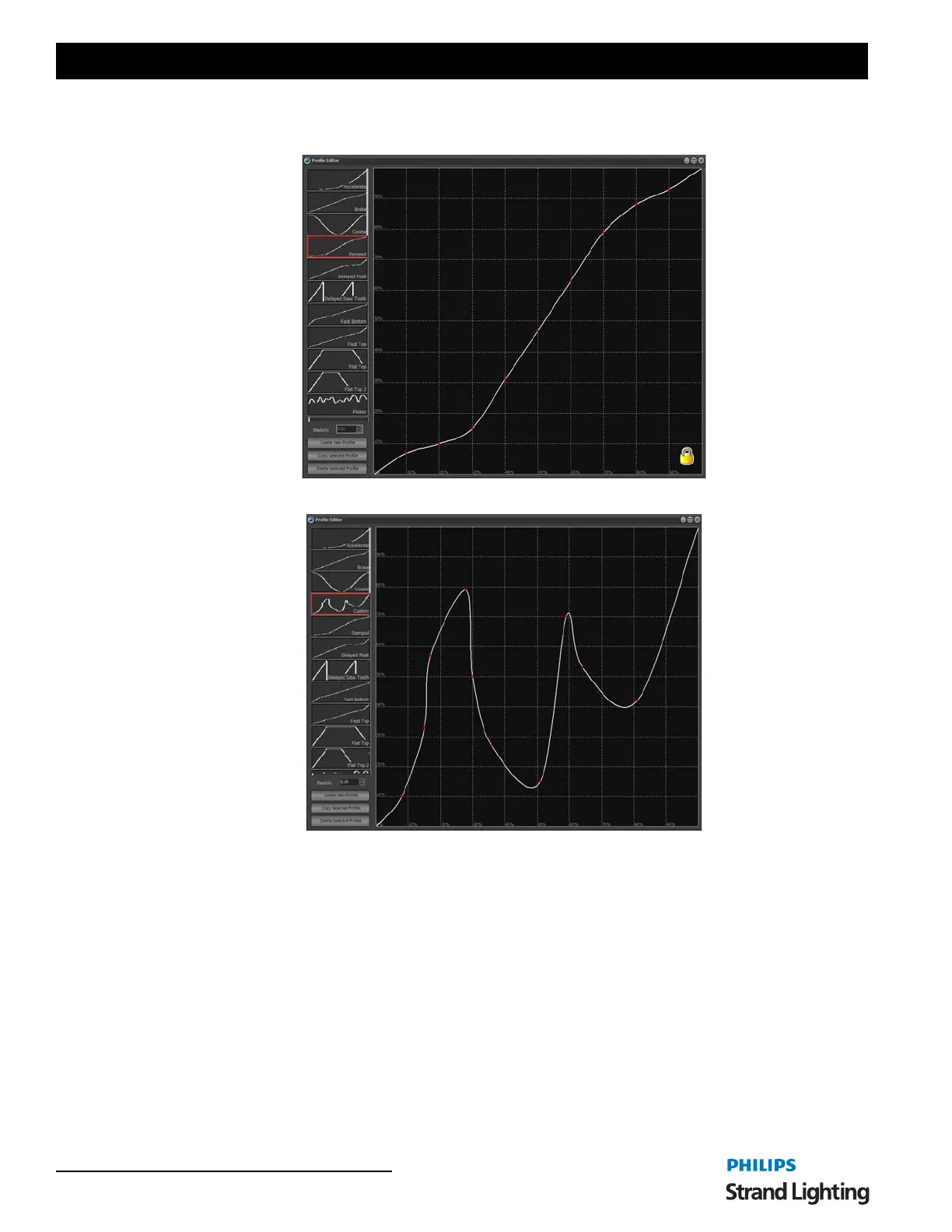
To adjust a profile or to make a new one choose "Edit Profiles" from the drop down menu attached to the "Edit"
button. You can also access the profile editor from the main command window from the "Extras" menu.
On the left side of the window is the list of profiles in the system. Profiles are not stored with the show information
and will remain in the system until deleted using the profile editor.
When the software is first installed a number of default profiles will be created. The default profiles cannot be edited
and are identified by the small padlock that is sown in the bottom right corner of the window. To edit a default profile
you will first need to make a copy of it using the button provided.
To create a new profile click on the "Create New Profile" button under the list of available profiles. A dialog will
appear asking for the name of the new profile. Enter a short description of the profile you plan to create and click on
the "OK" button. The new profile will default to the "Linear" path.
To make a change to this click anywhere on the grid and a small red dot will appear. The path will now smoothly go
through the point just created. You can move this point by clicking and holding your mouse button down to drag the
point around the window. Repeat this process to create more points.
By default the system will draw a tight path between every point created. Use the Elasticity spin edit to adjust the
obtuseness of the curve. Setting the elasticity to 1 will draw straight lines between each point without a curved fit.
Profile Editor, Damped Profile Selected
Profile Editor, Custom Profile



 To Next Page