EasyManua.ls Logo

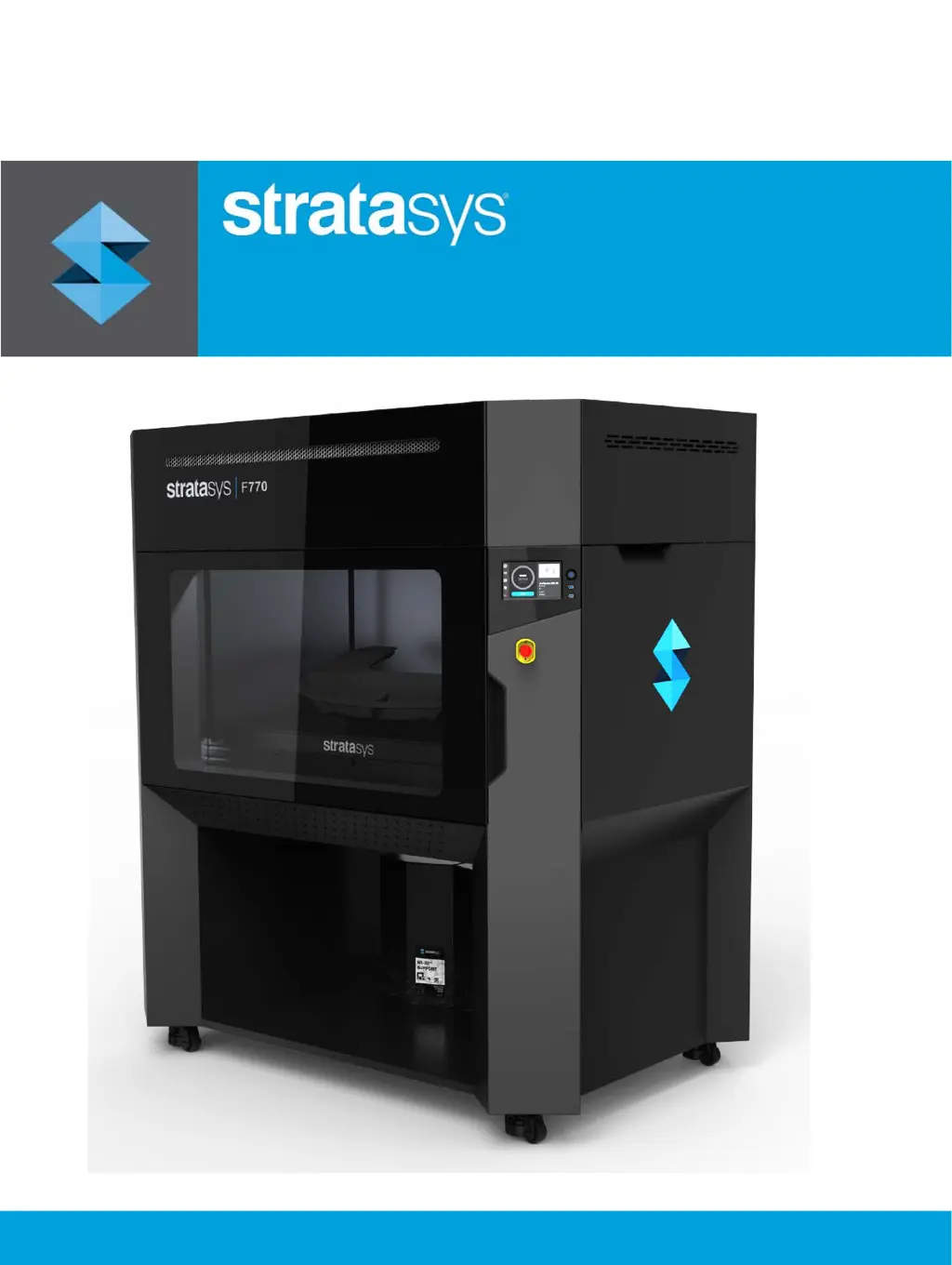
Stratasys F770 - User Manual

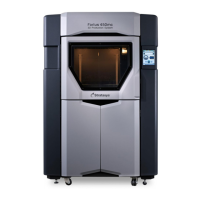
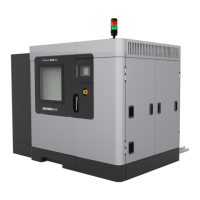
Stratasys F770
262 pages
Print Icon
To Next Page IconTo Next Page
Loading...
Part No. 477001-0001_REV_A
F770
®
3D Printer
User Guide

Table of Contents

Other manuals for Stratasys F770

Questions and Answers

  • M
    Monica MartinezAug 30, 2025
    How to fix 'Model head not communicating' error on Stratasys F770?
    • C
      Cameron BushAug 30, 2025
      The 'Model head not communicating' message on Stratasys 3D printers indicates that the model head is not enabled or communicating. Open the top cover and unclip the head cable from the model head. Wait a few seconds, then reconnect the head cable to the model head and close the top cover.
  • J
    Jessica RasmussenAug 30, 2025
    How to fix 'Support head not communicating' error on Stratasys 3D Printers?
    • Q
      qalvaradoAug 31, 2025
      The 'Support head not communicating' message on Stratasys 3D printers indicates that the support head is not enabled or communicating. Open the top cover and unclip the head cable from the support head. Wait a few seconds, then reconnect the head cable to the support head and close the top cover.
  • Q
    qrayAug 25, 2025
    Why does my Stratasys 3D Printer say 'No vacuum detected'?
    • D
      dawn13Aug 25, 2025
      The 'No vacuum detected' message on your Stratasys 3D printer indicates that the build sheet is not tightly secured to the platen. Ensure the build sheet is installed smooth side down, that there is no debris under the build sheet (especially under the outer row of gridlines), and that the build sheet is completely covering all platen grid lines. If the issue persists, try using a new build sheet.
  • C
    Carrie LongSep 1, 2025
    What to do if Stratasys 3D Printers show 'Support head not initialized'?
    • C
      cindybrownSep 1, 2025
      The 'Support head not initialized' message on Stratasys 3D printers indicates that head data is not ready. Wait at least 60 seconds after the error is first displayed. If the error persists, open the top cover and unclip the head cable from the support head. Wait a few seconds, then reconnect the head cable to the support head and close the top cover.
  • N
    Nicole BrownSep 2, 2025
    Why does my Stratasys 3D Printer say 'Timed out'?
    • P
      Pamela DeleonSep 2, 2025
      The 'Timed out' message on your Stratasys 3D printer indicates that filament was not detected at the head within 5 minutes of a load’s initiation. Disconnect the material coil box and ensure that it is properly prepared for installation and load.
  • L
    Leslie EvansSep 2, 2025
    What to do if Stratasys F770 show 'Purge failed'?
    • A
      April FitzpatrickSep 3, 2025
      If your Stratasys 3D printer displays a 'Purge failed' message, it indicates that filament is currently in the head, but the load failed. Unload model and support material and then reload these materials. Once loaded, verify that material purges from the tips by performing a manual purge of each tip.
  • D
    Deborah WigginsSep 3, 2025
    What to do if Stratasys F770 show 'Resource not available'?
    • E
      Elizabeth CooleySep 3, 2025
      If your Stratasys 3D printer displays a 'Resource not available' message, it indicates that the printer is in the process of completing another task and a load/unload cannot be started until the task is complete. Wait a couple of minutes and then attempt to load/unload material.
  • J
    johnnyholmesSep 4, 2025
    What to do if Stratasys F770 3D Printers show 'Task already running'?
    • D
      Drew KellySep 4, 2025
      If your Stratasys 3D printer displays a 'Task already running' message, it indicates that the printer is in the process of loading or unloading another bay. Wait until the load/unload in process is complete before attempting to load material to or unload material from another material bay.
  • A
    Anthony RamirezSep 5, 2025
    How to fix 'Cannot load model in to support head' error on Stratasys F770 3D Printers?
    • J
      Jesse JonesSep 5, 2025
      The 'Cannot load model in to support head' message on Stratasys 3D printers indicates that you have inserted a model material coil box’s filament key into the wrong filament port in the printer. Remove the material key from its current location and insert it into the upper filament port.
  • S
    sanderskristySep 5, 2025
    How to fix 'Cannot load support in to model head' error on Stratasys F770 3D Printers?
    • M
      Michael BlackSep 5, 2025
      The 'Cannot load support in to model head' message on Stratasys 3D printers indicates that you have installed a support material coil box’s filament key into the wrong filament port in the printer. Remove the material key from its current location and insert it into the lower filament port.

Summary

Service and Support

Safety Instructions

Basic safety tips for printer installation, operation, and maintenance.

Hazard Types and Signs

Explanation of hazard classifications and product safety symbols used in the guide.

Potential Hazard Areas

Highlights components and areas of the printer as potential safety hazards.

General Safety Practices

General safety guidelines to follow when working with the printer.

Printer Setup

Software Configuration

Details on configuring network settings and setting up Insight/FDM Control Center.

Operating the Printer

Head Replacement Procedures

Instructions for replacing the printer's model or support heads.

Basic Job Build Tasks

Steps involved in preparing, selecting, and executing a print job.

Calibration and Adjustments

Tip Calibration

Procedures for calibrating the printer's tips.

Maintenance

Troubleshooting

Warnings and Errors

Explanation of how warnings and errors are displayed and interpreted.

Finding a Remedy

Troubleshooting table listing common issues and their resolutions.

Stratasys F770 Specifications

General IconGeneral
Print TechnologyFused Deposition Modeling (FDM)
ConnectivityEthernet, USB
SoftwareGrabCAD Print
Build Volume1000 x 610 x 610 mm
Material CompatibilityASA
Print SpeedNot found
Power Requirements230 VAC, 50/60 Hz

Related product manuals