CHAPTER 8: About Security Policies
196 Vcontroller
bandwidth of the physical connection. If a huge
volume of traffic comes from the private network
to interface 1, packets are transmitted according to
the weight defined in a QoS policy action–with no
unnecessary loss of packets.
Defining a QoS action
To define a QoS action:
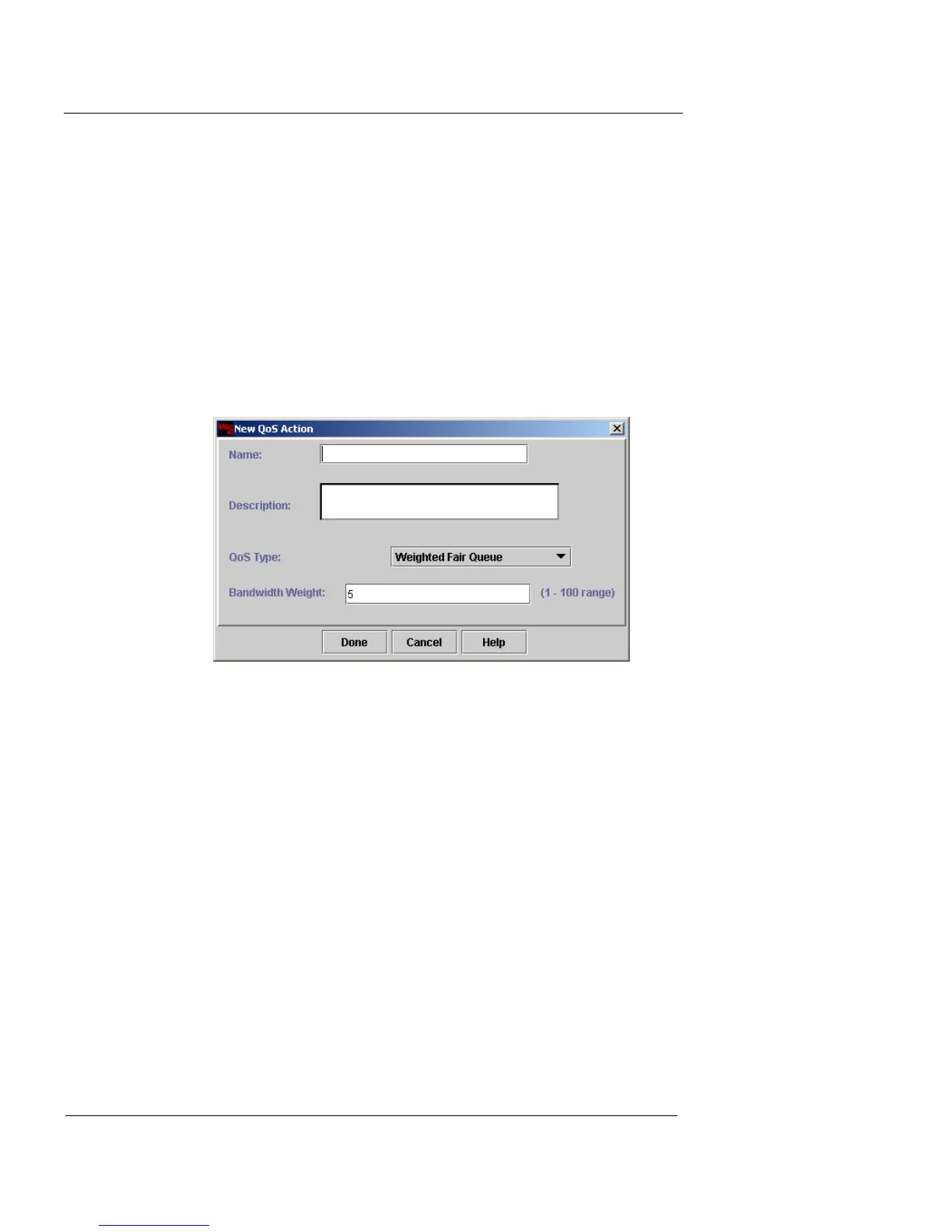
1 Click New, next to the QoS Action drop-down list.
The New QoS Action dialog box appears.
2 In the Name and Description fields, type a name and
brief description for the QoS action. The Description
field is optional.
3 From the QoS Type drop-down list, select Weighted
Fair Queue. This is the only selection available at this
time.
4 In the Bandwidth Weight field, type the percentage of
bandwidth you want to assign to qualifying data.
You can type a value ranging from 1 to 100. Note that traffic
with a weight of 20 will be given five times more bandwidth than
traffic with weight of 4 during periods of network congestion.
5 Click Done.




 To Next Page