Configuring the Remote Users Authentication Policy
Firebox Vclass User Guide 337
3 Select the Reset Password checkbox.
The password fields become active.
4 In the Password and Confirm Password fields, type a
password and confirm it.
Passwords are case-sensitive and consist of six to eight
characters.
5 Click Done.
6 Click Apply.
The Commit dialog box appears.
7 To flush any active connections that may be affected by
the changes, click the appropriate checkbox and then
click Commit.
Reactivating an expired user
After a remote user account has expired, you can reactivate
it by resetting the account expiration.
1 Click the Internal Database tab.
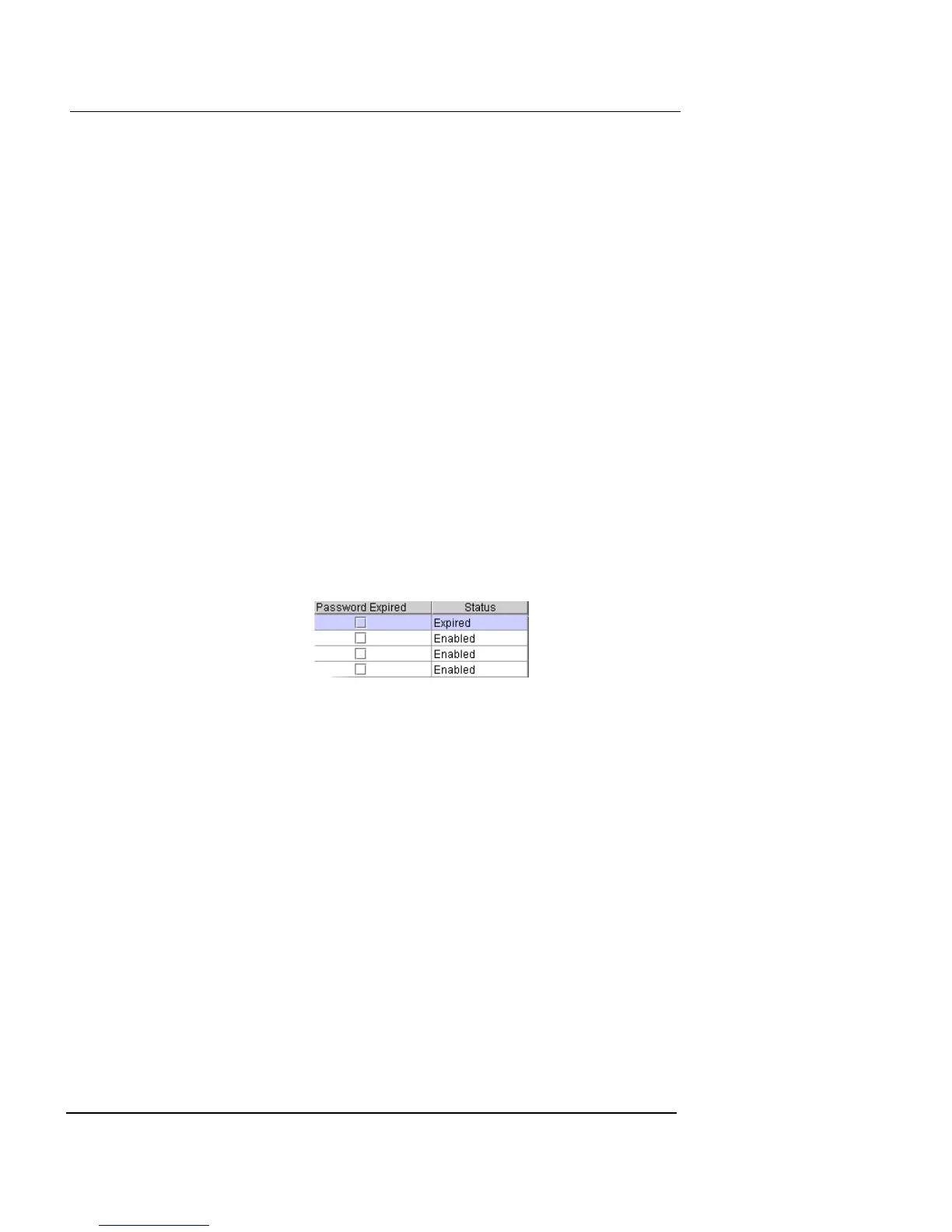
Any expired users are labeled as such under the Status column.
2 Select the expired user and then click Account
Renewal.
3 Click Done.
4 Click Apply.
The Commit dialog box appears.
5 To flush any active connections that may be affected by
the changes, click the appropriate checkbox and then
click Commit.
Editing and deleting a user group profile
You can reopen an existing user group profile and change
any of the settings by selecting an existing user group pro-
file and clicking Edit. However, if any address manage-
ment parameters are changed (from None to Internal or




 To Next Page