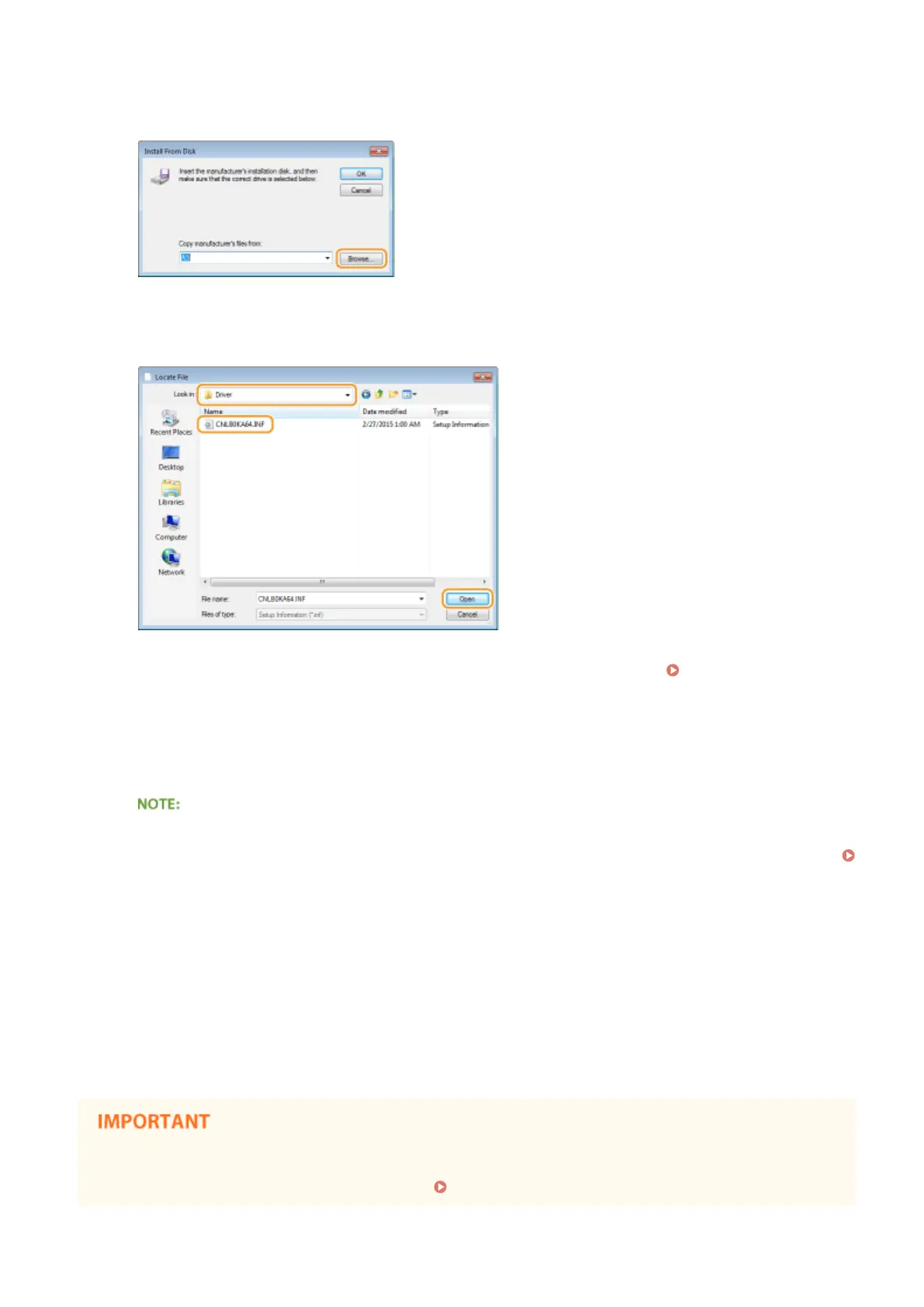
7
Click [Browse].
8
Specify the folder where the printer drivers are contained, select the INF le, and
then click [Open].
● Specify the folder as shown below according to the operating system of your computer. If you are not sure
whether the operating system of your computer is a 32-bit or 64-bit version, see Checking the Bit
Architecture(P. 619) .
32-bit operating systems
Select [UFR II]-your language-[32BIT]-[Driver] folder on the User Software DVD-ROM.
64-bit operating systems
Select [UFR II]-your language-[x64]-[Driver] folder on the User Software DVD-ROM.
If using the IPP authentication function
● When you are prompted to enter the password, enter the user name and password, and click [OK].
Conguring Printing Protocols and WSD Functions(P. 197)
9
Proceed with the setting procedure by following the on-screen instructions.
➠ The printer driver is installed. To use IPPS, install public keys of the machine in the computer.
◼ Installing Public Keys of the Machine
Using IPPS additionally requires installing the public keys of the machine on the computer.
● The [Common Name] of key pairs must be set in advance to be the "IP address" or "<host name>.<domain
name>" used when connecting to the machine. Generating Key Pairs(P. 317)
Network
205



 To Next Page