SMP Gateway User Manual • 123
Note: Interconnection file exchanges can only occur on “permanent sessions”. This
means that if you want a slave SMP Gateway to provide files to multiple master
SMP Gateways, you must specify one single client for each master gateway in
the slave SMP Gateway’s Interconnections slave instance. The “Configuring the
Slave SMP Gateway”
section, page 78, explains how to configure permanent
se
ssion Interconnections.
Now that the gateways are interconnected, configure the slave SMP Gateway so it can gather all
event files and make them available:
Open SMP Manager.
Select the SMP Gateway that will provide the event files (the slave SMP Gateway).
From the Tools menu, select SMP Config.
In the left pane of the SMP Config window, select the Interconnections slave instance.
Expand the instance branch and select Clients. Make sure a client entry is defined for the
master SMP Gateway, and that it is configured for permanent session.
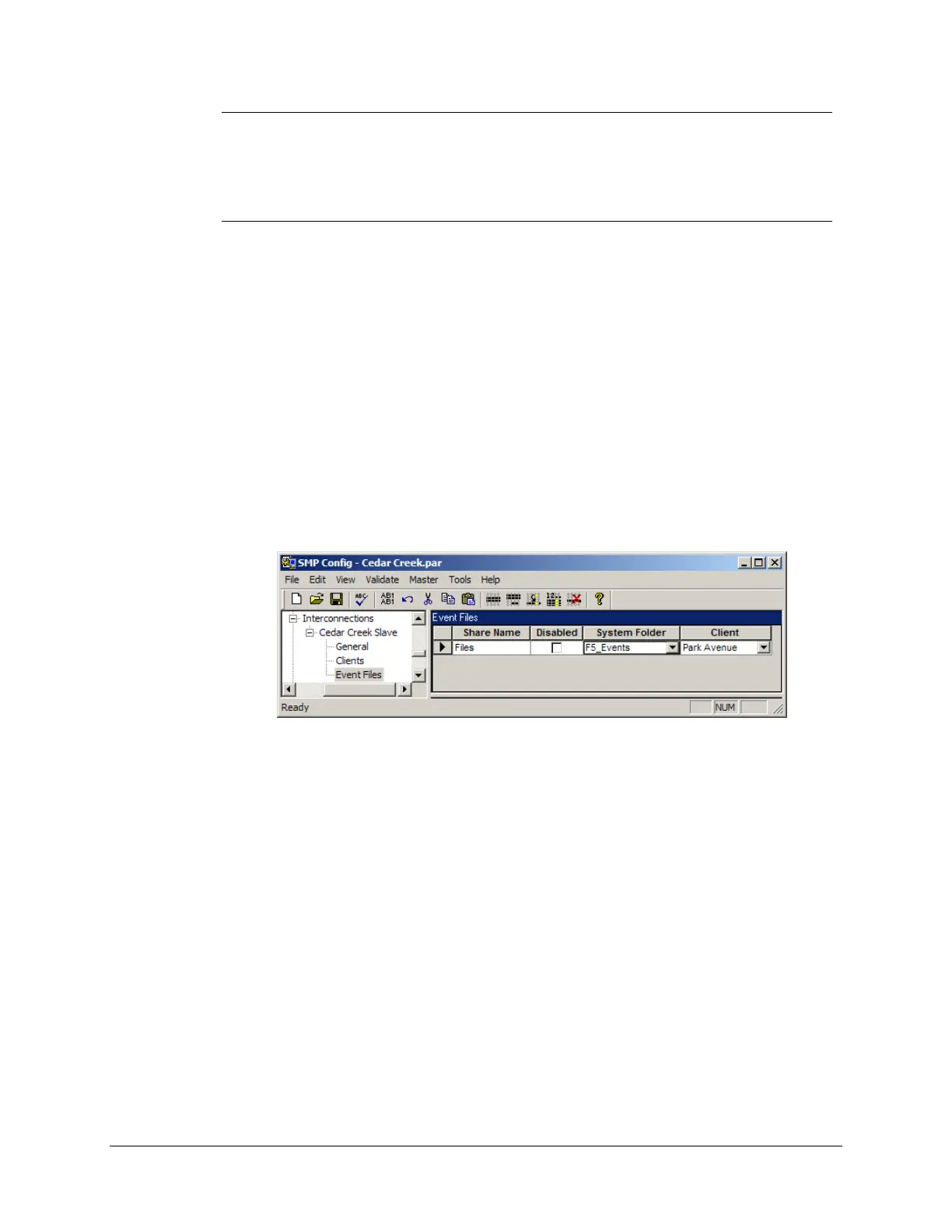
Select the Event Files branch.
Type a Share Name for the folder that will be used for the file exchange. This folder exists
only in the Interconnection session, and has nothing to do with the system folders used by
master protocol components to retrieve event files from devices.
Select the System Folder to monitor. This folder contains the files, retrieved by master
protocol component(s), that you want to transfer to the master SMP Gateway through the
interconnection.
Under Client, select the Interconnections Client you defined for the master SMP Gateway.
This setting is used to make sure that the appropriate client is getting the appropriate files.
Save the configuration file and close SMP Config.
Send the configuration file to the SMP Gateway using SMP Manager (see “Updating the
Configuration File” on page 225), and then restart the gateway.
Co
nfigure the master SMP Gateway so it can poll the slave SMP Gateway for new files:
Open SMP Manager.



 To Next Page